

A signature for Gmail, with its layout kept.
Make a Gmail signature in your browser, nothing uploaded, and paste it into Gmail's settings with its layout and links. Why a logo needs a web address.
By Suraj Kumar3 min read
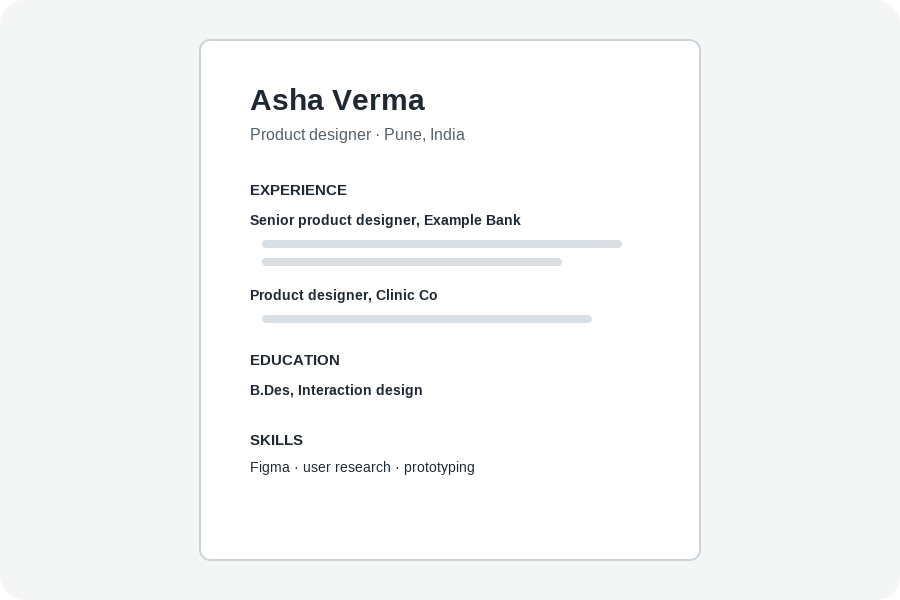
Gmail's signature box takes formatting that is pasted into it, so a signature made elsewhere can keep its table, colours and links.
Copy, then paste in Settings.
Press Copy signature, then in Gmail on a computer open Settings, See all settings, and find Signature on the General tab. Create a new one, click in the box and paste.
Choose it under Signature defaults for new mail and for replies, then press Save Changes at the foot of the page. Gmail's own help gives the same steps.
Up to 10,000 characters.
Gmail's help says a signature holds up to 10,000 characters, pictures counted. The generator counts the HTML it writes and says so when a signature passes that.
This is also why a logo cannot be held inside the signature itself: a picture written as text runs to thousands of characters. A picture is shown from a web address instead.
A logo needs a public address.
Choose With a photo or logo and type the picture's https address. Your mail app and your recipients' fetch it from there, so it must be public: on your website, for example.
KeepSimp never uploads or hosts your picture. Make it the width it will show first, so it loads quickly; the width you choose is written into the signature.
The Gmail app has a signature of its own.
On Android, Gmail's app has a mobile signature, used only for mail sent from the app; without one, it sends the signature set on the computer, Gmail's help says.
The mobile signature is a text field, so use Copy as plain text for it. Mail you send from a computer still carries the full signature.
Further reading
Topics: gmail signature · gmail signature template · add signature to gmail · gmail html signature · gmail signature with logo · gmail mobile signature
A little less theory. A little more doing.
Try it on your own terms, with a free browser tool.
Try the tool