

A little know-how
A smaller PDF, with its words still sharp.
How to make a PDF smaller in your browser: find out what makes it big, shrink its pictures without blurring its text, reach a size limit, and handle scans properly.
By KeepSimp 7 min read
A PDF is too big when it bounces off an inbox, or a form says 200 KB and yours is 3 MB. The quick fix many tools reach for is to turn every page into a picture, which makes the file smaller and the text fuzzy, and leaves nothing to select or search. There are better ways. This guide goes through them with the KeepSimp PDF compressor, which does the work in your browser.
Why compress on your own device?
The files people need to shrink are often the ones they would least like to hand over: a passport scan for a visa form, payslips for a landlord, a signed contract. An upload service receives the whole document to give a smaller one back.
A PDF can be compressed entirely in the browser. The file is read from your disk into the page's memory, changed there, and saved back to your disk. Nothing crosses the network, there is no limit on size or number, and it works without a connection once the page has loaded.
First, find out where the size is.
A PDF is a container. It holds the text and drawings of its pages, the fonts they are set in, pictures, and often things nobody sees: small previews of every page, data the design app stored so it could reopen its own file, attachments. Which of these is large decides what will help.
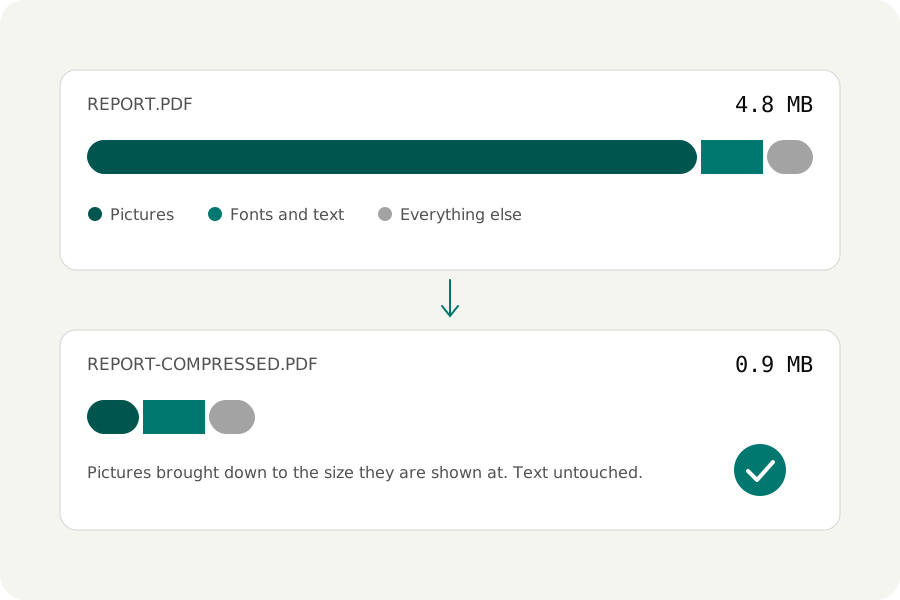
The compressor shows this as soon as a file is added: one bar cut into pictures, fonts, text and the rest, with the heaviest pictures and the pages they are on. In most large files the pictures are nine tenths of the size. In a file saved from a design app with its editing data kept, half the file can be data that no reader ever uses, and it comes out with no visible change at all.
A file that is mostly text is already small. Text and drawings are stored as instructions, not pixels, and compress very well. If the bar shows almost no pictures, expect little.
Shrink the pictures, not the pages.
A picture in a PDF has two sizes: how many pixels it holds, and how large it is drawn on the page. A phone photograph has thousands of pixels each way; placed at the width of a column it shows perhaps 150 of them per inch on a screen and could use 300 on a good printer. The rest is weight that cannot be seen.
So the first step is to bring each picture down to the size it is shown at, and no further. 150 pixels per inch suits screens and office printers. 96 is enough for reading on a screen. A picture drawn in two places has to serve the larger one.
The second step is how the picture is saved. Photographs are saved as JPEG, and the question is at what quality. Too high wastes space; too low shows blocks and bands, first in skies and soft backgrounds. The compressor measures how alike the result is to the original and uses the lowest quality that still measures the same, with a floor under it for the smooth areas that measuring alone gets wrong.
Charts, logos and screenshots are different. They have flat colour and hard edges, and JPEG leaves a haze round every edge. They are kept without loss, which for flat colour is often smaller than a JPEG anyway.
Keep text as text.
If a compressed PDF comes back with words you can no longer select, the tool turned its pages into pictures. The text is now a photograph of text: blurry when you zoom, invisible to search, silent to a screen reader, and useless for copying a number out of.
There is no need. Compressing pictures leaves the text exactly where it was, as sharp at any zoom as before. Links keep working, bookmarks keep their places, and form fields can still be filled in. Check for this in whatever tool you use: select a word in the result.
When a form names a size.
Upload forms set limits such as 100 KB, 200 KB or 2 MB. The only way to know what a file will weigh at some setting is to write it. So the compressor writes it a few times, from gentle settings to harsh ones, and keeps the gentlest result that fits. You lose as little as the limit takes, not as much as the tool's strongest setting does.
Some limits cannot be met with pictures that are still easy to read. Then you are told how far over the result is, and can choose to go further and accept blurry pictures, or split the file. If the text and fonts alone are over the limit, no picture setting will get there, and the page says so.
Scans are a case of their own.
A scanned page is one large picture of paper with print on it. Saved as a JPEG it is heavy, and making it smaller blurs the print first, which is the one thing on the page that has to stay sharp.
The better way takes the page apart. The print becomes a black-and-white layer at the scan's full sharpness, which packs very small. The paper behind it becomes a soft, low-resolution colour picture: paper has no fine detail to lose. The ink keeps its colour, so a red stamp stays red. Put back together the page looks like the scan, at a fraction of its size, and the letters are crisper than a JPEG would leave them. This is how archives store millions of scanned books.
For plain text, black and white alone is smaller still, like a photocopy. Photographs and shading are lost that way, so it is a choice, not a default.
One caution. Black-and-white pictures in PDFs are often packed with a method that, in one of its modes, stores a single shape for letters that look alike. Scanners using it have been caught swapping one digit for another on real documents. The compressor only ever uses the mode that stores every pixel as it is.
Look before you send.
A smaller file is only useful if it still says what it said. Compare a page of the result with the original at full size, and look where loss shows first: small print inside pictures, faces, skies, signatures. The compressor draws pages both ways and compares them for you, and puts any page side by side under a divider you can drag.
Keep the original. Compression that loses detail cannot be undone, and compressing a compressed file again loses a little more each time. A careful tool leaves a picture alone once it has saved it, and tells you when a file is already as small as it will get.
Two things do not survive any change to a file. A digital signature covers the exact bytes it was made for, so it stops being valid. And a file made to an archive standard may no longer pass that standard's check. If either matters, compress first and sign or certify afterwards.
Further reading
- Optimizing PDFs, Adobe Acrobat help (opens in a new tab)
- Internet Archive PDF tools: mixed raster content (opens in a new tab)
- Xerox scanners and photocopiers randomly alter numbers in scanned documents, D. Kriesel (opens in a new tab)
- PDF write options: compression and encryption, MuPDF (opens in a new tab)
Topics: compress PDF · PDF compressor · reduce PDF size · compress PDF online free · compress scanned PDF · PDF without losing quality · no upload
A little less theory. A little more doing.
Try it on your own terms, with a free browser tool.
Try the tool