

A little know-how
Under 200 KB, and still easy to read.
How to compress a PDF to 100 KB, 200 KB, 500 KB or 1 MB for a job, visa or exam form. Name the size and get the best quality that fits, free, in your browser, with nothing uploaded.
By KeepSimp 4 min read
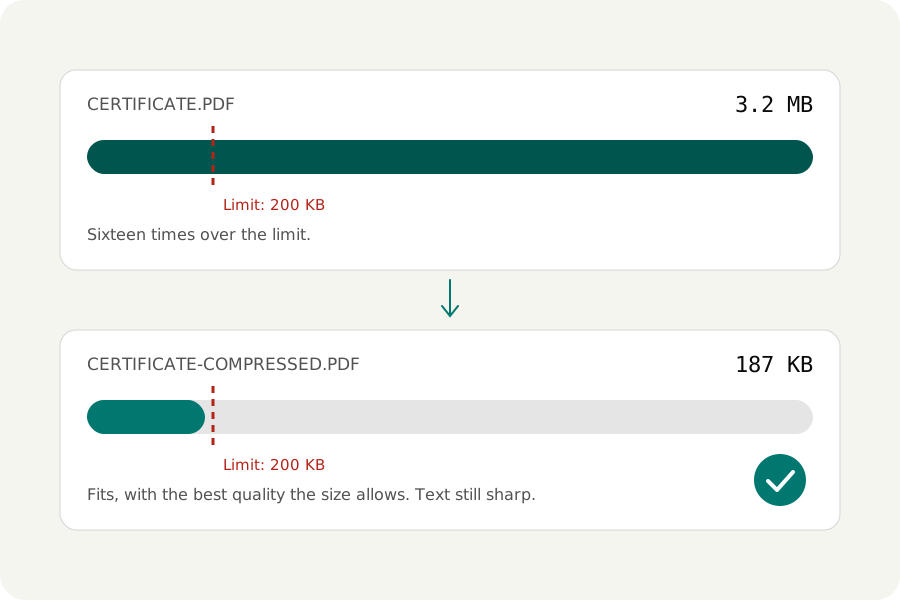
Application forms love a size limit. Upload your certificate, under 200 KB. Your ID, under 100 KB. Your file is 3 MB, the deadline is tonight, and the first tool you find wants an account. Here is how to hit a size with the KeepSimp PDF compressor, and what to do when a file will not go that small.
Name the size and let the tool find the quality.
Most compressors offer low, medium and high, and leave you to try each until one happens to fit. That is backwards. You know the limit, so say it.
In the compressor, choose To a size and pick 100 KB, 200 KB, 500 KB, 1 MB or any size you type. The only way to know what a file weighs at some setting is to write it, so the tool writes yours a few times, from gentle settings to harsh ones, and keeps the gentlest result that fits. A file that only needs to lose a little loses only a little.
What gives way, and what does not.
Pictures give way first, because that is where the size is. They are brought down to the size they are shown at and saved at a lower quality, step by step, until the file fits.
Text does not give way. It stays real text, as sharp as before, and can still be selected and searched. Many quick tools reach a small size by turning every page into one blurry picture. A form's reviewer then has to squint at your name. This one never does that.
Scanned documents: use the scan settings.
A scanned certificate or ID is a picture of a page, and it is the hardest kind of file to get under a small limit. Two settings help a great deal.
Text and paper rebuilds each scanned page as sharp black-and-white letters over a soft colour background. It is usually several times smaller than the scan, and the letters are crisper. Stamps and signatures keep their colour.
Black and white goes further, like a photocopy. For a page of plain print it is tiny and perfectly readable. Do not use it for photographs or ID cards with a picture on them: shading is lost.
When it will not fit.
Some files cannot reach a size while staying easy to read, and a good tool tells you so. You get the smallest readable result and how far over it is, with three ways forward.
Go further lets pictures get blurry, if the limit matters more than how they look. Check the result before you send it.
Send fewer pages. If the form only needs the first page of a ten-page statement, take that page out with the PDF splitter and compress it alone.
Scan again at a lower setting. A phone scan at full camera size is far more than a form needs. Black and white at 150 to 200 dots per inch is plenty for a page of print.
Check it before you upload it.
Open the result and read the smallest print on it: a date, a registration number, a signature. The compressor puts any page side by side with the original under a divider you can drag, so the comparison takes seconds.
Keep your original file. If the form rejects the compressed one, or you need a better copy later, you will want to start again from the real thing.
Your documents stay with you.
The files that need a size limit are IDs, certificates and bank statements. With KeepSimp they are compressed on your own device and are never uploaded. There is no account, no watermark and no limit on how many files you compress.
Further reading
Topics: compress PDF to 200kb · compress PDF to 100kb · compress PDF to 1mb · reduce PDF size · PDF size reducer · compress PDF online free · compress scanned PDF · PDF for online form · no upload
A little less theory. A little more doing.
Try it on your own terms, with a free browser tool.
Try the tool