

A CAD part, ready for a slicer.
Turn a STEP or STP file into an STL in your browser, nothing uploaded: its curves cut as finely as you choose, in millimetres, checked before you download it.
By Suraj Kumar4 min read
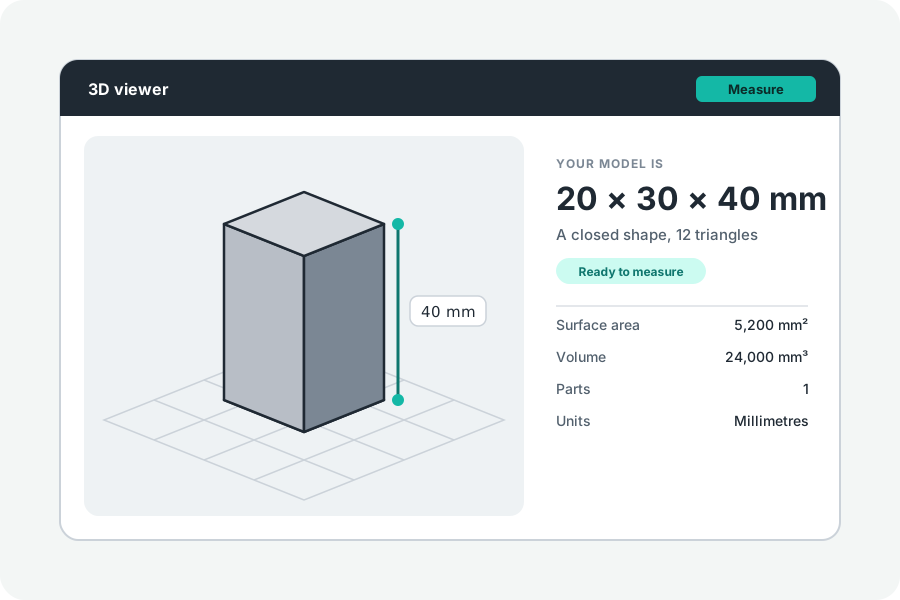
A slicer reads triangles, and a STEP holds exact curves. Turning one into the other is a matter of how finely the curves are cut. KeepSimp does it in your browser, and says how close the result is.
Drop the STEP and choose the detail.
Open STEP to STL and drop the file; STL is already chosen. The curves are cut into triangles by OCCT, the open-source CAD kernel, at the detail you pick.
A STEP keeps exact curves, and a screen or a printer needs flat triangles, so the curves are cut into them. Fine suits most parts; Very fine follows curves more closely and makes a larger file; Draft is quicker and coarser. Measured on a 20 × 30 × 40 mm block with a 10 mm hole, the triangles held 0.22 % more volume than the exact solid at Draft, 0.059 % at Fine and 0.012 % at Very fine.
What the STL keeps.
STL holds triangles alone, with no unit, no names and no colours, so an assembly's parts become one shape. It is written in millimetres, standing on Z, as slicers expect.
Before the file is offered, KeepSimp opens it again with its own reader and measures it; a file that does not match the model is not offered, and the page says what was wrong.
Nothing leaves your device.
The STEP is read and the STL written in your browser: OCCT is downloaded from KeepSimp the first time a CAD file is opened (about 2.6 MB), and the file itself is never sent anywhere.
To keep the parts and their colours apart, choose 3MF or GLB instead of STL.
Further reading
Topics: step to stl · stp to stl · convert step to stl · step to stl converter · step to stl for 3d printing
A little less theory. A little more doing.
Try it on your own terms, with a free browser tool.
Try the tool