

A little know-how
One PDF from many, without the upload.
How to merge PDF files in your browser: put them in order, arrange single pages, keep links and bookmarks, and decide what a merge should carry over.
By KeepSimp 6 min read
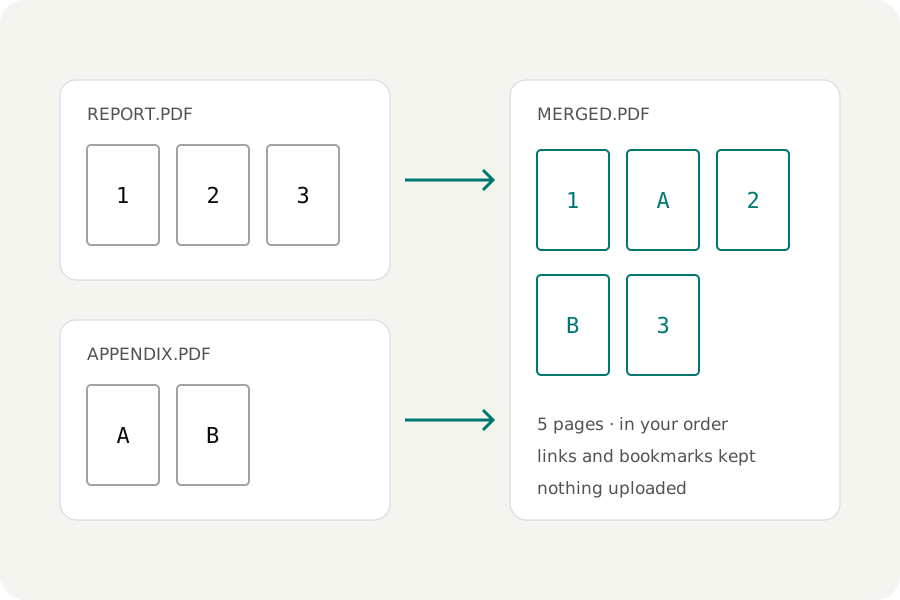
Merging PDFs sounds like one step: put the files in a row and press a button. In practice a few choices decide whether the result is pleasant to use. Which pages go where, what happens to bookmarks and fillable fields, and whether the file should be ready for a printer. Most online mergers also ask you to upload your documents first. This guide walks through the choices with the KeepSimp PDF merger, which does the work in your browser.
Why merge on your own device?
The PDFs people merge are often the ones they would least like to hand to a stranger: contracts, bank statements, medical letters, applications. An upload service receives a full copy of each file, and you have its word for how long it is kept.
A PDF can be merged entirely in the browser. The files are read from your disk into the page's memory, joined there, and saved back to your disk. Nothing crosses the network, so there is nothing to delete afterwards, and it works without a connection once the page has loaded.
Get the order right first.
Add the files and look at the list before anything else. Drag a file to move it, or use its arrow buttons. Sorting by name helps when the files are numbered; a good sort puts chapter 2 before chapter 10, which plain alphabetical order does not.
You rarely need every page. Each file has a pages field: 1-3, 7 takes the first three pages and the seventh; 10- runs from page ten to the end; odd and even take every other page. A range written backwards, such as 5-1, takes those pages in reverse.
Arrange single pages when the files are not enough.
Some jobs are about pages, not files: moving a signature page to the end, dropping a blank scan, turning one page that came in sideways. The Pages view shows every page of the result as a small picture. Select pages, drag them, turn them, copy or remove them, and add a blank page where one is needed. Every change can be undone.
A scanner that only reads one side leaves you with two files, fronts and backs. Alternate pages deals them out in turn, and can read the second file from its end, which is how the backs come out when the stack is turned over.
Pictures can join in. A photograph or a scan saved as JPG or PNG becomes a page, sized like the page before it or on a sheet of its own. A JPEG is placed as it is, without being compressed a second time.
Know what a merge keeps.
A good merge copies each page exactly: text stays text, pictures are not re-compressed, and fonts come along. Links inside a document should still lead to the right page after pages have moved, and a link to a page you left out should be removed, not left pointing at nothing.
Bookmarks need a decision. With several files, grouping each file's bookmarks under the file's name keeps the panel readable. A contents page at the front, with a line and a link for every file, helps readers who print or who use a viewer without a bookmark panel.
Fillable fields are the awkward part. Two forms often use the same field name, and a PDF can only hold one field per name. Keeping both means renaming one. Joining them makes one field that is filled in once. Flattening prints the entries onto the page for good, which is what you want before sending a completed form.
Two things cannot survive. A digital signature covers the exact bytes of the file it was made for, so it cannot stay valid inside a different file; a careful tool keeps the picture of the signature and says so. And a password on a source file has to be entered before its pages can be read.
Make it ready for paper, if it is going there.
Printed on both sides, a file with an odd number of pages leaves the next file starting on the back of its last sheet. A blank page after each odd file fixes that. Mixed page sizes can be fitted onto one size, A4 or Letter, so the printer does not stop to ask for other paper.
File names and page numbers in the footer make a long pack easier to find your way around. Check the bottom edge of a few pages afterwards: a footer is written over whatever is already there.
Check, name, and lock if you need to.
Open the result before you send it. Page through it, press a few links and bookmarks, and look at the page count. Then give it a name that will still make sense in a year.
If the file is private, set a password. Current PDF encryption (AES-256) is strong, so the weak point is the password itself: make it long, and send it by a different route than the file. Limits on printing or copying are weaker. They ask viewers to behave, and not every program does, so do not rely on them to keep text from being copied.
Further reading
Topics: merge PDF · combine PDF · join PDF files · PDF merger · merge PDF online free · rearrange PDF pages · no upload
A little less theory. A little more doing.
Try it on your own terms, with a free browser tool.
Try the tool