

Video
The green goes, the edges stay.
Key a green or blue screen out of a video in your browser, its shadows and the green tint on edges too, and leave it see-through or put something behind. Free, with no uploads.
By KeepSimp 4 min read
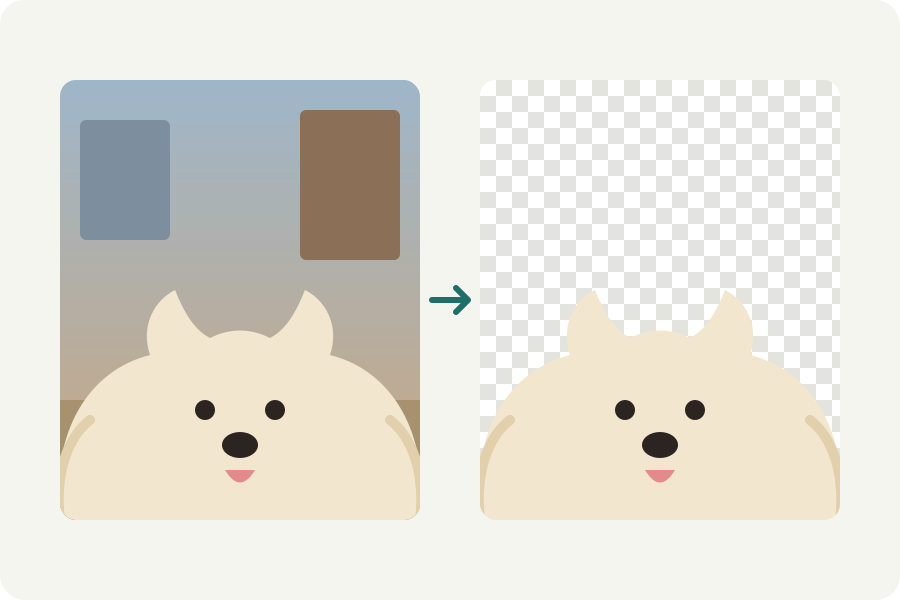
A green screen is made to be taken out. The Green screen remover keys it out of every frame on your device: the screen, its shadows and the green light it throws onto hair and shoulders.
Key it out in three steps.
Open the Green screen remover and drop your video. Choose Green or Blue, or the screen's own colour if it is another shade.
Look at the result. If some of the screen stays, raise Strength; if the edges of what you filmed are eaten into, lower it.
Choose what goes behind (nothing, as a see-through WebM, or a colour, a blur or a picture) and download it.
Why shadows on the screen go too.
Each pixel's colour is measured without its brightness, in the two colour channels video itself uses (Cb and Cr). A shadow on the screen is darker but still the screen's colour, so it is taken out with the rest; skin, white and black are far from it and stay. Between the two, pixels are kept in part, so edges are soft.
Light bounced off the screen tints the edges of what is in front of it green. Take the screen's colour off the edges holds the green in each pixel to no more than its other colours, which takes the tint away.
Film it so it keys well.
Light the screen evenly, with no creases, and keep whoever is in front a step or two away from it so less green falls on them. Do not wear the screen's colour. The more the screen is one even colour, the lower Strength can be, and the more of the fine edges is kept.
Further reading
Topics: remove green screen · green screen remover · chroma key online · blue screen · transparent video · no upload
A little less theory. A little more doing.
Try it on your own terms, with a free browser tool.
Try the tool