

Images
The right size, without losing the important part.
How to resize an image in your browser: by pixels or percent, in cm or inches for print, for social posts and websites, one image or fifty at once. Free and nothing is uploaded.
By KeepSimp 5 min read
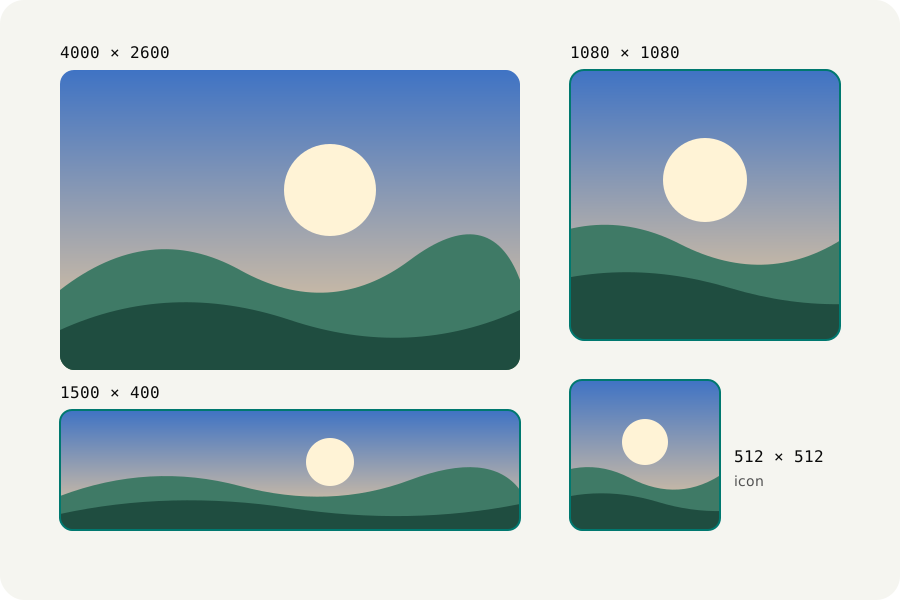
Resizing sounds simple until the form says 600 by 600 pixels and your photo is wide, or a printer asks for 10 by 15 centimetres and you only know megapixels. This guide goes through the ways to resize with the KeepSimp image resizer, which does the work in your browser, so your photos are never uploaded.
Two questions decide everything.
First: how many pixels do you need? A screen shows pixels directly, so a website or a profile picture needs a width and a height in pixels. Paper is different. A printer needs enough pixels for the size of the paper, and the usual rule is 300 pixels for every inch.
Second: does the shape have to change? Making a picture smaller in the same shape loses nothing important. Making a wide photo square means something has to give: part of the picture is cut away, or bars are added, or it is squashed. Knowing which one you want saves most of the frustration.
Resize by pixels or percent.
When you know the number, type it. Set a width and the height follows, so the shape is kept. Or set the longest side, which is handy for a mixed pile of upright and sideways photos: every one ends up at most that long.
Percent is the quick way to halve a screenshot. Megapixels is the quick way to meet a rule such as no more than two megapixels.
One switch matters more than it looks: do not enlarge. A small picture blown up to a large size only gets blurry. With enlarging off, pictures that are already small enough are left alone.
Resize in centimetres or inches for print.
Paper sizes are lengths, not pixels. Choose centimetres, millimetres or inches, type the size, and pick a print resolution. 300 dots per inch is the standard for photographs; 150 is fine for a poster seen from across a room.
The sum behind it is simple: a 4 by 6 inch print at 300 dots per inch needs 1,200 by 1,800 pixels. The resizer does the sum and stores the resolution in JPEG and PNG files, so a print shop's software opens them at the right size.
Photo sizes for documents work the same way. Look up the size your country asks for, in millimetres, enter it, and choose what stays in the frame.
When the shape has to change.
There are three honest ways to fit a picture into a different shape. Crop to fill cuts away what does not fit and fills the frame. Fit with padding keeps the whole picture and adds a background at the sides: white, black, a colour, see-through, or a blurred copy of the picture itself. Stretch forces it and bends faces, so it is rarely right.
If you crop, choose what stays. Drag the picture inside the frame, pick one of nine positions, or let smart focus find the part with the most going on. In a batch, the position applies to every picture, and you can still adjust one by hand.
Fifty pictures at once, and several sizes of each.
Drop a whole folder's worth. Every picture gets the same settings and its own row with the result, and everything downloads as one ZIP. A file that cannot be read says so and does not stop the others.
For websites, the resizer can write several widths of every picture in one go, and gives you the HTML to paste, so phones get a small file and large screens a sharp one. File names follow a pattern you set, with the width in the name if you like.
Save in a format that suits the job.
A resized picture can keep its format or change it. JPEG is the safe choice for photographs that anyone must be able to open. WebP and AVIF are smaller for websites. PNG keeps flat graphics and see-through backgrounds exact.
Keep your original. A smaller picture cannot be made large again without losing sharpness, so resize a copy.
Further reading
Topics: resize image · image resizer · resize image online free · resize photo in cm · resize image in pixels · resize for Instagram · passport photo size · batch resize images · srcset · no upload
A little less theory. A little more doing.
Try it on your own terms, with a free browser tool.
Try the tool
Sizes for social posts, screens and icons.
Nobody remembers that a story is 1,080 by 1,920 pixels. Presets hold the common sizes for social posts, websites, screens, printed photos and app icons, so you choose by name.
Sizes that platforms ask for change from time to time. Treat a preset as a good starting point and check the platform's own help page if a post looks cropped.