

A little know-how
Just the pages you need, without the upload.
How to split a PDF in your browser: cut it where you can see, at bookmarks, by size or at blank pages, and get parts that are no larger than they should be.
By KeepSimp 6 min read
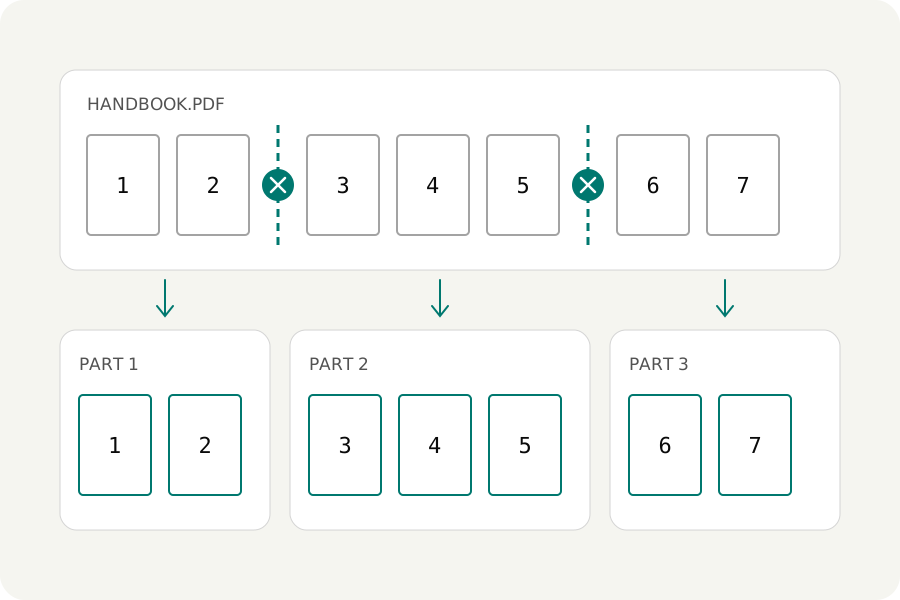
Splitting a PDF is the opposite of merging one, and it goes wrong in its own ways. The parts come out nearly as large as the whole. The cut lands one page off. A stack of scans has to be parted by hand. And most online splitters want the document uploaded first. This guide goes through the ways to split with the KeepSimp PDF splitter, which does the work in your browser.
Why split on your own device?
People split the documents they would least like to share: one payslip out of a year's worth, one signed page out of a contract, one patient's letters out of a scan. An upload service receives the whole file to hand back a piece of it.
A PDF can be split entirely in the browser. The file is read from your disk into the page's memory, the parts are written there, and they are saved back to your disk. Nothing crosses the network, and it works without a connection once the page has loaded.
Cut where you can see.
Typing page numbers from memory is how a cut lands one page off. Look at the pages instead. The splitter shows every page as a small picture with a pair of scissors between each two; press where a part should end. Each part is listed with its pages straight away, so a slip shows before anything is written.
When small pictures are not enough, open the file in the reader. Scroll, zoom, search for the heading you are after, and cut after the page you are on.
Rules save the pressing when a file is regular: a cut after every few pages, or the file in so many equal parts, or every page on its own. Typed ranges such as 1-3, 4-10, 11- do the same from the keyboard, and may overlap when two parts need the same page.
Let the document say where its parts are.
A report or a book usually carries bookmarks, and they already mark where chapters begin. Splitting at bookmarks makes a file of each chapter and names it after the chapter. Bookmarks can sit under one another, so choose the level: the top level for parts, the next for chapters.
Files without bookmarks often still have a pattern. When every document in a pack starts with the same words, such as Invoice or Dear, a new part can start at each page that holds them. When a number sits in the same corner of every page, the splitter can read that corner and start a new part whenever the number changes, naming each part after it. Both read the text a PDF holds; a scan holds pictures of text and cannot be read this way.
Part a stack of scans.
Scanning a pile of documents in one go leaves one long file. If a blank sheet sat between the documents, the blank pages are the cuts. A scanned blank page is never perfectly white, so the splitter measures how much of each page holds marks, and you choose how strict to be: nothing at all, dust and a lone page number, or also punch holes and a short line. It marks what it found, and you can turn any page round before splitting.
A book laid open on a scanner gives two pages on every sheet. Those can be cut down the middle first, left page then right, or the other way for books read from right to left. Nothing is redrawn: each half is the same scan seen through half its frame.
Double-sided originals scanned one side at a time come out as fronts and backs in turn. Odd and even pages part them into two files.
Split by size when there is a limit.
Email and upload forms set limits: 10 MB here, 25 MB there. Splitting by size makes parts that each stay under the limit and hold as many pages as fit.
How large a set of pages will be as its own file cannot be read off the original, because fonts and pictures that pages share are counted once per part. A splitter that guesses can overshoot. The reliable way is to write a part, weigh it, and try again with more or fewer pages, which is what the KeepSimp splitter does. A single page that is over the limit by itself gets a part of its own and says so; making it smaller would mean compressing its pictures, which is a different job.
Why parts are often too large, and how to avoid it.
Split a 10 MB file into ten parts and you may get ten files of nearly 10 MB each. The reason is in how PDFs are built. A page does not contain its fonts and pictures; it points at a list of them. Many programs give every page of a file the same list, holding everything in the file. A splitter that copies a page with its list copies all of it.
The fix is to read what each page really draws and give it a list with only that. Then a part carries its own pictures and the fonts its pages use, and the parts together weigh about what the original did. If your parts look too large, this step is what your tool is missing.
Fonts set a floor. A font that two parts both use has to travel with both, so parts of a text-heavy file can add up to a little more than the original.
Know what a part keeps.
A good split copies pages exactly: text stays text and pictures are not compressed again. Links to pages inside the same part keep working; links to pages that went into another part have nowhere to lead and are removed. Bookmarks follow their pages, and notes and fillable fields stay where they are.
A digital signature cannot survive. It covers the exact bytes of the file it was made for, and a part is a different file. A careful tool keeps the picture of the signature and tells you. A password on the original has to be entered before its pages can be read, and the parts have no password unless you set one.
Name the parts so they sort. A pattern such as the file's name and a part number, with zeros in front of the number, keeps part 2 before part 10 in any folder.
Further reading
Topics: split PDF · PDF splitter · extract pages from PDF · remove pages from PDF · split PDF by size · split scanned PDF · no upload
A little less theory. A little more doing.
Try it on your own terms, with a free browser tool.
Try the tool