

A little know-how
Words on the picture, in every player.
Burn the subtitles from an SRT or WebVTT file into a video in your browser, so they show on every site and player. They follow any trim or speed change. Nothing is uploaded.
By KeepSimp 3 min read
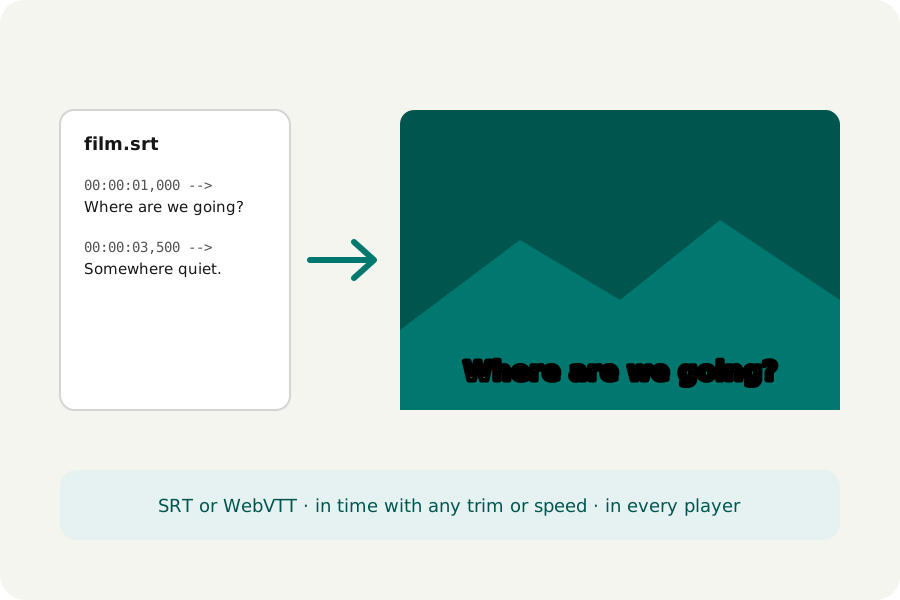
Most videos are watched with the sound off, and many sites ignore a separate subtitle file. Writing the subtitles onto the picture means everyone sees them, everywhere. KeepSimp does it from your SRT or WebVTT file, on your device.
Written on, not alongside.
A subtitle file beside a video is a track a player may or may not show. Written on the picture ("burned in"), the words are part of every frame: they show on every site and in every player, and cannot be turned off, so keep the file if you also want a version without them.
They are drawn white with a black outline, centred along the bottom, in the site's Outfit typeface, wrapped to the picture's width and made smaller if a word will not fit. Small, medium or large, as you like.
In time, however it is cut.
The times in the file are the video's own. Trim the video and the subtitles move with it: those in parts cut out are left out, and one across a cut keeps its kept part. Speed it up and they speed up too.
Making the file itself is up to you: write it by hand, or, for the sound of a video, let the Audio editor's transcription (Whisper, on your device) write an SRT for you, then check it before you burn it in.
How to do it.
Open Add subtitles to video and drop your video. Under its player, Add subtitles and choose the SRT or WebVTT file. Each subtitle is drawn on the frames it covers, the video is written and checked, and you download it. The picture is encoded again; the sound is copied as it is.
Further reading
Topics: add subtitles to video · burn subtitles into video · hardcode subtitles · srt to mp4 · permanent subtitles
A little less theory. A little more doing.
Try it on your own terms, with a free browser tool.
Try the tool