

A little know-how
Mark it up, and keep it to yourself.
How to highlight, underline and strike out text in a PDF, add notes and reply to comments in your browser, and download real comments or a clean final copy. Free, nothing uploaded.
By KeepSimp 4 min read
A draft arrives and someone wants your thoughts by Friday. A contract needs a second pair of eyes. A paper needs reading with a pen in hand. Marking up a PDF is the oldest job there is to do with one, and the files it is done to are rarely ones to hand to a stranger's server. Here is how to do it with the KeepSimp PDF annotator, on your own device.
Marks that lie on the words.
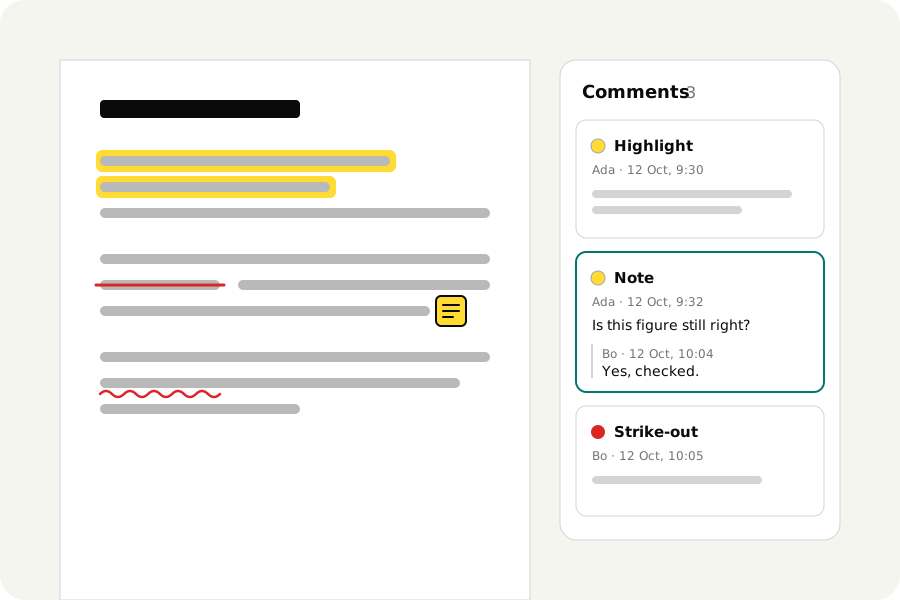
Take the highlighter and drag across the words, as if you were selecting them. The mark follows the text line by line, from the word you started on to the word you ended on. Press a single word to mark just that word. Underline, strike out and squiggle work the same way, and each remembers its colour.
Because the mark is tied to the words and not painted on top, it stays sharp at any zoom and prints cleanly. The list of comments shows the words each mark lies on, so a long document can be skimmed by its highlights alone.
When the page is a scan.
A scanned page is a photograph of paper. There are no words in it to take hold of, which is why highlighting fails in so many tools without saying why. Here the bar tells you, and offers the highlighter pen instead: a wide, see-through stroke you draw by hand, over a line, a figure or a signature. It works with a mouse, a pen or a finger.
Notes, and the talk under them.
A note is a small icon on the page with your words behind it. Press where it belongs and type. Drag the icon if it covers something.
Files that have been round a team already carry comments. They are all listed, page by page, with who wrote them and when, as far as the file says. You can answer any of them, and your reply is kept under the comment it answers. Type your name once at the top of the list and your comments are signed with it; leave it empty and they are not.
Real comments, not a drawing of them.
Some tools turn your marks into part of the page the moment you save, or worse, turn the whole page into a picture. The next reader then cannot hide your highlights, answer your notes, or remove them from the final copy.
The annotator writes the PDF's own kinds of comment, the same ones Acrobat and Preview write. Another program shows them as comments, and one with a comments list puts them in it. The text of the file is not touched, so it can still be selected and searched.
A final copy, your way.
When you download, you choose what becomes of the comments. Keep them as comments while the document is still being discussed. Make them part of the page for a copy where the marks must stay, such as an exhibit; a note then keeps its icon, and its words are no longer shown. Or leave them out, and send a clean copy without the discussion in it, the file's earlier comments included.
Before the file is handed to you it is checked: the comments are counted in the result, and pages you did not touch are compared with the original.
Your documents stay with you.
Drafts, contracts and reviews are opened and marked on your own device and are never uploaded. There is no account, no watermark and no limit on files or pages, and once the page has loaded it works without a connection.
Further reading
Topics: annotate PDF · highlight PDF · PDF annotator · add comments to PDF · underline PDF · strikethrough PDF · sticky notes PDF · review PDF online free · no upload
A little less theory. A little more doing.
Try it on your own terms, with a free browser tool.
Try the tool