

Start here
Eleven free tools that never ask for your files.
Every KeepSimp tool: edit, compress, merge and split PDFs, resize and convert images, convert GIFs and audio, format JSON and pick colors. Free, no sign-up, your files stay with you.
By KeepSimp 5 min read
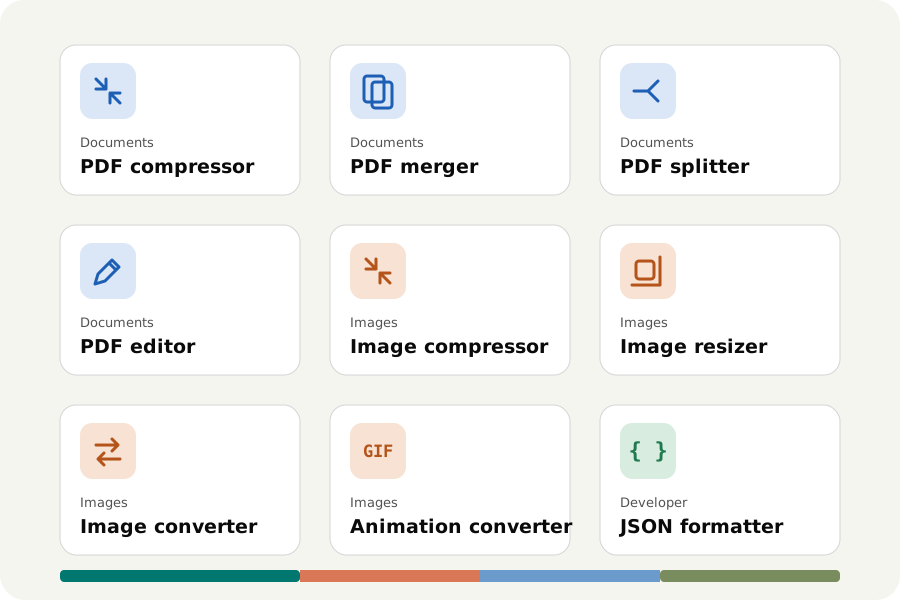
Most online tools work the same way: you upload a file, wait, and download the result, often after a sign-up or a limit of two files a day. KeepSimp works differently. Each tool runs inside your browser, on your own computer or phone, so the file never leaves it. There is no account, no watermark and no daily limit. Here is every tool we have today, what it is good for, and where to read more.
How can a website work without uploading?
A modern browser can do real work. When you open a KeepSimp tool, the page loads the same kind of engine a desktop app uses, and runs it on your device. Your file is read from your disk into the page, changed there, and saved back to your disk. Nothing is sent to a server, because there is no server doing the work.
That has practical upsides beyond privacy. There is no upload to wait for, so large files start at once. There are no limits to sell around. And once a tool has loaded, it keeps working without an internet connection: you can install the site as an app and use it on a plane.
PDF compressor: make a PDF smaller.
For the file that bounces off an inbox, or the form that says 200 KB. The compressor first shows what makes your PDF big, then shrinks its pictures to the size they are shown at. Text stays real text: sharp, selectable and searchable.
You can pick a level, or name a size and get the best quality that fits. Scanned pages can be rebuilt as sharp letters over soft paper, which is far smaller than a picture of the page. Before you download, any page can be compared before and after.
PDF merger: join files and arrange pages.
Put several PDFs into one, in the order you want. You can pick only some pages, turn them, drag single pages around, and add pictures as pages. Links, bookmarks and form fields come along. A contents page, page numbers and a password are optional.
PDF splitter: take out just the pages you need.
Cut a PDF where you can see the pages, or let a rule do it: every few pages, at bookmarks, by size, at blank pages in a stack of scans, or wherever a number on the page changes. Take pages out as a new file, or remove them. Each part carries only its own pictures and fonts, so parts are as small as they should be.
PDF editor: write and draw on any page.
Type on a form that has no fields to fill, add a date or a name, place a picture, or mark a page with boxes, arrows and a pen. Every change is made in the real file and can be undone, and the page you see is the page you will download.
The text you add is real text in a font that travels inside the file, so it looks the same everywhere and can be searched. Before the download, the result is read back and checked. It also changes the words that are already there, a line at a time, in the line's own font, and the old words are really taken out of the file.
It signs and fills in forms, too: draw your signature, type it or use a photo of it; type into a form's fields, tick its boxes and choose from its lists; and fill in a form that has no fields like paper.
And it works on the pages themselves: move them, turn them, copy them, take them out, add the pages of another PDF, crop them, number them and lay a watermark over them.
The same editor marks up and comments: highlight, underline or strike out words by dragging across them, place notes, and reply to the comments a file already has. These are real PDF comments, so the next person sees them as comments in their own program; for a final copy they can be drawn into the page or left out.
- Edit a PDF
- Guide: write on a PDF without sending it anywhere
- Only marking up? Open it as the PDF annotator
- Guide: mark up a PDF without sending it anywhere
- Only signing? Open it as Sign PDF
- Guide: sign a PDF without sending it anywhere
- A form to fill in? Open it as Fill PDF form
- Make a form others can fill in
- Guide: fill in a PDF form without sending it anywhere
- Margins to trim? Open it as Crop PDF
- Guide: crop a PDF, and what cropping means
- Pages to number? Open it as Add page numbers
- Guide: number the pages of a PDF
- A draft to mark? Open it as Watermark PDF
- Guide: add a watermark to a PDF
- Something that must not be read? Open it as Redact PDF
- Guide: redact a PDF so that it stays redacted
- A scan you cannot search? Open it as OCR PDF
- Guide: make a scanned PDF searchable
- A signed file to check? Open it as Verify a PDF signature
- Guide: verify a PDF signature
Image compressor: lighter photos that look the same.
Make a photo smaller for a website, an email or a form, and see the original and the result side by side before you save. The tool finds the lowest quality that still looks the same, so you do not have to guess a number.
Image resizer: the right size for where it is going.
Resize one image or fifty at once: by pixels, by percent, or in centimetres and inches for print. Presets cover social posts, screens, icons and paper sizes. When the shape has to change, you choose what stays in the frame.
Image converter: from one format to the next.
Turn a phone's HEIC photo into a JPEG, a PNG into WebP or AVIF for a faster website, or a logo into an icon file. Several images and several formats can be done in one go, and the tool can show you how large each format would be before you choose.
Animation converter: GIFs that fit where they go.
Convert between GIF, animated WebP and APNG, and to and from short videos where your browser can. Trim, change the speed, resize, and fit a file under the size limit of the chat or site it is meant for.
Video editor: any video, in the format you need.
Convert videos between MP4, WebM, MOV and MKV, many at once and of any length, with the picture copied as it is wherever nothing has to change. Trim it without encoding or to the frame, crop it to a shape, speed it up or slow it down, fade it in and out, put music under it, set its loudness, write text and put a logo on it, make a GIF of it, join several into one, write subtitles on it, change the quality, the size or the frame rate, turn a video or leave its sound out; every result is opened again and checked before you download it.
- Open the video editor
- Convert MOV, WebM or MKV to MP4
- Compress a video to a size
- Trim a video
- Crop a video to 9:16 or square
- Speed a video up or slow it down
- Mute a video
- Add music to a video
- Add text or a logo to a video
- Make a GIF from a video
- Merge videos into one
- Add subtitles to a video
- Guide: convert video without uploading
Audio editor: sound cut, faded, as loud as it should be and in the format you need.
Trim to the millisecond on a waveform you can zoom, cut parts out, fade in and out, silence a part or change its volume, with every edit undoable and your file never changed. Convert many files at once between MP3, M4A (AAC), Opus, FLAC, WAV and iPhone ringtones, or take the sound out of a video, exactly as it is. Tags and cover art come along, MP3 and AAC files are as long as the sound with no gap at the start, and every file is opened again and listened to before you download it.
- Open the audio editor
- Guide: why a converted MP3 starts late, and how to avoid it
- Audio to convert? Open it as the Audio converter
- Guide: convert audio without uploading it
- A video's sound? Open it as the Audio extractor
- Guide: take the sound out of a video
- Only a part? Open it as the Audio trimmer
- Guide: trim audio without uploading it
- A ringtone? Open it as the Ringtone maker
- Guide: make an iPhone or Android ringtone
- Files of different loudness? Open it as Normalize audio
- Guide: normalize audio loudness
- Too quiet? Open it as the Volume booster
- Guide: make audio louder without clipping
- A long recording? Open it as the Audio splitter
- Guide: split audio into parts
- Several files? Open it as Join audio
- Guide: join audio files into one
- Faster or slower? Open it as Change audio speed
- Guide: change speed and pitch
- A noisy recording? Open it as Remove background noise
- Guide: remove background noise
- Wrong title or no cover? Open it as Edit audio tags
- Guide: edit audio tags and cover art
- Nothing recorded yet? Open it as the Voice recorder
- Guide: record audio online
- Need the words? Open it as Transcribe audio
- Guide: transcribe audio on your device
- Sharing where only video goes? Open it as Audio to video
- Guide: turn audio into a video
Markdown editor: write in plain text, read it as a page.
Write READMEs, notes and documentation in Markdown with the page it makes beside it: GitHub's tables, task lists, footnotes and alerts, front matter shown as a table, and the same keys as GitHub. Save the file you opened in place where the browser allows, export a web page, print to PDF or copy it as rich text.
JSON formatter: read, check and reshape data.
For developers and anyone handed a wall of JSON. Format and repair it, browse it as a tree or a table, search it with JSONPath, compare two documents, check it against a schema, and convert it to YAML, CSV or TypeScript types. Large numbers are kept exactly, which many formatters get wrong.
Color utility: from a swatch to a palette.
Convert color codes, make palettes and gradients, check WCAG contrast and extract colors from a local image. Browse sourced company palettes and copy their codes, or export your own palette as CSS, JSON, SVG or PNG.
What is coming next.
Video and audio tools are being built: converting, compressing and trimming video, and pulling the sound out of a clip. They are listed on the tools page as coming soon, and will work the same way as everything else here: in your browser, with nothing uploaded.
Further reading
Topics: free online tools · no upload · PDF tools · image tools · edit PDF · annotate PDF · compress PDF · merge PDF · split PDF · resize image · convert image · GIF converter · audio converter · extract audio from video · JSON formatter · Markdown editor · color converter · privacy
A little less theory. A little more doing.
Try it on your own terms, with a free browser tool.
Open the tools