

A little know-how
Under the limit, and still worth watching.
Make a video fit under 25, 10 or 8 MB in your browser: how the bitrate, frame rate and size are chosen, and how close the result looks. No uploads.
By KeepSimp 5 min read
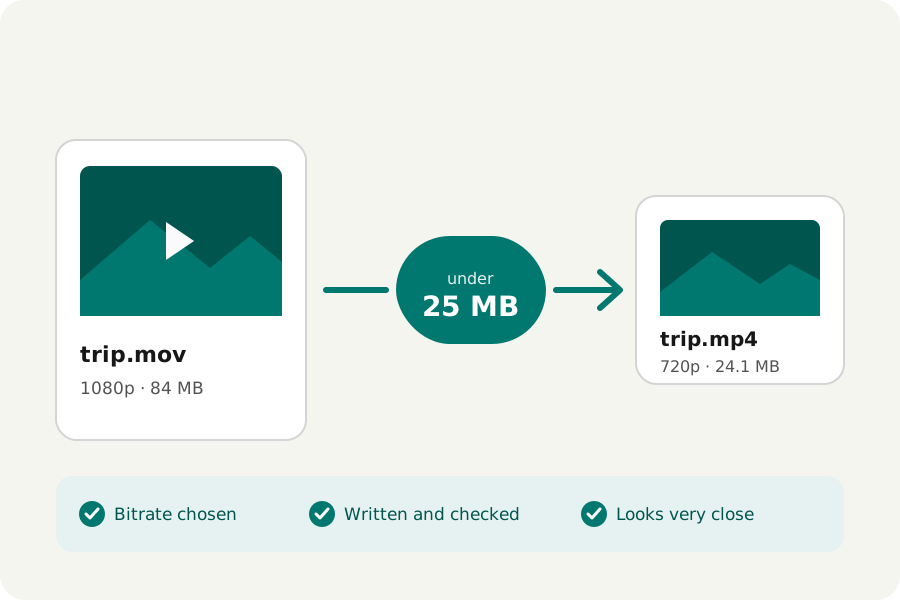
A chat app, an email or a form says the video is too big. Most online compressors want the whole file uploaded first, then make you wait. KeepSimp's video compressor works on your device: it works out what a file needs to fit, writes it, and checks it before you download it.
A size is a budget of bits.
A file's size is roughly its bitrate times its length. To fit a 2-minute video under 25 MB, the picture and the sound together get about 1.7 Mbit/s. The compressor gives the sound its share first (it converts the sound smaller when it would take more than a fifth), and the picture gets the rest.
Too few bits for a large picture make it blocky. When the budget leaves fewer than 0.05 bits for each pixel of each frame in H.264 (about what HandBrake's sharing presets work to), the compressor first lowers more than 30 frames a second to 30, then makes the picture smaller, step by step, until it fits well. The sentence under the player says what it chose and why.
Written, checked, and written again if it misses.
Browser encoders do not always keep to the bitrate they are given. So each file is watched as it is written: if the bytes so far say it will end up too large, writing stops and starts again with a corrected bitrate; a pass that ends too large is written again too, three passes at most. Some encoders will not go below a certain bitrate whatever they are asked; when a pass comes out far over what it asked, the next one is written smaller instead, and the page says so. A result is never offered as fitting when it does not.
Each file is then opened again: its size held to the limit, its length to the original's, its first and last frames decoded. A file already under its limit is copied as it is, with nothing taken from it.
How close it looks.
Smaller should not mean worse than it needs to. After writing, frames are drawn from the original and the result at the same six moments and compared with SSIM, a measure of how much of the picture's structure is kept. The page says it in words (very close, close, a little softer) and in numbers, the average and the lowest frame.
SSIM is a reading, not a promise: six frames stand for the whole, and a fast scene may lose more than a still one. If it reads softer than you want, choose a larger limit, or a better codec such as HEVC or AV1 where your browser writes them.
Which limit to choose.
Apps change their limits, so check the one you are sending to. The compressor offers 8, 10, 25, 50 and 100 MB, half or a quarter of each file, or a size of your own, where 1 MB is 1,048,576 bytes. If a limit is too small even at 240p, the page says how small the video can be made, or you can leave the sound out to make room.
For the smallest files that still play everywhere, keep MP4 with H.264. HEVC and AV1 need fewer bits for the same look, but some devices cannot play them.
Further reading
Topics: compress video · compress video to 25 MB · compress video to 10 MB · compress video to 8 MB · reduce video file size · video compressor no upload · make video smaller
A little less theory. A little more doing.
Try it on your own terms, with a free browser tool.
Try the tool