

A little know-how
Any video, in the format you need.
Convert video to MP4, WebM, MOV or MKV in your browser: when it is copied and when it is encoded, which format and quality to choose. Nothing is uploaded.
By KeepSimp 5 min read
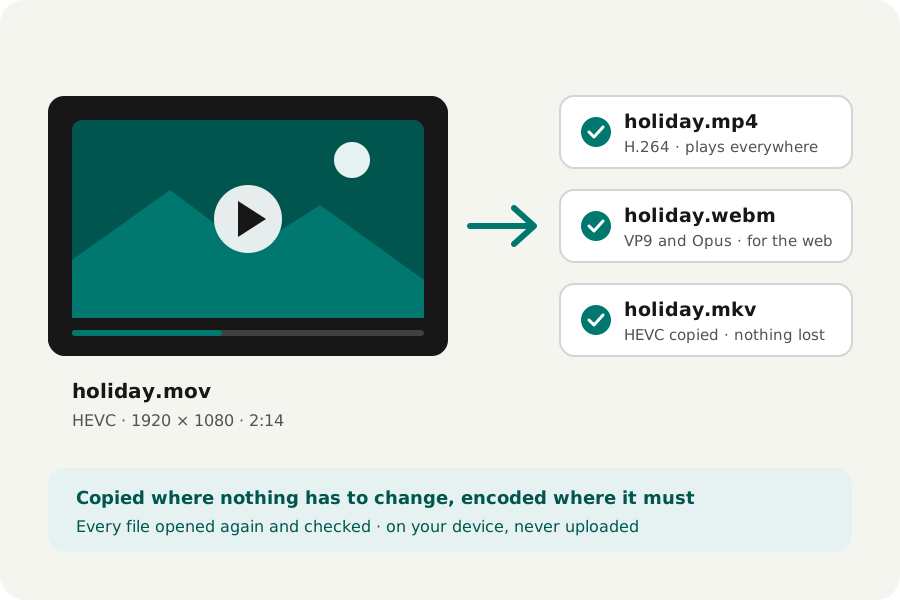
Most online video converters want the whole file uploaded, make you wait in a queue, and cap what you can send. A video is the largest file most people have, and often the most private. KeepSimp's video editor converts it inside your browser, on your own device, at any length, and says plainly what it did to your picture and sound.
Copy first. Encode only what must change.
A video file is a container (MP4, MOV, WebM, MKV) holding a picture and sound in codecs (H.264, HEVC, VP9 and AV1 for the picture; AAC and Opus for the sound). Changing the container is often all that is needed, and then the picture can be copied into the new file exactly as it was: nothing is lost, and an hour of video takes seconds.
The picture is encoded again only when something about it changes: a quality you choose, a smaller size, a lower frame rate, another codec, or a format that cannot hold the one it has. The editor says which happened, and why, in a sentence under the player before anything is written.
Which format to choose.
MP4 with H.264 plays on every phone, computer, TV and website: choose it when you do not know where the video is going. WebM (VP9 or AV1 with Opus sound) is made for the web and plays in every browser and on Android, but not in QuickTime. MOV is for Apple's Final Cut, iMovie and QuickTime. MKV holds almost anything as it is, so choose it when a file must not be encoded again.
HEVC makes files about half the size of H.264 for the same look and plays on Apple devices and most phones; AV1 is smaller still and plays on recent devices. Some players lack both, so the editor uses them only when you choose them.
Quality, size and frame rate.
High uses YouTube's recommended upload bitrate for the picture's size and frame rate, for example 8 Mbit/s for 1080p at 30 frames a second. Balanced is half of that and Small a quarter: our own choices, for sharing and sending. A video is never given more than it already holds, so a small file does not grow.
Size sets the shorter side at most (1080p, 720p, 480p and so on), keeping the shape of the picture, and frame rate sets the most frames a second. Neither is ever raised. A turn is written as a setting that players follow in MP4 and MOV, so turning a copied video loses nothing.
How to convert.
Open the video editor and drop your videos: MP4, MOV, WebM, MKV or MPEG-TS, up to twenty at once. Choose a format and change what you need. Each video is converted as soon as it is read; play the original or the result, and download one or all of them as a ZIP.
Every result is opened again before it is offered: its format, codec, size, frame rate and sound are held to what was asked, its length to the original's, and its first and last frames and its sound are decoded. If anything is not as asked, the page says what.
What your browser decides.
The picture is encoded by your browser's own encoder (WebCodecs), often on your device's graphics hardware. Browsers differ: HEVC is written only on some hardware and in Safari, AV1 not in Safari, and Firefox on Android writes no video at all. The editor asks your browser what it can write at each size and offers what it can; copying needs no encoder.
HDR video is written without tone mapping, so its colours may look flat on some screens, and a file's own subtitles and chapters are not kept. Results are written to your browser's private storage on this device while they are made, so long videos do not fill the memory, and removed when you close the page (or, if the browser stops first, the next time the editor opens).
Further reading
Topics: video converter · convert video online free · convert video without uploading · change video format · video converter no upload · resize video · change video frame rate · rotate video
A little less theory. A little more doing.
Try it on your own terms, with a free browser tool.
Try the tool