

A little know-how
Markdown, set for paper.
Turn Markdown into a PDF from your browser's print dialog, laid out for paper: headings kept with their text, tables and code not cut in half. No uploads, no account.
By KeepSimp 3 min read
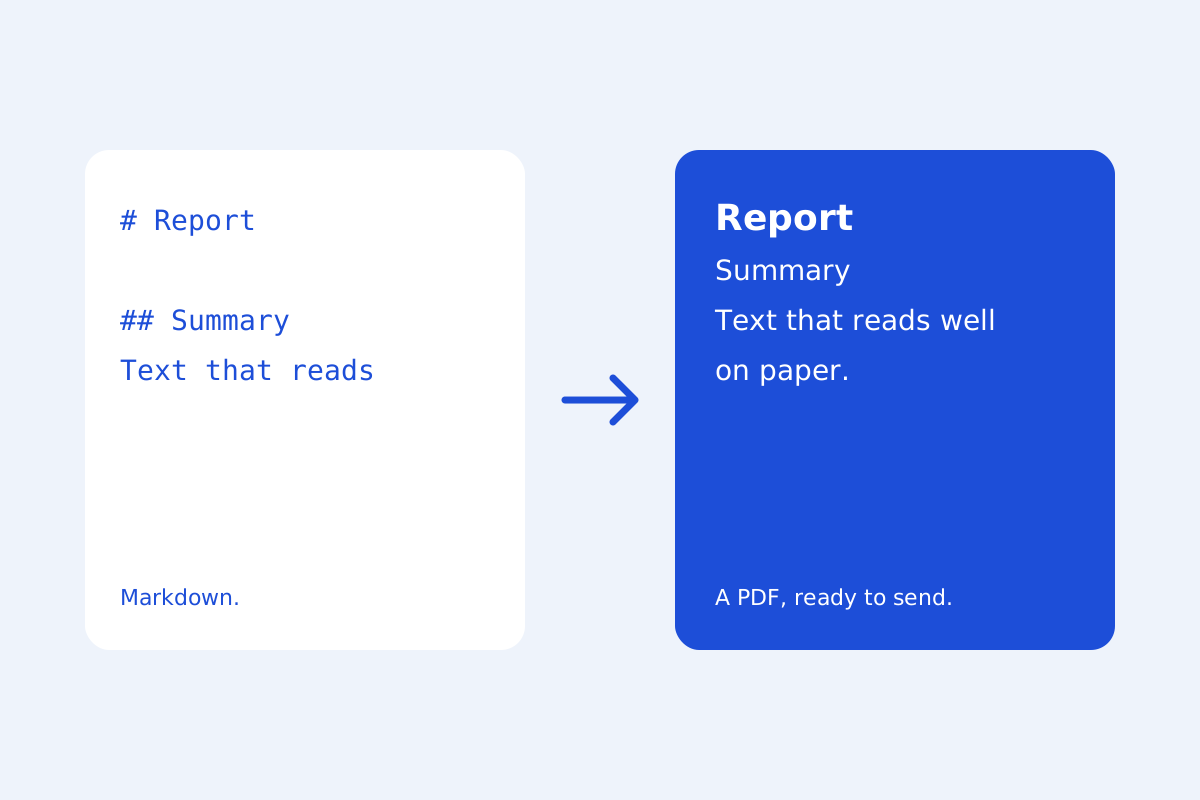
Most Markdown-to-PDF converters upload your file to a server. Your browser can make a good PDF itself: KeepSimp lays the document out for paper and hands it to the print dialog, where Save as PDF writes the file.
Print, then Save as PDF.
Press Print or save as PDF. The document alone goes to the dialog, with its own look for paper. Choose Save as PDF (or Microsoft Print to PDF on Windows) as the printer, and set the paper size, margins and whether page numbers are printed there.
Laid out for pages.
Headings are kept with the text that follows them, and tables, blocks of code, quotes and pictures are not split across two pages where the browser allows. A table's header row is printed again at the top of each page it runs onto.
Browsers differ in how far they follow these rules, and page numbers and headers are the print dialog's to set, so look at the preview in the dialog before you save.
Before you print.
Look at the preview first: it is what will be printed. Turn on curly quotes and dashes in the preview options for a printed look, and check the document for headings that skip a level, which make a PDF's outline harder to follow.
Further reading
Topics: markdown to pdf · convert markdown to pdf · md to pdf · readme to pdf · print markdown
A little less theory. A little more doing.
Try it on your own terms, with a free browser tool.
Try the tool