

A little know-how
A black box is not a redaction.
How to redact a PDF in your browser so that names, numbers and pictures are removed from the file, not covered. Why a black box fails, how to check, and what else a file gives away.
By KeepSimp 4 min read
Court papers, government reports and company filings have all gone out with black boxes over the names, and with the names still underneath: select the page, copy, paste, and there they are. The box was drawn on top of the words and the words were never taken out. A file that needs redacting is also the last file you want to send to a website to have it done. Here is how to do it properly on your own device.
Why a black box fails.
A PDF page is a list of instructions: write these letters here, draw this picture there. A black rectangle is one more instruction at the end of the list. It hides what is under it on the screen and on paper, and it leaves every earlier instruction in the file. Anyone can select through it, search for it, or open the file in a program that shows the list.
The same goes for a highlighter set to black, for white text on white, and for a picture cropped to a part: the rest of the picture is still stored. Redacting means changing the list itself, so that the letters, the pixels and the lines are no longer in it.
Mark first.
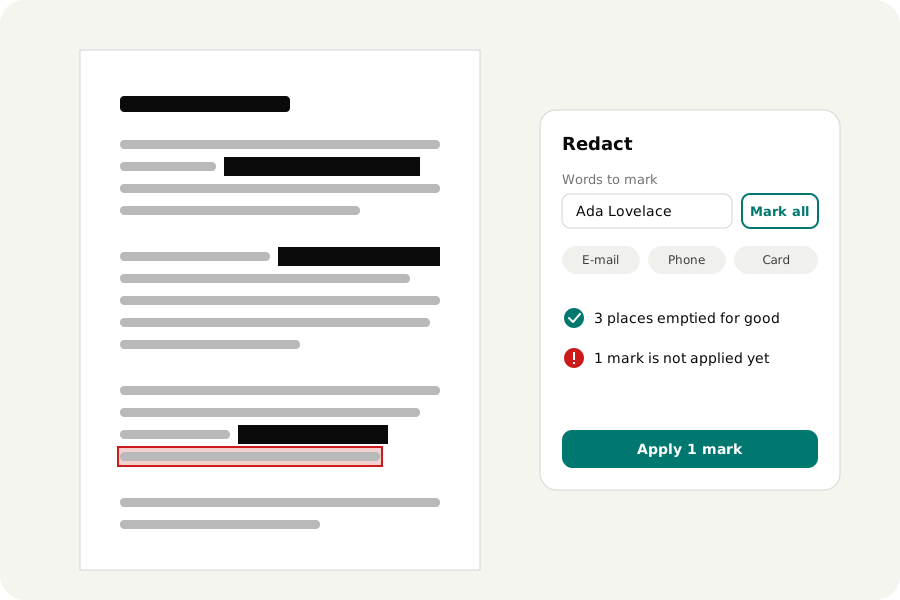
Open the PDF and drag over what has to go. Area marks the box you draw, which is what a picture, a signature or a scanned page needs. Words marks the words between the two ends of the drag, like selecting text. Each mark is a red frame, and nothing is taken out yet.
For a name that is written forty times, type it and press Mark all: every place on every page is marked in one step. There are buttons for e-mail addresses, phone numbers and card numbers, and a card number is only marked when its check figure is right. With Shape on, ###-##-#### marks every number written that way: # stands for a figure and @ for a letter.
Then look the pages over. Press a mark to take it away again. A search finds what is written as text within a line; it cannot read a scan, and it does not join what a line break parts, so the looking over is not a formality.
Then apply.
Press Apply and what is under each mark leaves the file. The letters are removed from the page's instructions; the others on the line stay where they were. Where a mark lies over a picture, those pixels are blanked in the picture itself, so the picture cannot be pulled out of the file whole. Drawings under a mark are deleted. A link, a note or a form field under a mark goes with it, because what they say is in the file too. This also reaches words nobody sees: the hidden text under a scan that has been through OCR, and text on a layer that is switched off.
A black box is then drawn where each thing was, so a reader can see that something was taken out. Until you download, Undo brings everything back.
It looks again, and tells you.
After applying, the page is read back: if a letter can still be read under a mark, the change is refused. Each place is also looked at as a picture before its box is drawn. If something is still drawn there, it is a drawing that reaches beyond the mark, a long line or a table border, and the page says so. Whole drawings takes such a drawing out whole.
The download says how many places were emptied, and it warns you when a mark was left unapplied, because what is under that mark is still in the file. You can check for yourself too: open the result, select all, copy, and paste it somewhere. What you took out should not be there.
What else a file gives away.
The pages are not all of a PDF. It carries a title and an author, the name of the program that made it and when, sometimes attached files, sometimes scripts. The download options leave these out when you ask. Bookmarks can name what you removed from the page they lead to; the Details panel is where they are renamed or deleted. Comments can be left out of the download as well.
Two things this cannot do. It cannot know what a picture shows, so a face or a signature has to be marked by hand. And it cannot take anything out of a signed file and keep the signature valid: a signature covers the file as it was, so the file is written anew and the signature no longer holds.
Your file stays with you.
The file is opened and changed on your own device and is never uploaded: not the original, not the marks, not the result. There is no account and no limit on pages, and once the page has loaded it works without a connection.
Further reading
Topics: redact PDF · redact PDF online free · black out text in PDF · remove sensitive information from PDF · permanently remove text from PDF · PDF redaction tool · redact scanned PDF · remove PDF metadata · no upload
A little less theory. A little more doing.
Try it on your own terms, with a free browser tool.
Try the tool