

A little know-how
Keep the part that matters. Lose nothing else.
Cut an MP4, MOV, WebM or MKV to the part you want in your browser: copied without encoding, or exact to the frame. Cut out parts, split into files and save frames. No uploads.
By KeepSimp 4 min read
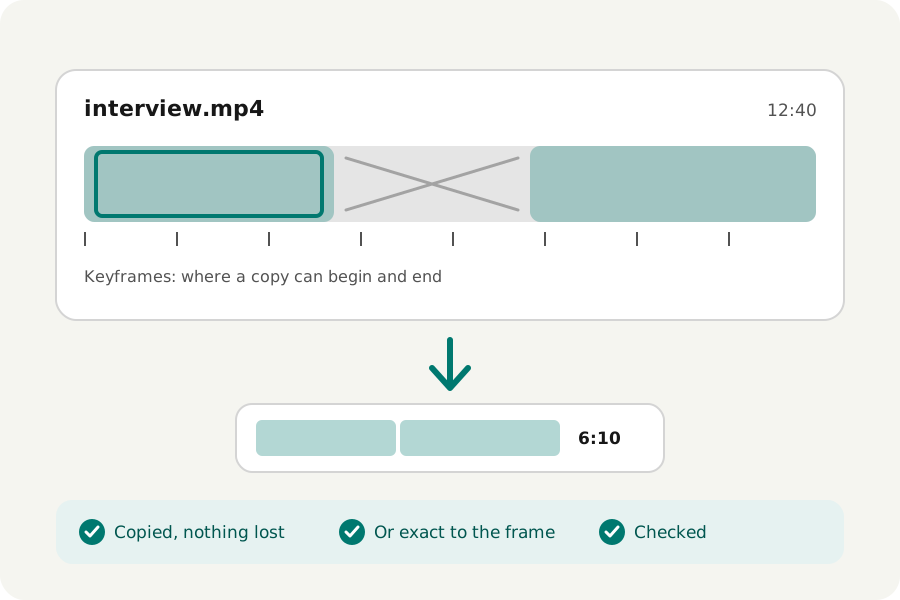
A recording runs on before the part you want, or has a stretch in the middle nobody needs. Most video tools re-encode the whole file to cut it, which takes time and costs quality. KeepSimp's video trimmer copies what you keep as it is when it can, cuts exactly to the frame when you ask, and does it all on your device.
Why a lossless cut lands on a keyframe.
A video does not store every frame whole. Now and then it holds a whole picture, a keyframe, and the frames between are written as changes from the ones around them. That is how a video stays small, and it is why a copy can only begin where a whole picture is: a frame written as a change means nothing without the frames it changes.
So a lossless cut is moved out to the keyframes around it, and the trimmer says how much more that keeps; the keyframes are marked under its timeline. There is one exception: an MP4 or MOV with one part kept starts exactly where you asked, because the file can say where to start playing (an edit list) while it keeps the earlier frames only to be decoded.
When you need the exact frame.
Choose Exact and the trimmer cuts to the frame and the sound to the sample. The picture is then encoded again, with the quality chosen in the settings (Original keeps close to its bitrate), so it takes longer and is no longer bit for bit the source. Where parts are joined, the sound fades over 4 ms on each side so a cut does not click.
If you change anything else about the picture, a size, a frame rate or a format that cannot hold it, the picture is encoded anyway, so the cut is made exact at no extra cost. The sentence under the player says which.
How to trim.
Open the video trimmer and drop your video. Set a start and an end, by typing a time such as 1:07.25, dragging, or pressing I and O at the playhead, then Keep the selection or Cut it out. Do it again to cut out more; Undo and Redo go back and forth, and Play what is kept plays the parts one after another.
The file is written as soon as the edits settle, opened again and checked, its length held to the parts kept, before you can download it. Save this frame (Shift + S) saves the frame at the playhead as a PNG, read from the file at its full size.
To split a video into several files, mark the places with Split here (S) or split every so many seconds, then Make files. Each piece becomes a file of its own, named -part-1, -part-2 and so on, written and checked like any trim; split where the keyframes are (marked under the timeline) and each piece is copied exactly, with nothing lost.
What it keeps, and what it does not.
The picture and the sound are kept, and copied wherever they can be; the file's subtitles and chapters are not. Lossless cuts of WebM and MKV are made at keyframes at both ends, and a cut always ends at a keyframe or the end of the file, so a copy may run a little past the end you set. Choose Exact when that matters.
Nothing is uploaded. The video is read a piece at a time and written to your browser's private storage on this device, so a long recording is trimmed without filling the memory.
Further reading
Topics: trim video · cut video · split video · trim video without losing quality · lossless video cutter · cut mp4 online · remove part of a video · save frame from video
A little less theory. A little more doing.
Try it on your own terms, with a free browser tool.
Try the tool