

A little know-how
Number the pages, where you want the numbers.
How to add page numbers to a PDF in your browser: choose how they are written and where, skip the cover, add a header, a footer or Bates numbers. Free, with no account and nothing uploaded.
By KeepSimp 4 min read
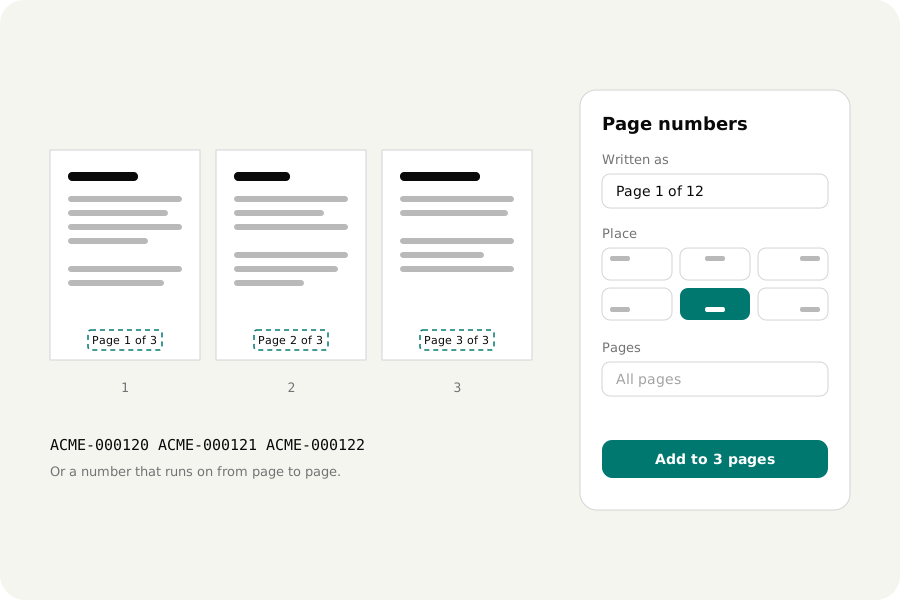
A report goes to print and someone asks which page the table is on. A bundle of documents goes to a lawyer and every page needs a number nobody can argue about. A thesis must be numbered from the third page on. Each is a small job, and each can be done on your own device, without sending the file anywhere. Here is how.
Page numbers, four ways.
Open the PDF and the panel for numbers is beside the pages. Choose how a number is written: 1, Page 1, 1 of 12, or Page 1 of 12. Choose where: at the top or the foot of the page, to the left, in the middle or to the right. Set the size and how far from the edge it stands, and press Add.
The numbers are on the pages at once, drawn from the file itself, so what you see is what you will download.
Skip the cover, start where you like.
Leave Pages empty and every page is numbered. Type 2- and the first page is left out; the second page is then number 1, or whatever you set as the first number. Type 1-3, 7 to name pages, or odd or even to take every other one, as for a book whose numbers stand on the outer edge.
To number front matter with one run and the rest with another, add twice: once for the first pages, once for the others.
A header or a footer of your own.
Header or footer writes a line of your own on every page: a title, a case name, the word Confidential. Four things in braces stand for something else. {page} is the page's number, {pages} is how many there are, {date} is today's date and {name} is the file's name. So “{name}, page {page} of {pages}” writes itself differently on each page.
Bates numbers.
Lawyers number every page of every document in a case with one run of numbers, so that a page can be named without doubt: ACME-000120, ACME-000121. The numbers have a fixed count of figures and usually a few letters in front.
Bates numbers does this. Type what stands before and after the number, how many figures it has, and the number to start at. To carry on from one file to the next, start the second file where the first one stopped.
Each number can still be changed.
Every number is a piece of text on its page. With the select tool you can move one that sits on top of something, restyle it, retype it or delete it. One undo takes the whole lot away.
The text is real text in a font that travels inside the file, so it looks the same everywhere, can be searched, and is read back from the result before your browser saves it.
One thing to do in the right order: numbers are written as the pages lie when you press Add. If pages are to be moved, added or taken out, do that first.
Your file stays with you.
The file is opened and numbered on your own device and is never uploaded. There is no account, no watermark and no limit on pages, and once the page has loaded it works without a connection.
Further reading
Topics: add page numbers to PDF · number PDF pages · PDF page numbers online free · PDF header and footer · Bates numbering · Bates stamp PDF · page x of y · paginate PDF · no upload
A little less theory. A little more doing.
Try it on your own terms, with a free browser tool.
Try the tool