

A little know-how
Write on a PDF, without sending it anywhere.
How to add text, pictures, shapes and drawings to a PDF in your browser: fill a form that has no fields, mark a page, and download a file that was checked. Free, with nothing uploaded.
By KeepSimp 5 min read
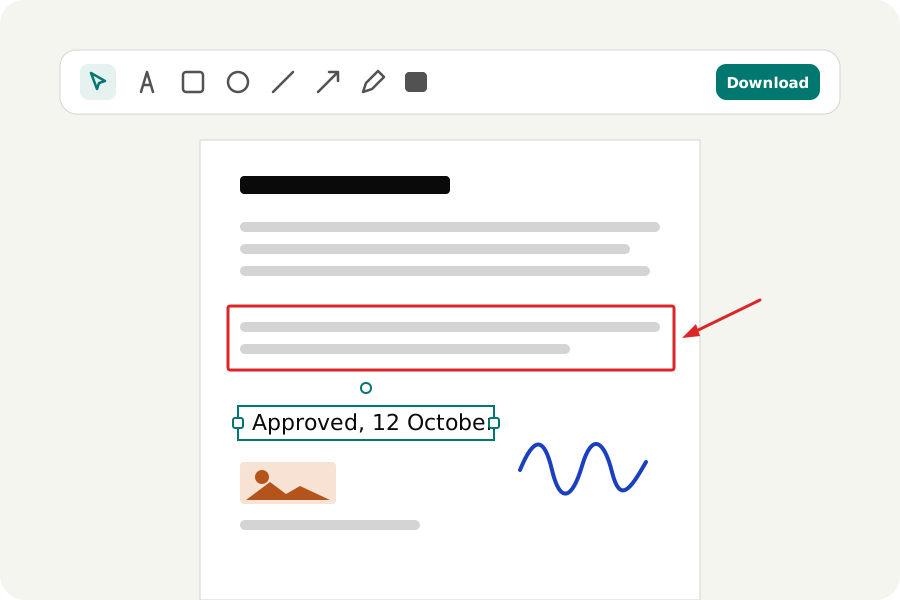
A form arrives as a PDF with nowhere to type. A contract needs a date beside your name. A plan needs an arrow that says: this wall, not that one. These are small jobs, and most tools that do them want your file on their server first, then an account, then a subscription to take the watermark off. Here is how to do them with the KeepSimp PDF editor, on your own device, and what the editor does not do yet.
What it does today, and what it does not.
The editor adds things to pages: text, pictures, boxes, ellipses, lines, arrows and freehand drawing. Everything you add can be moved, resized, turned, restyled, copied and deleted, and every step can be undone, all the way back to the file as you opened it.
It also marks and comments, signs, and fills in a form's fields, each of which has a guide of its own.
And it changes the words that are already in a file. Choose Change text, click a paragraph or a line and type. The old letters are taken out of the page, not covered, and the new ones are written in the very font they were written in, at the same size, colour and place. A paragraph flows again within its width: a longer sentence pushes the words after it onto the next lines, set as the paragraph was, to one edge or to both, and links move with the words they lie over. A file often carries only the letters it uses; a letter its font does not have is set in the closest font the editor has, and you are told which before you press Enter. To change a word everywhere, use Find and replace: every place is shown on its page with what it will say, and Replace all changes them in one step that one undo takes back. A line can also be made larger or smaller, given another colour, set in another font (one of the editor's, or a font file of your own), and dragged somewhere else. What it does not do yet: a paragraph that grows needs empty room under it, since nothing below it is moved, and the editor says so when there is none; which lines form a paragraph is judged by how they look, so a list is sometimes taken for one, and a switch in the bar goes back to single lines; and text in scripts whose letters join can be taken out but not retyped. We would rather say so here than let you find out halfway through a job.
The pages themselves can be changed too. Pages opens a list of small pages beside the file: choose one or several, then drag them to another place, turn them, copy them, take them out, or add an empty page between two. Links and bookmarks follow their pages. When a page is taken out, the links and bookmarks that led to it and the form fields that were on it go with it, the download says how many, and the page's content is no longer anywhere in the file. The pages of another PDF can be added between them, also from a locked file once you have typed its password, and any pages you choose can be saved as a file of their own. Crop and page size lays a frame over a page: drag its edges or type the numbers, and the page, the chosen pages or all pages show only what is inside; the same tool makes pages the size of an A4 or a Letter sheet. Cropping hides what is outside the frame and leaves it in the file, so it is no way to remove something for good. Numbers and watermarks puts page numbers, a header or footer, Bates numbers or a watermark on all pages or on the ones you name, each as a thing you can still move or delete. And Details and bookmarks changes the file's title and author, its bookmarks, and the numbers it gives its own pages.
Type where you need words.
Take the text tool, click where the words should start, and type. The line you type sits where you clicked, so filling in a paper form is a matter of clicking each blank and typing. Choose a sans, a serif or a mono font, or a font of your own from a file on your device, a size, bold or italic, a colour and an alignment. A box that is too wide or too narrow can be pulled by its side, and the lines break again to fit.
The three fonts are as wide, letter for letter, as Arial, Times New Roman and Courier New, so your words sit the way they would in the document's own program. The font goes into the file, cut down to the letters you used. That is why your text looks the same on every device, and why it is real text that can be selected and found by a search, not a picture of text.
Pictures, shapes and a pen.
A picture lands in the middle of the page you are reading, and from there you drag it into place. PNG and JPEG files go into the PDF as they are, without being saved again, so nothing is lost; a PNG keeps its see-through parts. That makes a scan of your signature with a clear background a tidy way to sign a page. It is a picture of a signature, not a digital signature that proves who signed.
The pictures a page already has can be changed too. Choose Pictures of the page and every picture gets a frame: drag one to move it, drag its corner to make it larger or smaller, and use the bar to turn it, to put another picture in its place, or to take it out. Nothing is saved again, so a photograph keeps the quality it had. Cutting a picture to a part hides the rest of it; the whole picture stays in the file, and the editor says so. A picture that is taken out is gone from the file.
Links are edited the same way. Choose Links and every link on the page gets a frame: pick one to see where it leads and type another address or a page number, drag it to where it belongs, or take it away. Drag a box on the page to make a new one. The editor takes web, e-mail and telephone addresses and nothing else, and it does not visit them: where a link leads is yours to check.
Boxes, ellipses, lines and arrows are for pointing things out. Draw with a mouse, a pen or a finger for anything looser. Guides appear when a thing lines up with the middle or the edge of the page, or with something else on it.
Three more tools are for marking up. A stamp says Approved, Draft, Paid or words of your own in a frame. A call-out puts a few words in a box with an arrow to what they are about. A measuring line says how long something is, in the unit you choose, and by the scale of a plan when the page is one.
Covering is not removing.
The cover tool puts a filled box over part of a page, white by default. It is useful for hiding an old date before you type a new one. But it only covers. The words under it are still in the file, and anyone can select the area, copy it and paste what was there.
Many editors call this whiteout or even redaction, and people have published court papers and reports that way with the names still inside. Do not use a cover for anything private. True redaction, which takes the words and the pixels out of the file and proves it, is one of the versions to come.
What you see is the file.
Many browser editors draw your changes on a layer of their own and only write the PDF at the end, which is when surprises happen: a font that changed, a picture that moved. Here every change is made in the real document on your device, and the page is drawn again from that document. The screen cannot disagree with the download, because it is the download.
Before the file is handed to you it is checked. The text you added is read back out of the result, and pages you did not touch are drawn and compared with the original, pixel for pixel. Links, bookmarks, form fields and accessibility tags stay as they were. You can read the result in the built-in reader before you save it.
Finish now, or come back to it.
By default the things you add become part of the page, like everything else on it, which is what you want before sending a file to someone. If you expect to change them again, turn on Keep what you added editable. They are then stored as separate things, and when you open the file in the editor another day they can be moved, restyled and deleted as before.
The file lives only in the tab while you work, and the page asks before you leave with changes you have not downloaded. A password can be set on the result if it should not be opened by just anyone.
Your documents stay with you.
The PDFs people edit are contracts, applications, medical forms and school papers. With KeepSimp they are opened and changed on your own device and are never uploaded. There is no account, no watermark and no limit on files or pages, and once the page has loaded the editor works without a connection.
Further reading
Topics: edit PDF · PDF editor · edit PDF online free · add text to PDF · write on PDF · add image to PDF · draw on PDF · type on PDF form · no upload
A little less theory. A little more doing.
Try it on your own terms, with a free browser tool.
Try the tool