

A little know-how
A scan you can search.
How to make a scanned PDF searchable in your browser: its words are recognised on your device and laid unseen over the pages, which look the same. What OCR misreads, and how to check.
By KeepSimp 4 min read
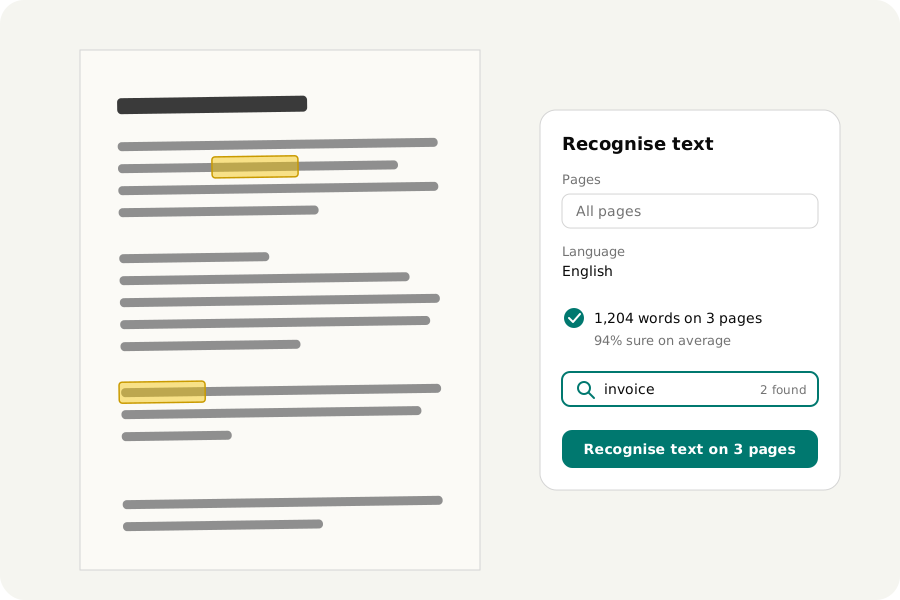
A scanner hands over pictures of pages. They look like text, but a search finds nothing, a word cannot be selected or copied, and a screen reader has nothing to read. OCR, optical character recognition, reads the words in the picture and puts them in the file. Here is how to do it on your own device, without sending a contract or a bank statement to someone else's server.
What OCR adds to a file.
Each page is drawn as a picture and read by Tesseract, an open-source recogniser that runs here in your browser. It finds the lines, the words in them and where each word stands. Those words are then written into the page in a font that draws nothing, each one stretched to the width it has in the picture.
So the page looks exactly as it did, pixel for pixel, and under the picture lies text in the right places. Search finds a word and shows it where you see it; dragging across a line selects it; copying gives you the words. Any PDF reader can do this with the result, not only this one.
How to do it.
Open the scanned PDF in OCR PDF. Leave Pages empty to read them all, or type the ones you want, such as 1-3 or odd. Choose the language the pages are written in, and press Recognise text. Each page takes a few seconds, longer on a phone, and Stop keeps what has been read so far. The first time, the recogniser (about 1 MB) and the language (a few megabytes) are loaded from this site; they are then kept, so they work offline afterwards.
A page that already has text is left as it is: it was read before, or it was never a scan. The panel names such pages, and a switch reads them anyway. When the run is done, the panel says how many words were found and how sure the recogniser was of them on average. One undo takes all of them away.
What it gets wrong.
Clean, straight scans of printed pages read well. Faint photocopies, small print, handwriting, and photographs of a page taken at an angle read worse: a 1 can come out as an l, a name can lose a letter. The recogniser says how sure it is of every word, and the panel counts the words it was unsure of. Search for the names and numbers that matter before you rely on them.
Choose the language the pages are written in: 31 are offered, from Arabic, Chinese and Hindi to Russian, Thai and most languages of Europe, and the one your browser says you read comes first. A page read in the wrong language comes out as poor text, so pick the right one; a second language helps pages that mix two. Arabic and Hebrew are written right to left and Chinese, Japanese and Thai without spaces, as they should be, so a search for a phrase finds it.
Checked before you download.
When you download, the words that were laid are read back out of the written file, and the check says whether every one was found. Pages you did not read are compared with the original, so nothing else changed. Open the result in any PDF reader and search it: the words are there.
Then redact by search.
A scan's words cannot be found by a search, so redacting a scan used to mean dragging boxes over everything by hand. Once its words are recognised, Mark all and the buttons for e-mail addresses, phone numbers and card numbers find them in the scan too. Applying the marks takes the recognised words out and blanks the pixels of the picture under each mark. A misread word is a word the search misses, so look the pages over as well.
Your file stays with you.
The file is opened, read and changed on your own device and is never uploaded: not the pages, not the words found in them. There is no account and no limit on pages.
Further reading
Topics: OCR PDF · OCR PDF online free · make scanned PDF searchable · searchable PDF · scanned PDF to text · copy text from scanned PDF · PDF text recognition · OCR without upload · OCR Arabic Chinese Japanese PDF
A little less theory. A little more doing.
Try it on your own terms, with a free browser tool.
Try the tool