

Look before you follow.
Read a QR code or barcode from a photo, a screenshot or your camera in your browser, with nothing sent, and see where a link leads before opening it.
By Suraj KumarUpdated 4 min read
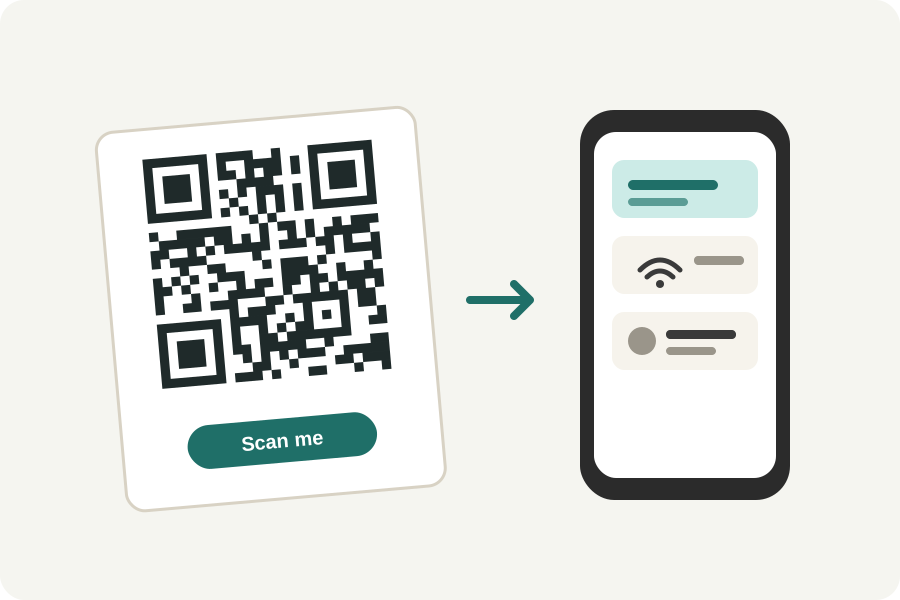
A QR code hides where it leads until it is scanned, which is why stickers over real codes on parking meters and posters, and codes in emails, are used to send people to fake pages. The KeepSimp reader shows you what a code holds before anything opens.
Read it from a picture.
Drop a photo or a screenshot, paste one, or scan with your camera. Every QR code and barcode in the picture is read on your device by zxing-cpp; the picture and the camera's view are never kept or sent.
Check where a link leads.
A link is shown whole with its site picked out, and opened only when you press Open. Look at the site's name, the part just before the first single slash: paypal.com.secure-login.example is example's site, not PayPal's. A short link that hides its end, a misspelt name or a code that asks you to log in or pay is a reason to stop.
A sticker over a printed code, or a code that arrives in an email or a text asking you to act quickly, deserves the most doubt. Type the address of the company you know instead.
Wi-Fi, contacts and payments.
Codes that are not links are shown as what they are: a Wi-Fi network with its password, a contact card, an event, or a payment's account and amount, so you can check them before your phone acts on them. A barcode shows its number and kind.
Edit and restyle opens the code in the generator with its fields filled in, to change what it holds or make it again in your own colours.
Further reading
Topics: qr code reader · scan qr code from image · is this qr code safe · quishing · barcode reader online · qr code reader from screenshot · scan qr code on computer · qr code scanner online
A little less theory. A little more doing.
Try it on your own terms, with a free browser tool.
Try the tool