

A little know-how
Is the signature still good?
Check the digital signatures in a PDF in your browser: whether each still holds, whose certificate made it, and what was added to the file after it was signed. Nothing is uploaded.
By KeepSimp 4 min read
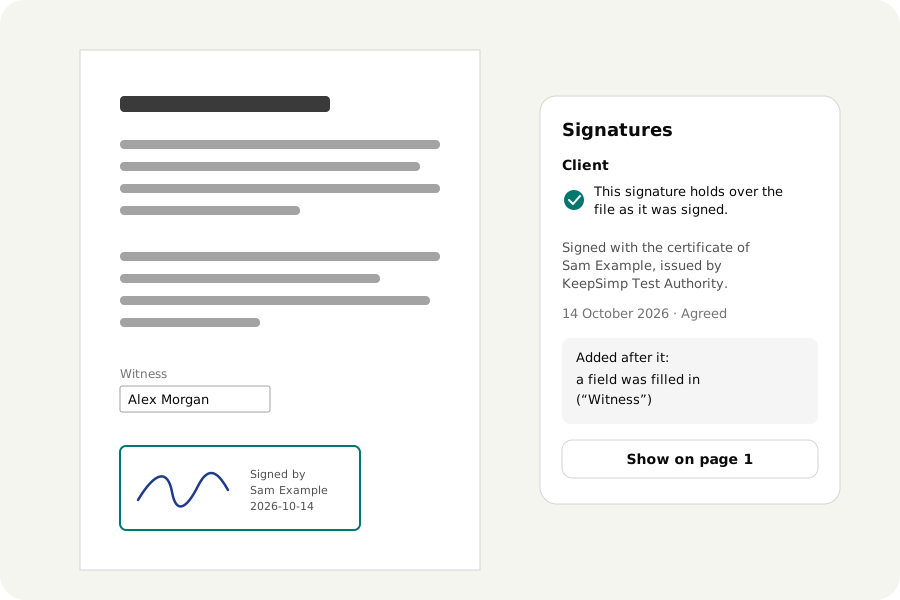
A PDF can carry a digital signature: a seal made with a certificate over the bytes of the file. It answers two questions, whether the file is still what was signed and whose certificate signed it, but only if something checks it. Here is how to check one on your own device, and how to read the answer.
What a signature proves, and what it does not.
When a file is signed, a fingerprint of its bytes is sealed with the signer's private key. Checking it means working out the fingerprint again and opening the seal with the certificate that travels with it. If even one byte that was signed has changed since, the two no longer agree, and the signature does not hold.
What it cannot tell you by itself is whether the name on the certificate is true. Anybody can make a certificate in any name. A certificate is believed because someone you trust issued it: a company's own authority, or one of the issuers Adobe's programs list. KeepSimp shows who issued it, and says plainly when a certificate signed itself. It keeps no list of whom to trust of its own: you add the certificates of the issuers you trust, such as your company's, and each signature says whether its certificate goes back to one of them, through certificates that each issued the next. Add only a certificate you got from someone you trust, never one taken from the file you are checking.
How to check one.
Open the PDF in Verify a PDF signature. A list of its signatures opens beside the pages. For each one it says whether it holds, whose certificate made it and who issued that, the time it gives, and the reason and place if it gives them. A signature that shows on a page has a button that goes to it. A locked file asks for its password first.
Signatures of the kinds adbe.pkcs7.detached, ETSI.CAdES.detached and adbe.pkcs7.sha1 are checked, which covers what Acrobat, most other programs and KeepSimp make. Older kinds and document time stamps are listed, with a note that they were not checked.
Changed after it was signed.
A signed file can be added to without breaking its signature. The additions are written after it, as a second version of the file, and the signature still covers the first. That is how a form is signed by one person and filled in or signed by the next. It is also how a page could be made to look different after signing while the signature still holds over the version that was signed.
So the list also says what was added after each signature. It opens the file as it was signed beside the file as it is and compares them: fields filled in or changed, by name; comments added or taken away; pages added or taken out; pages that now look different; signatures added later. A signature that covers the whole file says that nothing has changed since.
The time it gives.
The time a signature shows comes from the clock of the device that made it. Unless an independent time-stamping authority sealed that time too, it is the signer's word. The list says when a certificate was not valid at the time the signature gives, but that time is not proved either way.
Sign one yourself.
The same page is the PDF editor. You can fill in a form, add a comment or sign with your own certificate (a .p12 or .pfx file), and download with Keep it valid on: your changes are written after the signatures that are there, and they still hold over what they signed.
Your file stays with you.
The file is opened and its signatures checked on your own device. Nothing is uploaded, and no one is asked over the network about the certificate. There is no account and no limit.
Further reading
Topics: verify PDF signature · check PDF digital signature · validate PDF signature online · PDF signature valid · has this PDF been changed · PDF tampered · who signed this PDF
A little less theory. A little more doing.
Try it on your own terms, with a free browser tool.
Try the tool