

A few words, right on the picture.
Write words on a photo in one of ten fonts, any colour and size, with a box behind them if the photo is busy, and drag them where they belong.
By Suraj Kumar3 min read
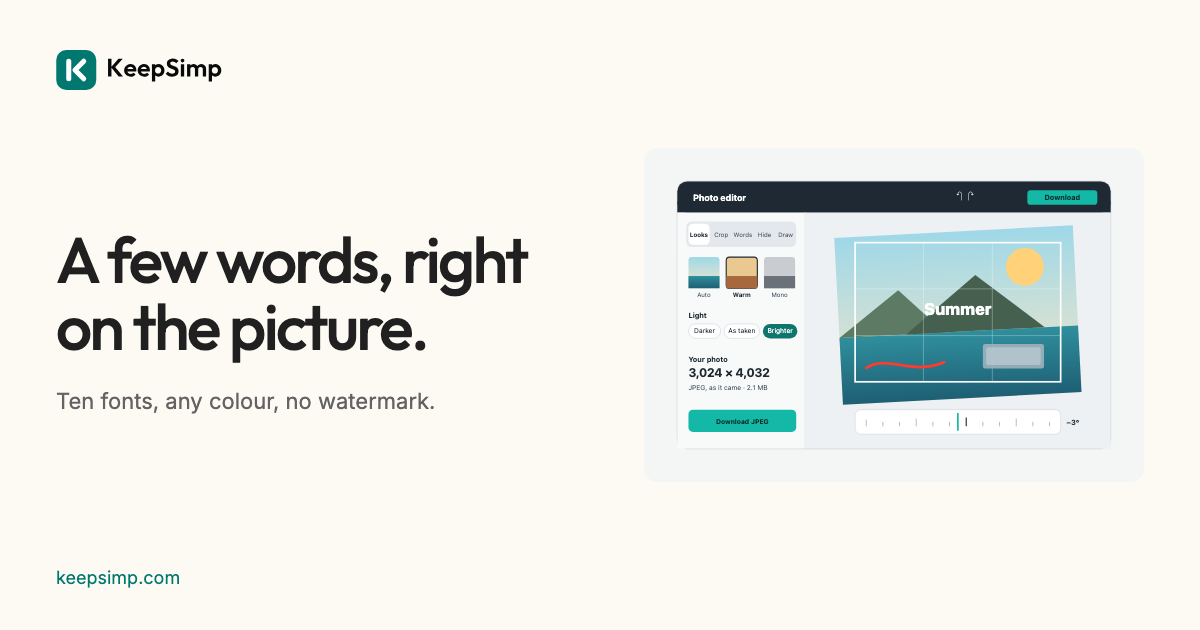
A date on a poster, a name on a picture, a line for a card: words on a photo should be quick to place and easy to read.
Add words and drag them into place.
Open Add text to image, add a photo, and press Add words. Type them in the field, then drag them on the photo to where they belong. Choose a font, a colour and a size; every change can be undone.
Make them easy to read.
Words need to stand out from what is behind them. On a busy photo, turn on the box behind the words, or choose white on a dark part and black on a light one. Large, plain letters read best on a phone.
Ten fonts that come with the site.
The fonts (Inter, Outfit, Montserrat, Anton, Bebas Neue, Archivo Black, Bangers, Permanent Marker, Pacifico and Roboto Mono) have open licences and are loaded from this site, so the words look the same on every device. The whole font is loaded before the file is written, so no letter comes out in another font.
Your photo stays on your device.
The photo is opened, changed and written in your browser; it is never uploaded. The downloaded file carries no location or camera details, and nothing is kept when you leave.
Further reading
Topics: add text to image · add text to photo · write on picture · text on image · caption photo · add text to image online free
A little less theory. A little more doing.
Try it on your own terms, with a free browser tool.
Try the tool