

The right shape for where it goes.
Crop a photo to a square, 4:5, 16:9, 9:16 or a shape of your own, drag it to the part you want, and straighten it, without losing quality.
By Suraj Kumar3 min read
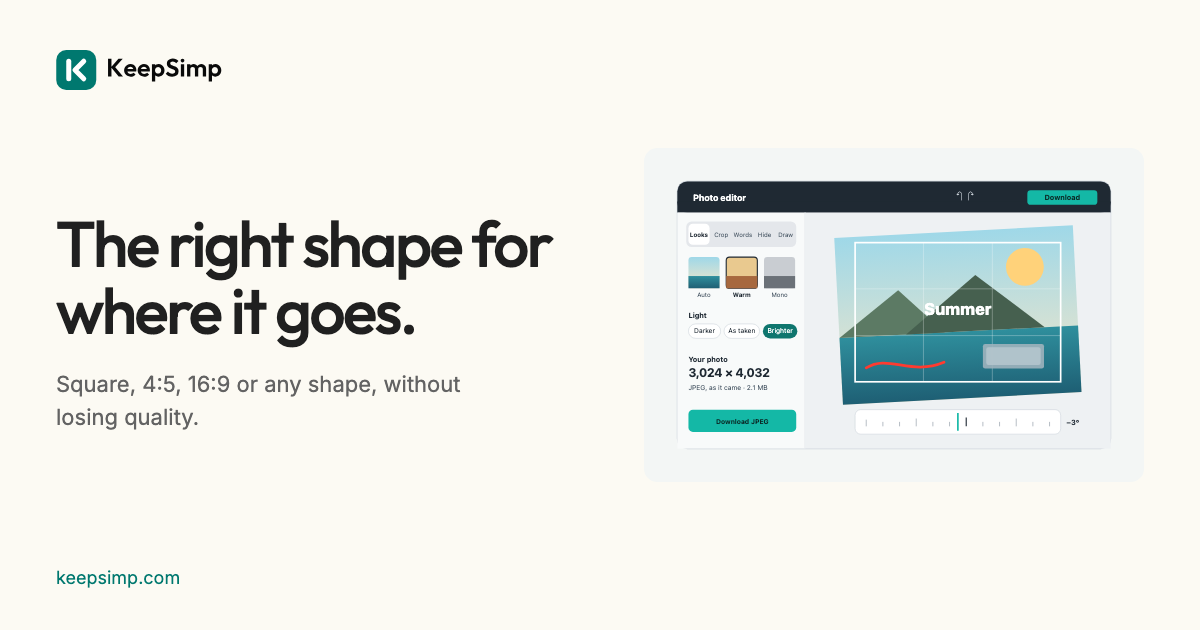
A photo is often the wrong shape for where it is going: a wide shot for a square post, a tall one for a slide. Cropping keeps the part that matters and leaves the rest out.
Turn Shape on, and choose one.
Open Crop image and add a photo. Turn Shape on and choose Original, Square, 4:5, 16:9 or 9:16: the largest frame of that shape is placed in the middle of the photo. Drag it to the part you want, or drag its corners and edges; it keeps its shape while Shape is on. Turn Shape off to crop to any shape.
Exact when you need it.
Under More options, Fine-tune sets where the crop starts and its width and height in the photo's own pixels. A crop copies the pixels it keeps exactly; nothing is blended or resized.
Level it while you are there.
The dial under the photo straightens a leaning horizon by up to 45° either way, a tenth of a degree at a time with the arrow keys. The photo is enlarged just enough to fill its frame, so no empty corners show.
Your photo stays on your device.
The photo is opened, changed and written in your browser; it is never uploaded. The downloaded file carries no location or camera details, and nothing is kept when you leave.
Further reading
Topics: crop image · crop photo online · square crop · crop to 4:5 · crop to 16:9 · aspect ratio
A little less theory. A little more doing.
Try it on your own terms, with a free browser tool.
Try the tool