

A better photo, in a few taps.
Crop and straighten a photo, give it a look or let Auto fix its light, add words, draw on it and blur what should not be seen, all in your browser.
By Suraj Kumar4 min read
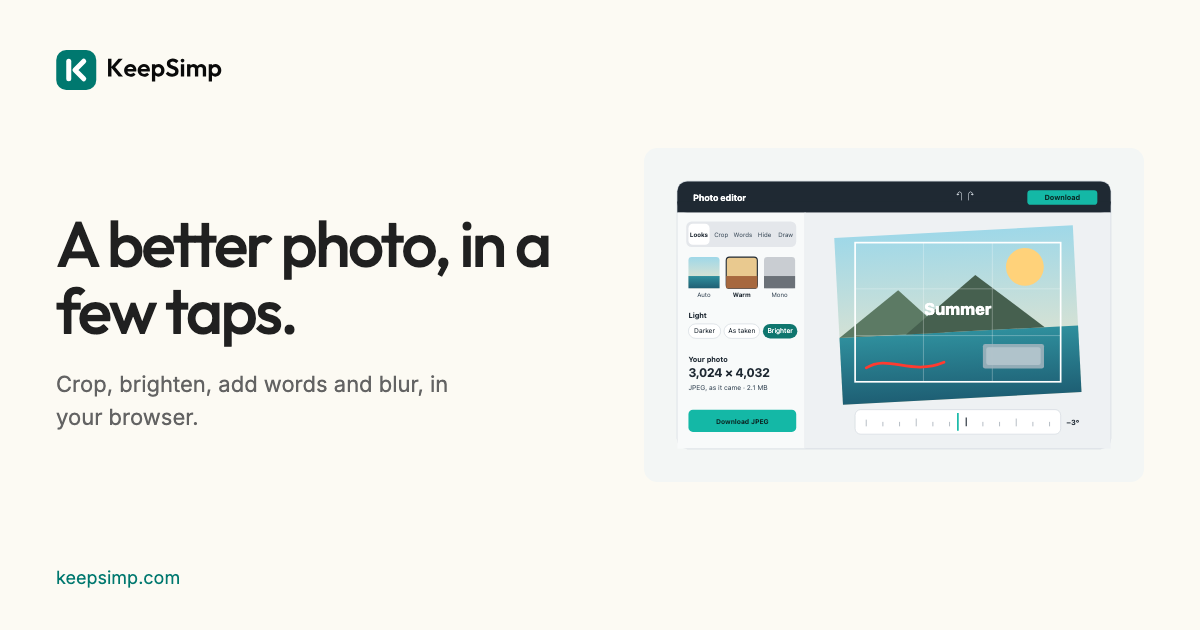
Most photos need one of a few things: a little more light, a better shape, a few words, or a face hidden before they are shared. The Photo editor asks which, opens that tool, and keeps everything else one press away.
Start with what you want to do.
Drop a photo or choose one, and say what you want: make it look better, crop or straighten it, add words, hide a part, or draw on it. The editor opens full screen on that tool, with the photo in the middle and the other tools beside it on a computer or along the bottom on a phone.
Every change is a step. Undo and Redo go back and forth through them, and holding the photo (or Compare, or the M key) shows it as it came. Undoing every step gives back exactly the photo you opened.
Looks first, then plain words.
Auto measures the photo's light and colour and sets the editor's own settings, which you can then see and change. Eleven looks, from Vivid to Noir, are each shown as a small picture of your own photo; Strength under Fine-tune sets how far a look goes.
Light, colour and detail are set in words (Darker, As taken, Brighter) rather than with sliders. Each word stands for a range, and the exact number for each setting waits under Fine-tune for anyone who wants it.
How the colour is worked out.
Light is changed as a camera's exposure changes it, in linear light, so +1 stop doubles it. Brightness, contrast and the bright and dark parts are curves on OKLab's lightness, which follows how light a colour looks; saturation scales OKLab's chroma so a colour keeps its hue. The same drawing makes the preview and the full-size file.
The same kind of file, at the same size.
The download is the kind of file you opened, at its full size: a JPEG stays a JPEG (written by MozJPEG at quality 90), a PNG a PNG without loss. HEIC, TIFF and JPEG XL photos are saved as JPEG, or PNG when they have see-through parts, and the page says so. To make the file smaller as well, use the Image compressor afterwards.
Your photo stays on your device.
The photo is opened, changed and written in your browser; it is never uploaded. The downloaded file carries no location or camera details, and nothing is kept when you leave.
Further reading
Topics: photo editor · edit photo online · free photo editor · image editor no upload · auto enhance photo · crop and straighten · photo editor free no sign up · photo editor no watermark
A little less theory. A little more doing.
Try it on your own terms, with a free browser tool.
Try the tool