

A little know-how
Fill it in, and send only what you mean to.
How to fill in a PDF form in your browser: type into its fields, tick boxes, choose from lists, sign and download, as a form or made final. Free, with no account and nothing uploaded.
By KeepSimp 4 min read
An application, a tax form, a consent form from a school: it arrives as a PDF, and it asks for your name, your address, your date of birth and sometimes your bank. That is exactly the file you would rather not hand to a website you found a minute ago. Here is how to fill it in with KeepSimp, where the form never leaves your device.
Two kinds of form, and how to tell.
Some PDF forms have real fields: boxes the file itself knows about, each with a name, that a program can type into. Others only look like forms. They are a picture of lines and boxes, made to be printed.
Open the file and you will see which you have. Real fields are tinted, and a line above the page counts them. A form without fields says so, and is filled in like paper instead; more on that below.
Type, tick and choose.
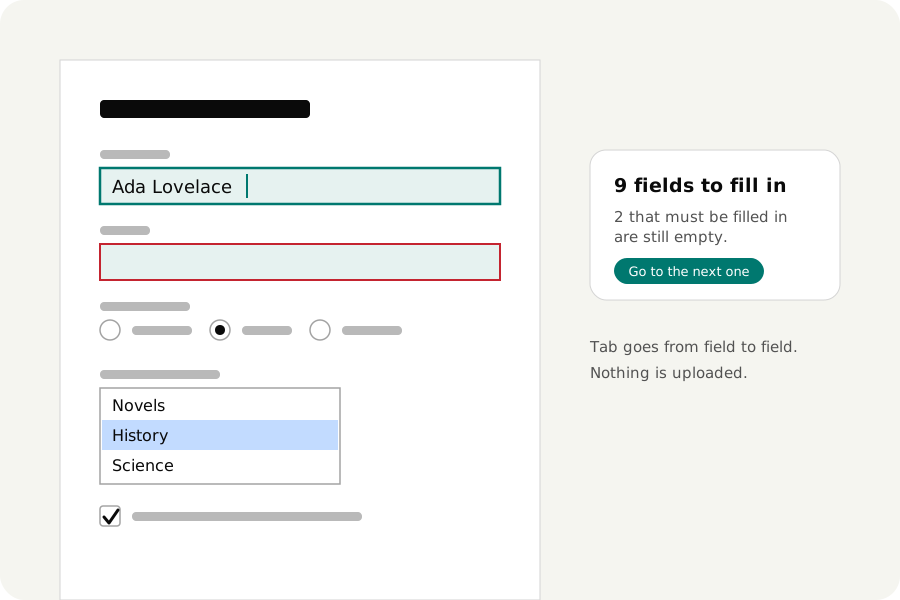
Click a field and type. Tab goes to the next field, along each row and then down the page, so a long form can be filled in without touching the mouse. Tick boxes and round buttons are pressed. Drop-downs and lists are chosen from, and a list takes several choices where the form allows it.
A field the form marks as a date opens your device's calendar and writes the day the way the form wants it. A field with a limit, such as six boxes for a postcode, takes no more than fits.
Each field you fill in can be undone. What you see on the page is drawn from the file itself, so the page shows what the next person will see.
See what is still missing.
Fields the form says must be filled in have a red frame until they are. The line above the page says how many are still empty, and a button takes you to the next one, on whichever page it is.
Nothing stops you from downloading a form with gaps. Sometimes that is what you want: fill in your part, and send it on for someone else to finish.
Keep it a form, or make it final.
When you download, you choose. Keep as fields gives a form that can still be filled in and changed, here or in any other program. That is right for a form that goes on to someone else, or one you may need to correct.
Part of the page draws what the fields hold into the page and takes the fields away. Nothing can be changed afterwards, and the form looks the same in every program. That is right for the copy you send in or keep for your records.
Either way the result is read back before it is saved, and the check under the download button says what was found.
Forms that are only a picture.
A form without fields is filled in like paper. The text tool types wherever you click. The tick tool places a tick, a cross or a dot in a box, one press each. A button adds today's date, and Sign places your signature: drawn, typed, or taken from a photo with the paper removed.
What it does not do.
A form can carry small programs that work out a total or tidy a phone number as you type. KeepSimp never runs anything a file brings with it, so those fields hold what you typed and a total stays as it was: fill it in yourself. The editor tells you when a form has such fields.
A few forms, mostly from governments, are of a kind called XFA that only Adobe's programs can fill in. The editor says so when it meets one. A place for a certificate signature is left alone while you fill in the form; to sign into it with your own certificate, turn on “Sign with a certificate” when you download.
Your answers stay with you.
The form is opened and filled in on your own device and is never uploaded. There is no account, no watermark and no limit on how many forms you fill in, and once the page has loaded it works without a connection.
Further reading
Topics: fill PDF form · fill in PDF form online free · fillable PDF · PDF form filler · type on a PDF form · flatten PDF form · fill and sign PDF · PDF form without Acrobat · no upload
A little less theory. A little more doing.
Try it on your own terms, with a free browser tool.
Try the tool