

A little know-how
Your clips and photos, one reel.
Put videos and pictures together into one vertical video for Instagram Reels, TikTok or YouTube Shorts in your browser: trim, reorder, add text and stickers that move, export. Nothing is uploaded.
By KeepSimp 5 min read
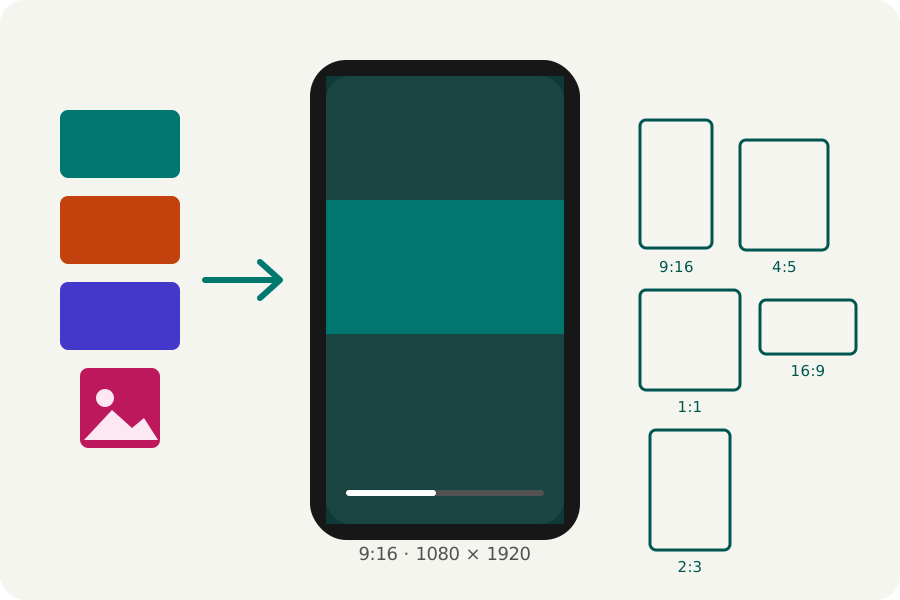
A reel is a short vertical video made of a few good moments: some clips, a photo or two, cut tight. Most editors want the footage uploaded or an app installed. KeepSimp's Reel maker puts it together in your browser, from files that stay on your device, and writes the finished video for you to post.
Start with where it is going.
Open the Reel maker and choose the platform: Instagram Reel, TikTok, YouTube Shorts, Facebook Reel and Snapchat take a tall 9:16 video, made at 1080 × 1920. Instagram's feed takes 4:5 or a square, YouTube and X take widescreen 16:9, and Pinterest takes 2:3. You can also type a size of your own, and change the shape later.
YouTube counts a square or vertical video of up to three minutes as a Short. Other platforms allow longer videos, though shorter ones are usually watched to the end.
Add, trim and arrange.
Drop your videos and photos in. They line up in the order you add them, and the preview plays them as the reel will. Choose a clip to keep only part of it, typed or set at the playhead, or take another part of the same long video with Add another part. Move clips earlier or later, and split one in two at the playhead.
Speed a clip up to four times as fast or slow it to a quarter; the sound keeps its pitch. A photo shows for three seconds unless you choose another length.
Landscape footage in a tall reel.
A clip filmed sideways does not fill a 9:16 reel. Fill crops it to the reel's shape; Whole, blurred behind keeps the whole picture with a blurred, darkened copy of it around it, as Reels and TikTok do; Whole, colour behind puts it on a background colour of your choice.
To show a different part, press the reel and drag the picture, or pull a corner to make it larger; it lines up with the middle and the edges as it comes near them.
Text and stickers that move.
Add text in one of a dozen looks used on short videos: white with a black outline, capitals with one word in colour, words on a box line by line, neon, typewriter, comic and others. Put stars around a word, as in *this*, to give it the accent colour. Every part can be changed: the font, size, colours, outline, shadow and the box behind.
Stickers are your own pictures or animated GIF, APNG and WebP files, such as a logo or a reaction; an animation plays its own frames over and over. Drag either on the reel, pull a corner to resize it and the round handle to turn it, and set when it shows in the timeline.
Each can move as it comes in, while it is shown and as it goes: fade, pop, rise, slide, zoom, bounce or typewriter, then pulse, float, wave, wiggle or shake. Text can move all at once or a line, a word or a letter at a time. Keep a motion you like under a name to use it again in the same reel.
Export, checked.
Choose MP4, which every platform takes, or WebM; 1080p or 720p; 24 to 60 frames a second; and a quality. The page says the size and codec before you start, and how big the file will be. The reel is written in your browser, then opened again and checked: its size, its length and that it plays.
Nothing is uploaded at any point: the videos and photos are read from your device, and the reel is written there.
Further reading
Topics: reel maker · make an instagram reel · tiktok video maker · youtube shorts maker · combine videos and photos · vertical video · 9:16 video · add text to a reel · animated text
A little less theory. A little more doing.
Try it on your own terms, with a free browser tool.
Try the tool