

Combine PDFs on an iPhone, in the browser.
Combine PDFs and photos into one PDF on an iPhone or iPad in Safari, with no app and nothing uploaded: put them in order, merge and save to Files.
By Suraj Kumar3 min read
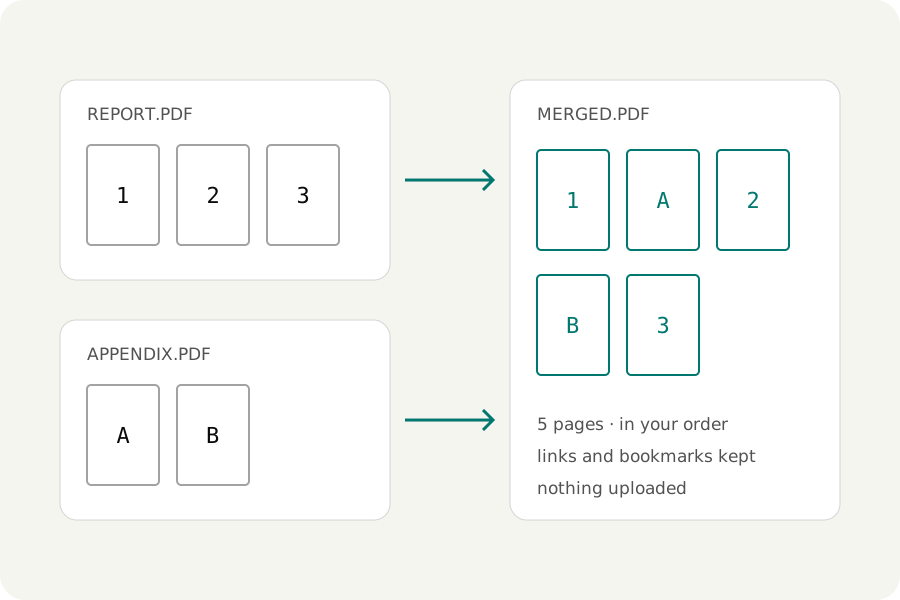
A visa form wants one PDF, and you have three documents and two photos on your phone. The PDF merger runs in Safari on an iPhone or iPad, and joins them there, in the order you choose.
Add the files.
Open the PDF merger in Safari and press to add files. Choose PDFs from the Files app, or photos: JPG, PNG and the HEIC photos an iPhone takes each become a page. Add more at any time; they go to the end of the list.
A locked PDF asks for its password in its row, and the merged file has no password unless you set one.
Put them in order.
Every file in the list has buttons to move it earlier or later, which are easier with a finger than dragging. Each file also has a pages field: type 1-2 to take only its first two pages.
For single pages, open the Pages view. On a touch screen its toolbar does what dragging does on a computer: choose pages, then move, turn, copy or remove them.
Merge and save.
Press Merge PDF; the button stays at the bottom of the screen. The result says how many pages it has and how large it is. Press Download PDF, and Safari saves it to the Downloads folder in the Files app, where you can attach it or share it.
Photos as pages.
A photo takes the size of the page before it unless you choose otherwise under More options: fit the picture, A4 or Letter, with no margin, a small one or a normal one. The sheet is turned to suit the picture. A JPEG goes into the PDF as it is, byte for byte, and is shown upright the way the camera recorded; HEIC photos are decoded and stored without loss.
For paper documents, a photo taken at an angle makes an untidy page. Scan to PDF uses the camera in the browser to find each page, straighten it and clean it up first.
Look before you send.
Read it here, under the download button, opens the merged file itself in a reader, so you can page through it on the phone before you save it. Change anything and merge again; the result says when it is out of date.
Limits on a phone.
Phones close a web page that uses a lot of memory, so on a phone the merger takes files of up to 100 MB each and 200 MB together. That covers most documents. If the merged file is then too large to send, the PDF compressor makes it smaller, also in Safari.
Nothing leaves your phone.
The files are read and joined in Safari and saved back to your phone. Nothing is uploaded, and once the page has loaded it works without a connection.
Further reading
Topics: combine PDF on iPhone · merge PDF on iPhone · merge PDF iPhone free · combine PDF files on iPhone without app · merge PDF on iPad · combine photos and PDF on iPhone · merge PDF on phone
A little less theory. A little more doing.
Try it on your own terms, with a free browser tool.
Try the tool