

iPhone photos, straight into a PDF.
Turn iPhone HEIC photos into one PDF in your browser, with nothing uploaded, on Windows, Mac, Android or iPhone: upright, in order, small enough to send.
By Suraj KumarUpdated 3 min read
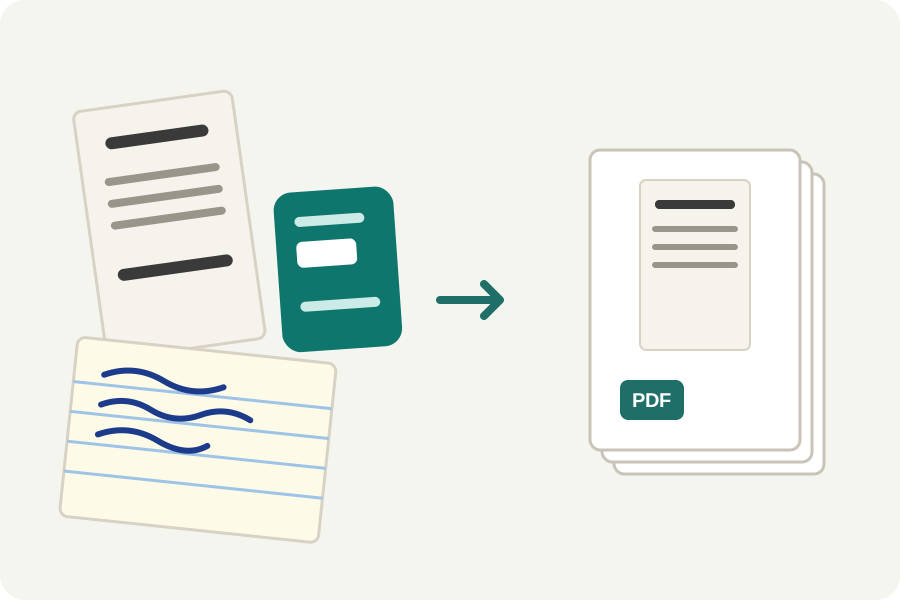
iPhones save photos as HEIC, which takes less room than JPEG but which many computers and most PDF tools cannot open. The HEIC to PDF page of the KeepSimp PDF maker reads them in your browser, on any system, and puts them into one PDF.
From HEIC to PDF in three steps.
Open HEIC to PDF and drop the photos, or choose them from your files. They are read on your device and shown upright, as the phone recorded them.
Drag them into order, turn any that need it, and choose the paper.
Press Make PDF and download it.
Why they become JPEG inside the PDF.
A PDF reader can show JPEG pictures but not HEIC, so each photo is written into the PDF as a JPEG: at quality 85 on Balanced, no larger than the page needs, or at 92 and full size on Best.
On an iPhone you can also make the camera save JPEG, under Settings, Camera, Formats, Most Compatible. The maker takes either.
Read on your device, never uploaded.
HEIC is decoded in your browser with libheif, an open decoder, and the PDF written there too. The photos are never sent anywhere, and the place they were taken is not written into the PDF.
Further reading
Topics: HEIC to PDF · iPhone photo to PDF · convert HEIC to PDF · HEIF to PDF · HEIC to PDF on Windows · HEIC to PDF free · HEIC to PDF without uploading
A little less theory. A little more doing.
Try it on your own terms, with a free browser tool.
Try the tool