

Sharp pictures of a PDF's pages.
Convert each page of a PDF to PNG in your browser, with nothing uploaded: sharp text and lines at the dots to the inch you choose, many pages in one ZIP.
By Suraj Kumar2 min read
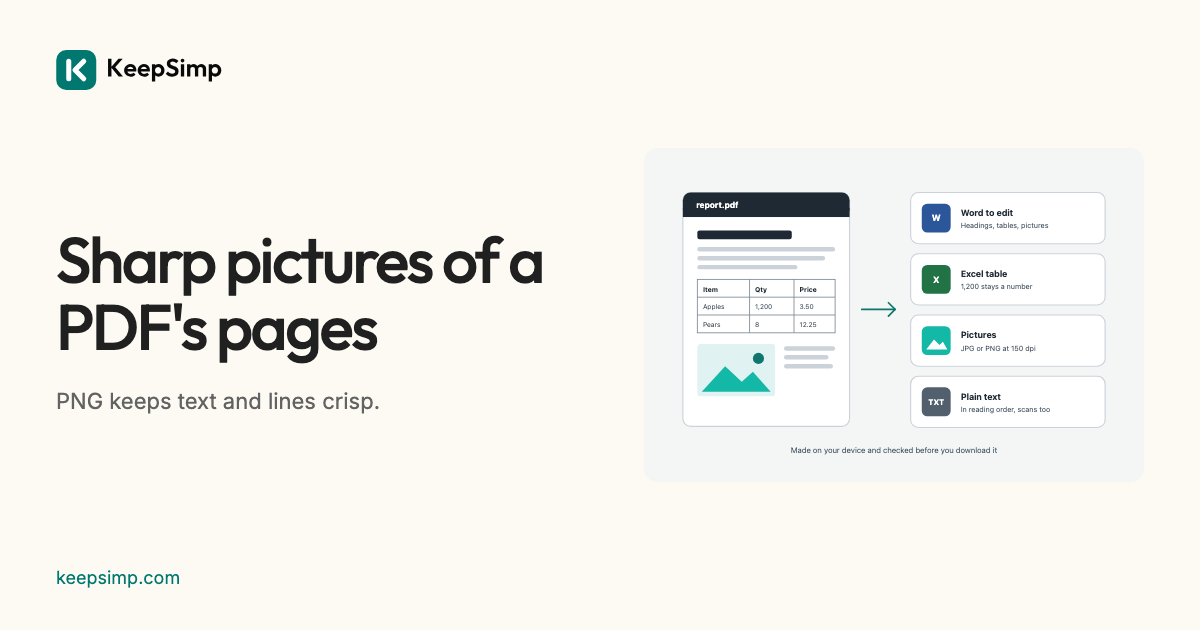
Text and lines stay crisp in a PNG: it keeps every pixel as it was drawn, where a JPEG blurs the edges a little to make a smaller file.
Add the PDF, press Make PNG pictures.
Open PDF to PNG, add the PDF, and press Make PNG pictures. Choose pages to draw only some, such as 1-3, 7. Under More options, choose the sharpness from 72 to 600 dots to the inch.
PNG or JPG?
PNG for documents, slides, charts and screenshots, where text and lines must stay sharp. JPG for pages that are mostly photographs, where it makes much smaller files. Pages are drawn on white, as they are printed: a PDF page has no see-through background of its own.
Every picture is checked.
Each picture is decoded again by the browser and its size compared with what was drawn before it is put in the ZIP. The dots to the inch are written into each file, so programs that print it know its size.
Your file never leaves your device.
The PDF or Word file is read and the result is written in your browser. Nothing is uploaded, there is no account, and nothing is kept when you leave.
Further reading
Topics: PDF to PNG · PDF page to PNG · convert PDF to PNG · PDF to image high quality · PDF to PNG high resolution · PDF to PNG online
A little less theory. A little more doing.
Try it on your own terms, with a free browser tool.
Try the tool