

A PDF you can edit in Word.
Convert a PDF to Word in your browser, with nothing uploaded: headings, bold, colours, tables and pictures kept. What Word changes, and OCR for scans.
By Suraj Kumar3 min read
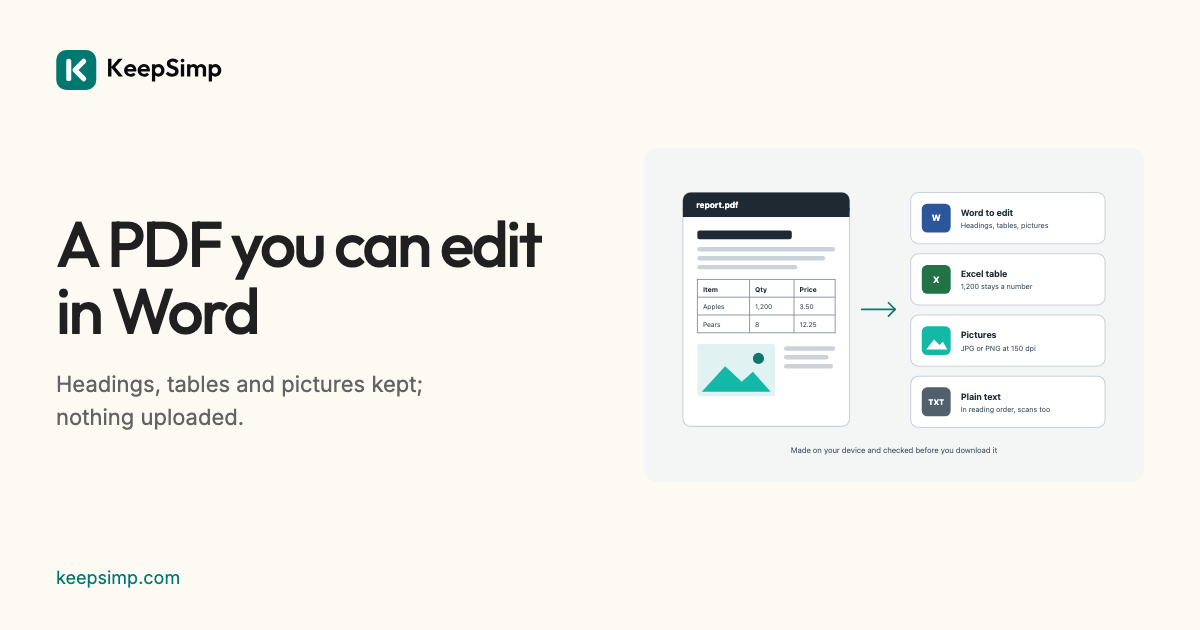
To change a PDF's words in Word, the words have to become paragraphs again. The converter rebuilds them from the page, with their looks, and Word does the rest.
Add the PDF, press Make the Word file.
Open PDF to Word, add the PDF, choose all pages or some, and press Make the Word file. The result says what it became, such as 12 pages became a Word file with 3 tables and 8 pictures, and Download gives the .docx.
What is kept.
Paragraphs, with a word broken at a line's end joined again. Headings, from letters clearly larger than the body's, or from a tagged PDF's own headings. Each run's font (named as Word knows it: Helvetica becomes Arial), size, bold, italic and colour. Tables cell by cell, pictures at the size they are shown, and each page's size and margins.
The layout may differ.
A PDF places every letter; a Word file says what the words are and lets Word place them. Word uses its own fonts and spacing, so lines, and so pages, can break in other places. Turn on Start each PDF page on a new page under More options to keep the PDF's pages apart.
A scanned page has no words, only a picture of them: turn on Read scanned pages (OCR) and they are read on your device and put in as paragraphs.
Your file never leaves your device.
The PDF or Word file is read and the result is written in your browser. Nothing is uploaded, there is no account, and nothing is kept when you leave.
Further reading
Topics: PDF to Word · PDF to Word converter free · PDF to Word free no sign up · PDF to DOCX · convert PDF to Word · PDF to Word without losing formatting · PDF to Word with OCR · editable Word from PDF · PDF to Word without uploading
A little less theory. A little more doing.
Try it on your own terms, with a free browser tool.
Try the tool