

Screenshots into a PDF, every pixel kept.
Turn PNG pictures and screenshots into one PDF in your browser, with nothing uploaded and every pixel kept: no JPEG blur on text, lines or charts.
By Suraj Kumar3 min read
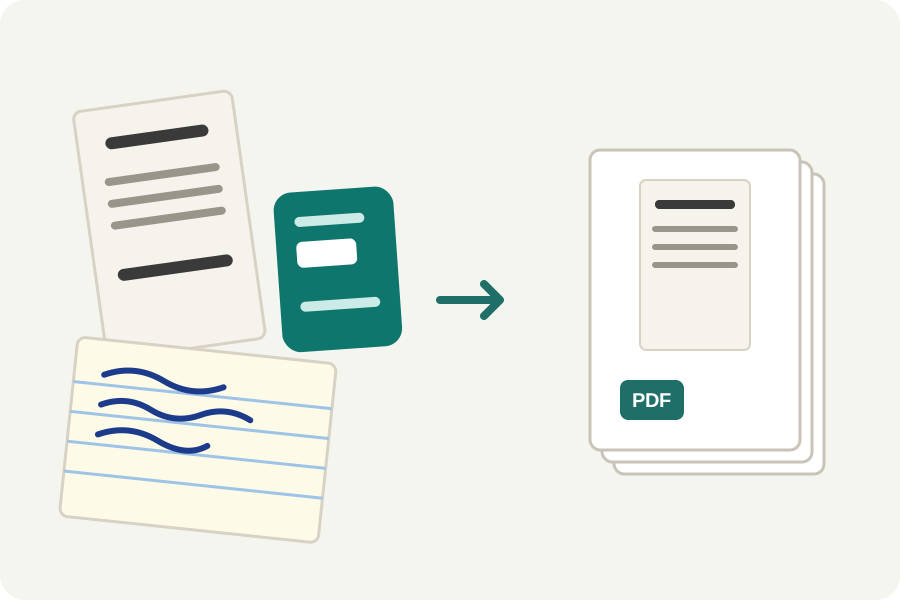
Screenshots of an error, a chat, a chart or a slide often have to travel as one document. They are PNG files because PNG keeps every pixel, and that is worth keeping in the PDF too. KeepSimp's PNG to PDF puts them in one file in your browser, in the order you choose, without turning them into blurry JPEGs.
Why a screenshot should stay a PNG.
PNG compresses without loss: what is decoded is exactly what was saved. JPEG throws detail away in small blocks, which suits photographs but leaves a faint haze and ringing around the hard edges of letters, lines and flat colour, the very things a screenshot is made of.
A PDF can hold a picture either way. A PNG that goes in without loss stays as sharp as it was, at any zoom.
One PDF in three steps.
Open PNG to PDF and drop your pictures, or choose them; JPEG, HEIC, WebP and other pictures can go in beside them. Drag the pages into order, or use Put in order to sort them by name as a person counts, IMG_2 before IMG_10, or by their dates. Click a page to see it large, and turn it with a button or the R key.
Press Make PDF. The file is opened again and every page checked against what you saw before it is offered, then it is yours to download.
How the pictures are kept.
Whether you answer Documents or Photos, a PNG goes into the PDF without loss, every pixel as it was, and each page says how its picture is kept. Only Smallest, under More options, or a size limit that cannot be met any other way writes pictures as JPEG, and then each page says so.
PDF pages are paper, so see-through parts of a PNG show white. A screenshot is not looked at for the edges of a sheet of paper, as a photo of a page is; it goes in as it is.
Pages the size of the picture, or of paper.
Fit the photo makes every page the shape of its picture, which suits screenshots read on a screen. A4, Letter or Legal put every picture on the same sheet, as large as it fits, for printing; under More options you can choose a margin and whether sheets stand upright or lie on their side.
Nothing leaves your device.
Pictures are read and the PDF is written in your browser, and nothing is uploaded, which matters when a screenshot shows a private message or an account. To add the pictures to PDFs you already have, the PDF merger takes pictures as pages too.
Further reading
Topics: PNG to PDF · screenshot to PDF · convert PNG to PDF · combine PNG into one PDF · PNG to PDF without losing quality · save screenshots as PDF · PNG to PDF converter free · images to PDF
A little less theory. A little more doing.
Try it on your own terms, with a free browser tool.
Try the tool