

Many pictures, one tidy PDF.
Put photos, scans and screenshots into one PDF in your browser, with nothing uploaded: straighten photos of paper, order the pages, pick A4 or Letter.
By Suraj KumarUpdated 5 min read
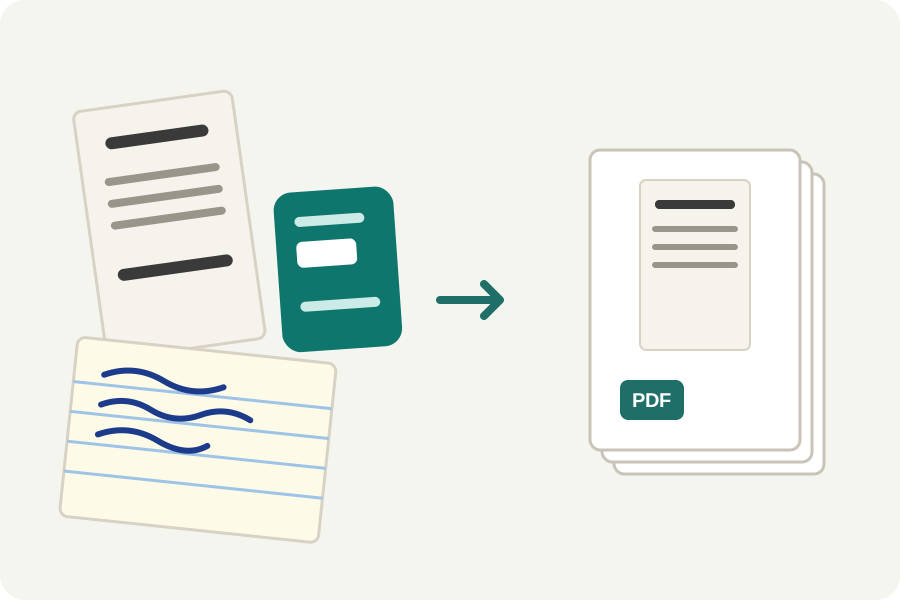
Receipts for an expense claim, pages of notes, a form you filled in by hand: they start as photos and need to be one PDF. The KeepSimp PDF maker puts any number of pictures into one PDF in your browser, in the order you choose, and the pictures never leave your device.
One PDF in four steps.
Open the PDF maker and drop your pictures, or choose them. JPEG, HEIC from an iPhone, PNG, WebP, AVIF, GIF, TIFF and BMP all work, up to 300 in one PDF. The maker opens in a window of its own, with the pages on the right.
Drag the pages into order. Click one to see it large; hold ⌘ or Ctrl to choose several and move, turn, copy or take them out together. Put in order sorts them by name, counting IMG_2 before IMG_10, or by the files' dates.
Choose the paper: A4, Letter or Legal, or each page the shape of its picture. Pick a margin, and whether every sheet is upright, sideways or turned to suit its picture.
Press Make PDF. The file is opened again and each page checked against what you saw, then it is yours to download, read in the window, or open in the PDF editor.
Sharp enough to print, small enough to send.
A photo from a phone has far more pixels than a sheet of paper needs. On Balanced, each photo is made no larger than its place on the page needs at 300 pixels to the inch, which printers treat as sharp, and written as a JPEG at quality 85. Drawings and screenshots are kept without loss, because a JPEG would blur their edges.
Best puts a JPEG in as it came, its picture data byte for byte, for when nothing may change. Smallest goes down to 150 pixels to the inch and quality 70, for an email or an upload form with a size limit. Each page in the maker says how its picture will be kept.
Or simply say how large the file may be: 1, 2, 5 or 10 MB. If it comes to more, the maker makes its pictures smaller step by step until it fits, and says what they came to. To make the words searchable, switch on Make the words searchable: they are read on your device and laid, unseen, over each page.
A photo of a page, made a page.
A sheet photographed on a desk comes out at a slant, with the desk around it and shadows across it. When the maker finds a sheet in a photo, it offers to straighten it: the four corners are found, the page cut out and made flat, and its true shape worked out from the perspective, so an A4 letter comes out A4. You can drag the corners yourself, with a magnifier, if it missed.
Then give the page a look. Auto makes the paper white and takes the shadows out while keeping colours; Black and white keeps only the ink, which suits letters and forms and makes a page a few tens of kilobytes.
Upright, as it was taken.
A camera often stores a photo on its side and writes down which way up it goes. The maker reads that note, so photos appear upright, and you can turn any page by a quarter with a button or the R key.
PDF pages are paper, so the see-through parts of a PNG show white.
Nothing leaves your device.
Pictures are read and the PDF is written in your browser, and the maker works offline once the page has been opened. Before a JPEG goes in, the details a camera adds (where it was taken, when, and with what) are taken out; only which way up it goes and its colours are kept.
Further reading
- Zhang and He: Whiteboard scanning and image enhancement (the page's true shape) (opens in a new tab)
- Sauvola and Pietikäinen: Adaptive document image binarization (opens in a new tab)
- MuPDF: the engine that writes the PDF (opens in a new tab)
- CIPA DC-008: Exif, the data cameras write into photos (opens in a new tab)
- MozJPEG: improved JPEG encoder (opens in a new tab)
Topics: PDF maker · image to PDF · photos to PDF · PNG to PDF · screenshot to PDF · combine images into one PDF · how to save multiple pictures as one PDF · combine photos into one PDF on iPhone · pictures to PDF · image to PDF without uploading
A little less theory. A little more doing.
Try it on your own terms, with a free browser tool.
Try the tool