

Test a laptop keyboard without installing anything.
Find dead, sticking or double-typing keys on a laptop in your browser, with a 75% layout like most laptops. Nothing to install and nothing sent anywhere.
By Suraj Kumar3 min read
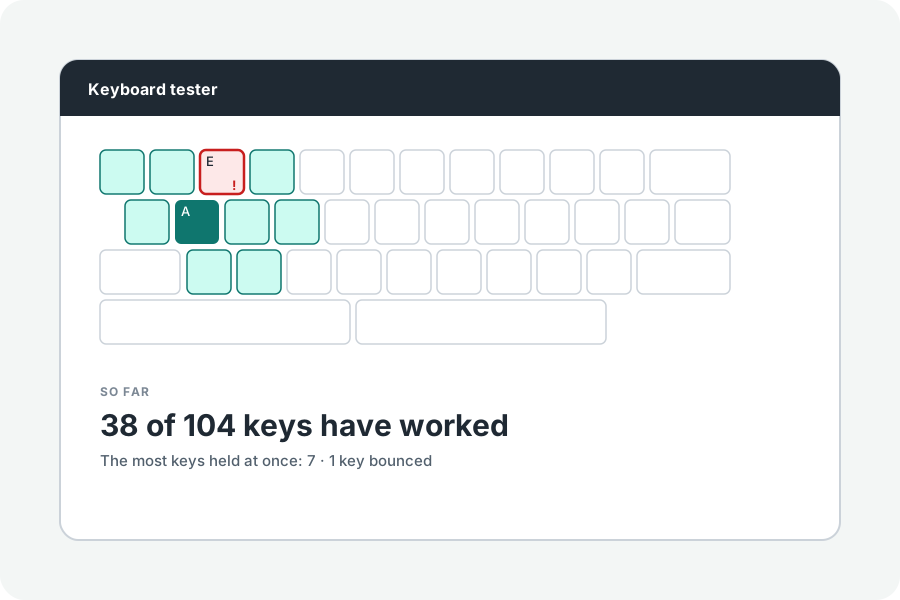
Before you send a laptop in for repair, or after spilling something on it, check every key. The laptop keyboard tester opens on the layout most laptops have.
Every key, one by one.
Click the board and press each key. Keys light while held and keep a tick once they have worked; the result names those still to press, so a dead key stands out.
Most laptops have a 75% layout: a function row, arrows tucked under the right shift and a short column on the right. Choose another size if yours differs.
Keys the laptop keeps.
Fn, and keys the laptop itself acts on, such as brightness and volume, often never reach a web page; that is not a fault.
Double letters and blocked keys.
A letter that types twice is chatter, which the tester marks; keys that do not register while others are held show in the most held at once.
Further reading
Topics: laptop keyboard tester · laptop keyboard test · test laptop keys · keyboard not working laptop · check laptop keyboard · dead key test
A little less theory. A little more doing.
Try it on your own terms, with a free browser tool.
Try the tool