

Test every key, and know what a page cannot see.
Press every key and see which work, how many can be held at once and which bounce, on a drawing of your keyboard. What a browser cannot see, said plainly.
By Suraj Kumar4 min read
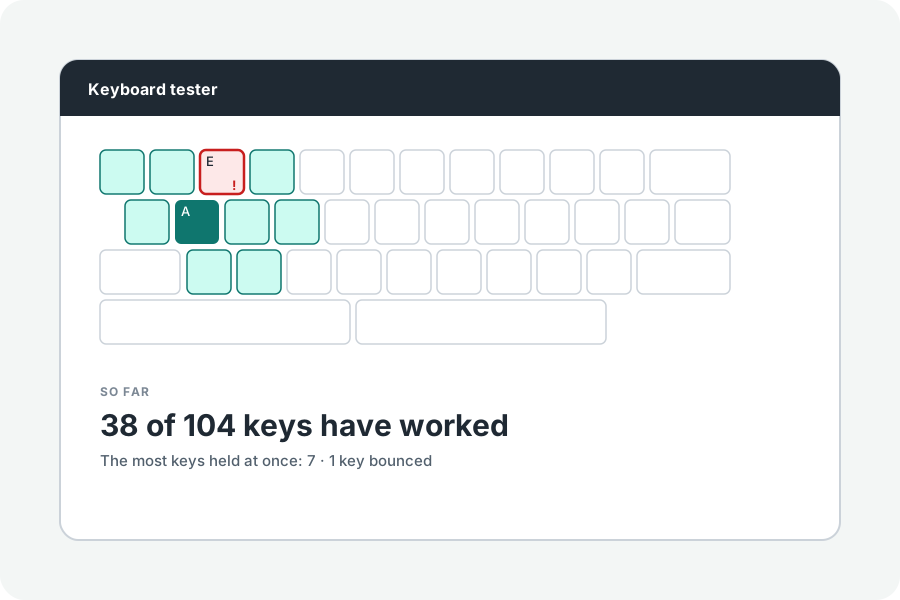
A key that does not work, a key that types twice, a key that does not register when others are held: a keyboard tester shows each. KeepSimp's draws your keyboard and lights each key as you press it, in your browser.
Press every key.
Open the keyboard tester, click the board and press your keys. Each lights while held and keeps a tick once it has worked; the result counts how many have worked and names those still to press. The site's own shortcuts step aside while you test, and Escape pressed twice leaves.
Choose your keyboard's shape (ANSI, ISO, JIS, ABNT2, Korean or Mac) and size, from a full board with its number pad to a 60% board. In Chrome and Edge the letters are labelled in your own layout.
Hold, bounce and log.
Hold several keys to see how many your keyboard reports at once. A key pressed again within 30 ms of being let go is marked as a bounce, the sign of a worn switch. Under More options are each key's hold times and repeats, and a log of every event to download as CSV or JSON.
What no web page can see.
A page is told about a key only when your keyboard and your system pass it on. Fn is handled inside the keyboard, and shortcuts the system keeps, such as Alt+Tab or ⌘+Tab, never arrive. How far a key travels, where it acts and how often the keyboard reports cannot be measured from a browser.
In Chrome and Edge, full screen lets the page catch more keys, such as Escape. On a phone, the tester tests a keyboard you connect; the on-screen keyboard has no keys to test.
Then put it to work.
Once every key works, see how fast you type on it.
Further reading
Topics: keyboard tester · keyboard test · key tester · test keyboard online · keyboard checker · check if keyboard works
A little less theory. A little more doing.
Try it on your own terms, with a free browser tool.
Try the tool