

You in focus, the room softened.
Blur the background of a photo in your browser, as a portrait lens would. The subject is found on your device and nothing is uploaded.
By Suraj Kumar4 min read
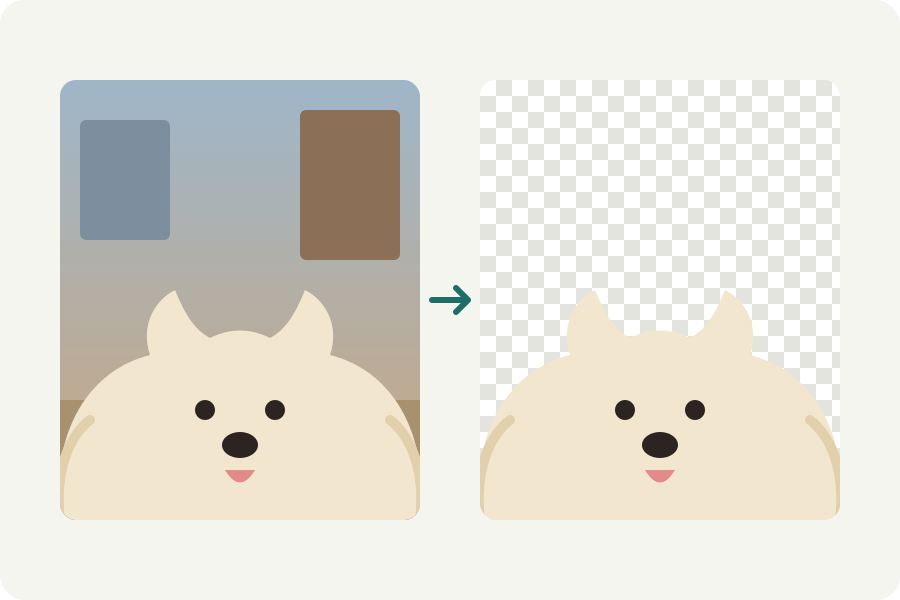
A portrait lens keeps the person sharp and lets the room behind melt away. A phone photo taken in a busy kitchen has everything sharp at once. KeepSimp can soften what is behind you after the fact: it finds the subject on your device, blurs the rest, and never uploads the photo.
How it works.
An open model, BiRefNet, looks at the photo and decides for every pixel how much of it belongs to the subject. The model runs in your browser; the first time, it is loaded from this site and kept. The photo's own background is then put back behind the subject, softened.
This is not a depth map. A real lens blurs things more the further away they are; here everything behind the subject is softened evenly. For a profile picture or a product, that usually looks right.
Blur it in three steps.
Open the Profile picture background changer, or the Background remover, and drop a photo. Under What goes behind it?, choose Soft blur.
Under More options, set how soft the blur is, from 1 to 10. The Profile picture background changer frames the photo as a square; for the photo as taken, change the framing there.
Drag the handle across the picture to compare, then download it as JPEG, PNG or WebP.
Fix the edges.
The model can miss part of a sleeve or keep a lamp that stands just behind you. Press Touch up: click something to take it away or bring it back, or paint with the brush. Every click and stroke can be undone.
Hair is the hardest part for any tool of this kind. The remover fits the edge to the photo at full size, which keeps loose hair from looking cut out with scissors.
A colour instead, or hiding one part.
If the room is distracting even when soft, choose a plain colour or White behind you instead. A plain colour reads well at the small size profile pictures are shown at.
Blurring the background is not the way to hide a face or a number plate in a photo. For that, the photo editor's Blur image blurs just the part you drag over, and offers a solid box, since blur can sometimes be read back.
Further reading
Topics: blur background · blur photo background · blur background of photo online · portrait blur · background blur free · bokeh effect online · blur background for profile picture · no upload
A little less theory. A little more doing.
Try it on your own terms, with a free browser tool.
Try the tool