

Change the words, and keep the look.
Change the words already in a PDF in your browser, with nothing uploaded: in the file's own font, a paragraph at a time, or everywhere with find and replace.
By Suraj Kumar5 min read
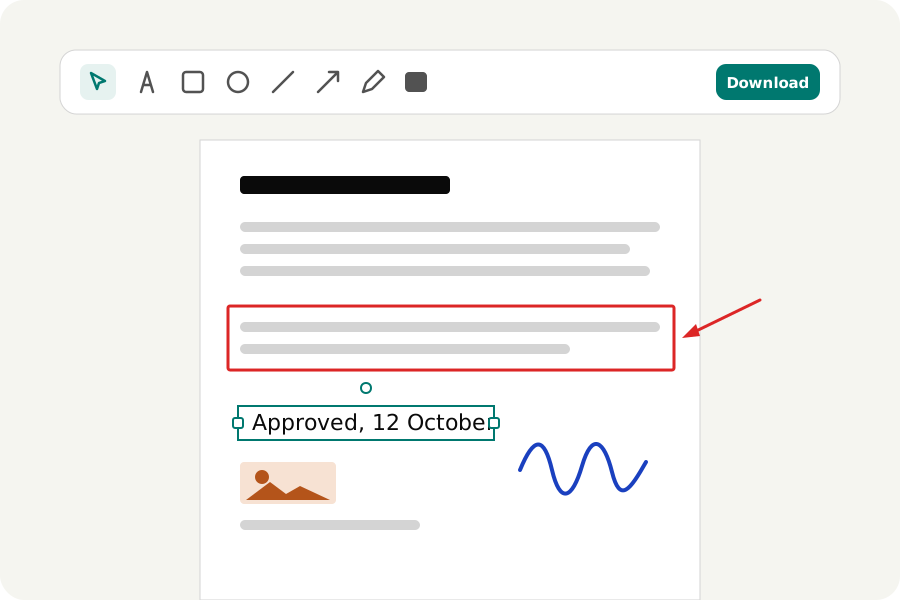
A date is wrong, a name is misspelt, a price has changed. The usual fix is to cover the old words with a white box and type over it, which looks almost right and leaves the old words in the file. The PDF editor changes the words themselves, in the font they were set in. Here is how, and where it stops.
Click the words and type.
Open the PDF editor and answer Add or change text, or take Change text from the bar (the key is E). Every line of the page's own text can now be clicked. Click one, type, and press Enter (in a paragraph, Enter starts a new line and Done puts the words in). The old letters are taken out of the page and the new ones are written in their place with the very font the line used, at its size and colour. Nothing is covered.
The page is then read again. If any other line moved or changed, or the new words cannot be read back where they belong, the change is not made and the bar says why. That check runs on every change.
Paragraphs flow again.
Lines that belong together are one place to click: a paragraph. Its words flow again within the width it had, with its alignment and line spacing, so a longer sentence pushes the words after it onto the next lines. Links move with the words they lie over.
Which lines make a paragraph is judged by how they look, so a list is sometimes taken for one. Paragraphs in the bar turns that off, and every line is a line again. A paragraph that grows needs empty room under it, since nothing below it is moved; when there is none, nothing is changed and the bar says how many lines it needs.
Letters the font does not have.
A PDF often carries only the letters it uses. If you type one its font lacks, it is set in the closest of the editor's own fonts, and the field names such letters before you press Enter. A line can also be set in another font, one of the editor's or a font file of your own; a font whose maker forbids embedding is not put in the file.
The size and colour of a line can be changed, and a line can be dragged to another place.
Change a word everywhere.
Find and replace (F) looks through the whole file, also across line breaks. Every place is shown on its page with what it says now and what it will say. Replace one at a time, or press Replace all, which is one step that one undo takes back. A place that cannot be changed, such as a paragraph with no room to grow, is left out and listed.
What it cannot change.
A scanned page has no text, only a picture of text. Recognising its words with OCR adds unseen text for searching, but the picture still shows the old words. On a scan, the honest fallback is a cover with new words typed over it, and a cover only hides: the picture under it is still in the file.
Text in scripts whose letters join and change shape, such as Arabic and the scripts of India, can be taken out but not retyped. Neither can text that runs downwards. The spacing a line was set with is not kept exactly: new letters stand where their own widths put them.
When a rewrite is bigger.
For more than a few lines, turning the PDF into a Word file and making a new PDF afterwards can be simpler, though Word lays the words out again and the look changes.
Further reading
Topics: edit text in PDF · change text in PDF · edit existing text in PDF · replace text in PDF · find and replace in PDF · edit PDF without changing format · change font in PDF · edit PDF text free
A little less theory. A little more doing.
Try it on your own terms, with a free browser tool.
Try the tool