

Make a filled form final.
Flatten a PDF in your browser, with nothing uploaded: draw form fields and comments into the page, so the next person cannot retype them. What it does not lock.
By Suraj Kumar4 min read
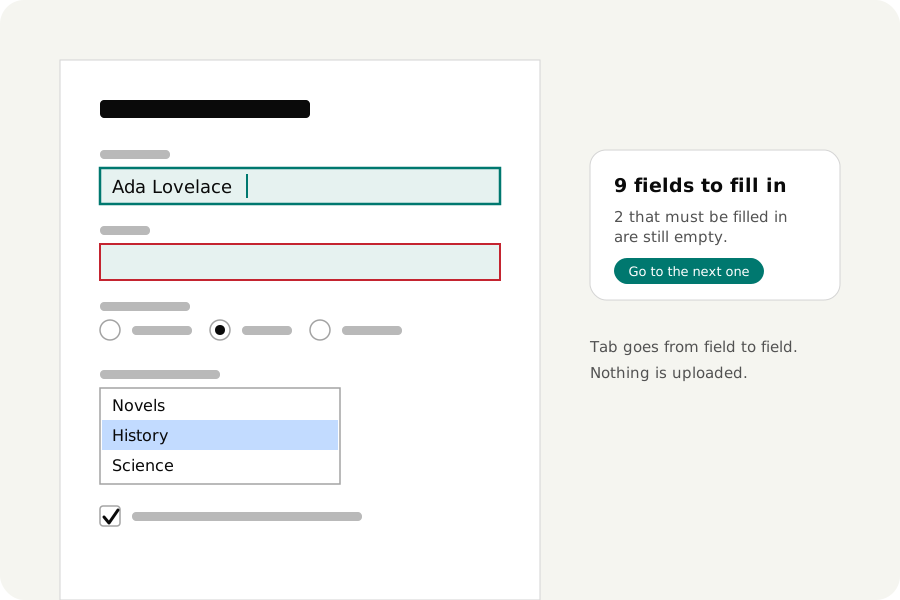
A filled-in form still has its fields. Open it in another program and every answer can be retyped, every tick undone. Flattening draws what the fields hold into the page and takes the fields away. Here is how, and what flattening does not protect.
What flattening does.
A form field is a box the PDF knows about, with a name and a value, drawn over the page. Comments, highlights and stamps are similar: separate things laid on the page. Flattening draws each of them into the page's own content and removes the separate thing. The page looks the same; there is just nothing left to fill in or click.
That is what you want for the copy you send in or keep for your records, and for a form that should look the same in every program.
Flatten a form you have filled in.
Open the form in Fill PDF form and fill it in. When you download, look under What you added. Form fields offers Keep as fields or Part of the page: choose Part of the page. If the file has comments, Comments offers the same choice, and Leave out besides. Things you added yourself, such as typed text and a signature, become part of the page unless you turn on Keep what you added editable.
The result is opened again before it is offered, and the check says that no field is left.
Flattening while merging or compressing.
The PDF merger can flatten the fields of every file it joins: under More options, Fillable fields offers keep, join, flatten or remove. The PDF compressor has Flatten form fields under Take out. In both, what was filled in stays visible on the page.
What flattening does not do.
It is not a lock. The answers become ordinary page content, and anyone with a PDF editor can still change ordinary content. To stop a file being opened, set a password. To take something out of a file for good, use redaction: flattening keeps everything that was there.
A comment's note keeps only its icon when it is drawn in; the words behind it are no longer shown. Keep a copy with the fields if you may need to correct the form later.
A digitally signed file is a case of its own. Flattening writes the file again, so the signature would no longer hold; when the editor keeps a signature valid, it offers no flattening.
Your answers stay with you.
The form is filled in and flattened in your browser and never uploaded. Once the page has loaded it works without a connection.
Further reading
Topics: flatten PDF · flatten PDF form · flatten PDF online free · flatten fillable PDF · flatten annotations in PDF · make PDF form non editable · lock form fields in PDF · flatten PDF without Acrobat
A little less theory. A little more doing.
Try it on your own terms, with a free browser tool.
Try the tool