

A notepad that stays on your device.
An online notepad in your browser, nothing uploaded: write notes, keep them on this device only if you choose, and save them as Markdown, Word or PDF.
By Suraj Kumar3 min read
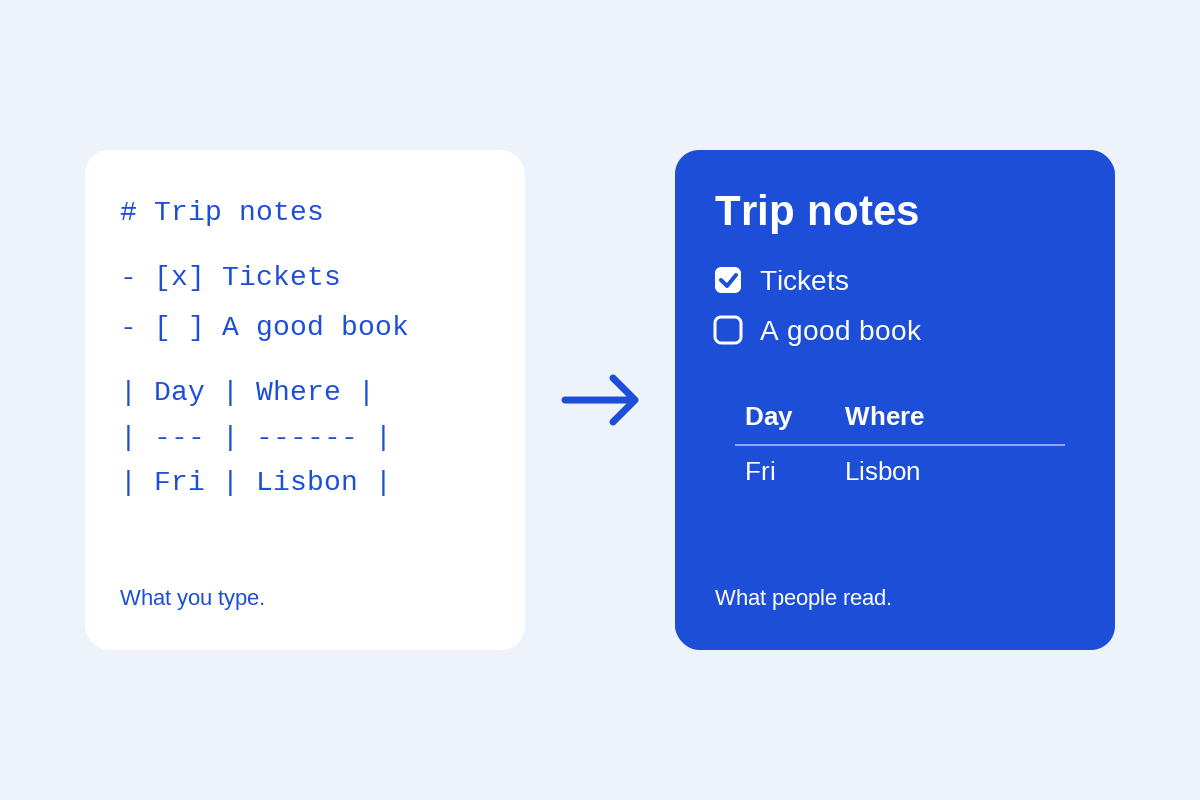
Sometimes you just need somewhere to type: a list, a draft of an email, notes from a call. The online notepad is a page to write on, in your browser. Nothing you type is sent anywhere, and it is kept on your device only if you ask.
Open it and type.
Open the online notepad and start typing. There is no account, no sign-up and nothing to set up. Plain text is fine: a line that starts with # becomes a heading and one that starts with - becomes a list, but only if you write them so.
The view shows the text alone, the text beside the page it makes, or the page alone. Under it are the counts: words, characters and reading time. Several notes can be open at once, each in a tab with its own undo.
Kept only when you ask.
Nothing is kept until you press Keep my notes on this device. From then on, what you write is kept in this browser on this device a moment after each change, and is there again when you open the page. The button turns on the same switch as Keep a draft on this device in the menu.
Turn that switch off and the kept notes are deleted. They live in this browser alone: another browser, another device or a private window does not see them, and clearing the site's data deletes them, so save a copy of anything that matters.
Save a copy, or send it on.
Save writes the notes as a .md file, plain text that any editor opens. In browsers that allow it you choose where it goes and later saves go back to the same file; elsewhere it is downloaded.
Export makes a web page (.html) or a Word file (.docx), or opens the print dialog, where Save as PDF makes a PDF. Copy as rich text puts the notes into an email or a document with their headings and lists.
Nothing you type is sent.
The notes are read, shown and written in your browser, and never uploaded. There is no account, so there is nothing to sign in to and nothing of yours on a server.
The one thing the page fetches for a note is a picture from another site that you link to, so that the preview can show it; turn off Show pictures from other sites, under Preview in the menu, to leave them out.
Further reading
Topics: online notepad · notepad online · online notes · notepad without login · browser notepad · private notepad · write notes online · online text editor
A little less theory. A little more doing.
Try it on your own terms, with a free browser tool.
Try the tool