

A look in one tap, shown on your photo.
Give a photo a look in one tap (Vivid, Warm, Black and white, Film and more), let Auto fix its light, and fine-tune it in plain words.
By Suraj Kumar3 min read
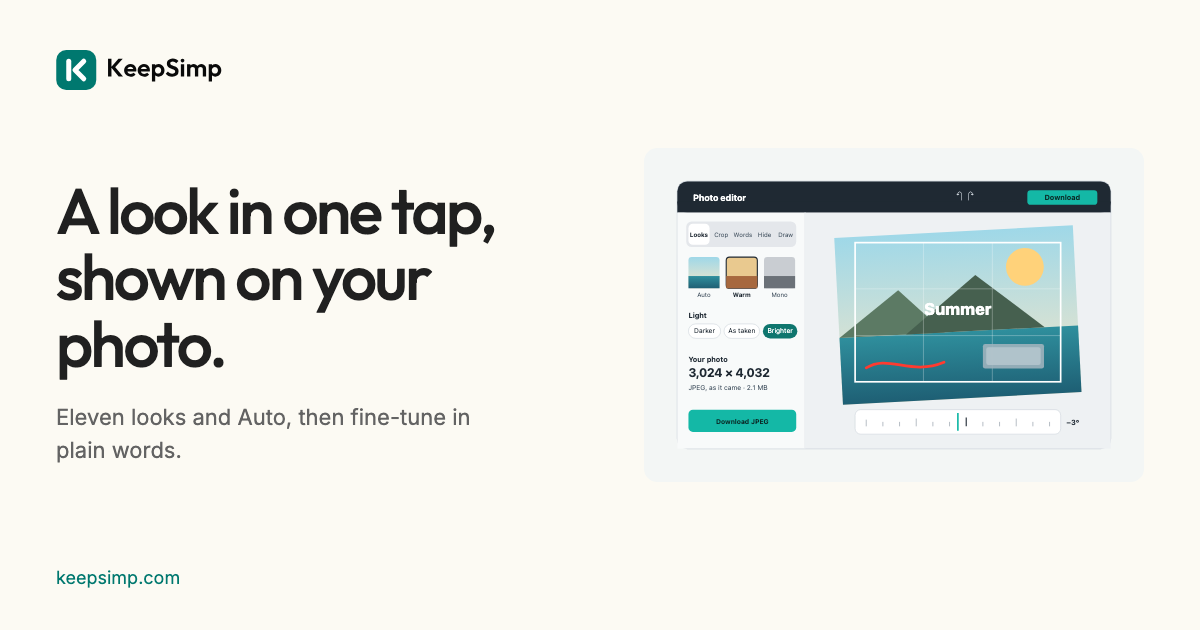
A filter is quickest to choose when you can see it on your own photo. Each look here is shown as a small picture of the photo you added, and each can be made stronger, softer, lighter or warmer.
Tap a look.
Open Photo filters and add a photo. Auto comes first, then Vivid, Bright, Warm, Cool, Dramatic, Film, Faded, Black and white, Noir, Sepia and Vintage. Tap one to try it; Strength under Fine-tune sets how far it goes.
What Auto does.
Auto measures the photo's lightness and the colour of its grey parts, then sets the editor's own settings: light for a dark photo, contrast for a flat one, calmer bright parts where white is lost, and half of a colour cast taken back. They are ordinary settings you can see and change.
Then in plain words.
Under the looks, light, colour and detail each have five words, such as Much darker, Darker, As taken, Brighter and Much brighter. Warmth makes a photo more golden or more blue, as a camera's white balance does; Edges darken or lighten the corners. The exact numbers are under Fine-tune.
Your photo stays on your device.
The photo is opened, changed and written in your browser; it is never uploaded. The downloaded file carries no location or camera details, and nothing is kept when you leave.
Further reading
Topics: photo filters · image filters online · black and white photo · vintage filter · auto enhance · brighten photo
A little less theory. A little more doing.
Try it on your own terms, with a free browser tool.
Try the tool