

Your Mac's screen, with your voice and its sound.
Record a Mac's screen with sound in your browser, with nothing uploaded: which browser gives a tab's or the whole Mac's sound, and Apple's own recorder.
By Suraj Kumar4 min read
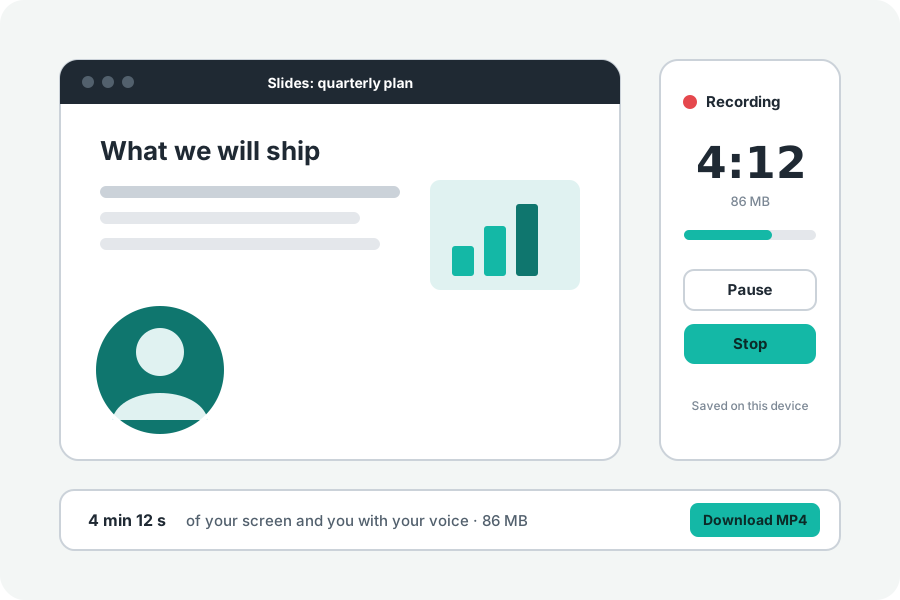
Recording a Mac's screen is easy. Getting its sound into the recording is the part that catches people out, because what a recorder can hear depends on the app and, in a browser, on which browser and what you share. Here is what works, in Apple's own recorder and in KeepSimp's.
Apple's own recorder.
Press Shift-Command-5 to open the Screenshot toolbar, choose to record the entire screen, a window or a part, and press Record. Under Options you can choose a microphone for your voice. Apple's page says that recording the Mac's own sound is offered only in the newest versions of macOS.
Which browser gives which sound.
In Chrome and Edge on a Mac, sharing a tab gives that tab's sound. Sharing the entire screen gives the whole Mac's sound from Chrome 141 on macOS 14.2. A single window never comes with sound. Safari and Firefox share windows and screens but give no sound with them; your microphone is still recorded.
So for a video call, a lesson or anything playing in a tab, use Chrome or Edge and share the tab. For sound from another app, share the entire screen in Chrome 141 or later.
Before recording, the page says what this browser can give, so you know before you start. If you are in Safari and need the sound, open the same page in Chrome or Edge.
Record with KeepSimp.
Open the Screen recorder and choose Screen and me to put your camera in a bubble in a corner, Screen for the screen alone, or Just me. Turn on My microphone and Sound from the tab or computer, and press Record. The first time, macOS asks you to allow the browser to record the screen in System Settings, under Privacy & Security, and the browser may need to be opened again after that.
In Chrome's window, keep the switch that shares the tab's or system audio on. If no sound came, the recorder says so straight away, and why.
While it records.
Your microphone and the Mac's sound are mixed into one track, with echo cancelling on so the speakers do not come back through the microphone. Pause leaves no gap in the file. In Chrome, the controls can move into a small window of their own, which shows in a recording of the entire screen.
Alt or Option + R starts and stops recording, and Option + P pauses, while the page has the keyboard. There is no time limit and no watermark.
An MP4 on your Mac.
The recording is saved as MP4 (H.264 and AAC), which QuickTime Player opens, or as WebM if you choose it. It is made by your browser on your Mac and never uploaded. Edit it opens it in the Video editor to trim it or make it smaller.
Further reading
Topics: record screen with audio mac · mac screen recorder with sound · record internal audio mac · screen record mac free · record screen and webcam mac · shift command 5 no sound · safari screen recording audio
A little less theory. A little more doing.
Try it on your own terms, with a free browser tool.
Try the tool