

Record your screen, with you in the corner.
Record a tab, a window or your whole screen with your voice and your camera in a corner, in your browser, with no time limit, no watermark and no upload.
By Suraj Kumar4 min read
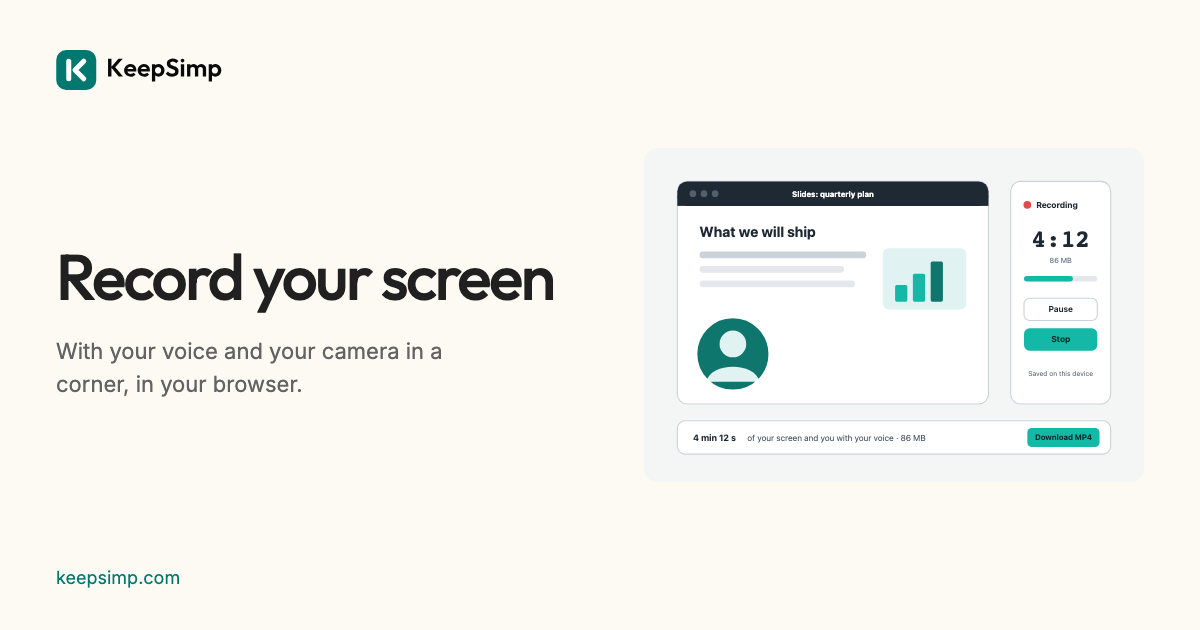
Showing someone how to do something is often quicker than writing it down. A short recording of your screen, with your voice and your face in a corner, says it once and can be watched again. The Screen recorder makes one in your browser, without an app, an account or an upload.
Three answers and one button.
Open the Screen recorder and say what you want to record: Screen (a tab, a window or your whole screen), Screen and me (the same with your camera in a round bubble in a corner), or Just me. Leave My microphone on to record your voice, and Sound from the tab or computer on to record what is playing. Press Record.
The browser asks what to share and whether the site may use the camera and the microphone. A 3, 2, 1 countdown follows, which is not recorded, then the page shows the time, the size so far and how loud the sound is, with Pause and Stop.
Pause without a gap, stop from anywhere.
Pause holds the recording; when you go on, the video carries on from the same moment, with the sound faded at the join so it does not click. In Chrome, Controls in a small window keeps Pause and Stop in front of every other window while you work in them (it shows in a recording of the whole screen, so share a window or a tab to keep it out). The browser's own Stop sharing button ends the recording too, and keeps it.
There is no time limit. The video is written to your device as it is made, so a long recording never fills the memory, and the page stops by itself before the device runs out of room, keeping everything up to then.
A finished file, checked.
When you stop, the recording is copied into a finished MP4 with its index at the front, so it starts at once on a website, without being encoded a second time. It is then opened again and checked: its size, its frame rate, its length and that its picture and sound play. The result says how long it is, what it holds and its size, such as 4 min 12 s of your screen with your voice, 86 MB.
Download saves it. Edit it opens it in the Video editor, where you can cut the start and end, crop it, make it smaller or turn it into a GIF, still on your device.
What each browser can record.
Chrome and Edge on a computer can record a tab, a window or the whole screen, with the sound of a tab, and of the whole computer on Windows and ChromeOS, and on a Mac from Chrome 141 on macOS 14.2. Firefox and Safari record a window or the screen without its sound; your microphone is still recorded. Browsers on phones and tablets cannot record the screen at all, so there the recorder records your camera, and the phone's own screen recording does the rest.
Nothing leaves your device.
Your browser records and saves the video on this device. Nothing is sent to KeepSimp or anyone else, and the camera and microphone are asked for only when you press Record. The recording is written to the browser's own storage for this site while it is made, and a draft is kept there only while its switch is on.
Further reading
Topics: screen recorder · record screen with audio · screen and webcam recorder · loom alternative · record a tab · screencast · free screen recorder no watermark · screen recorder no time limit · screen recorder online no download · record screen and webcam at the same time
A little less theory. A little more doing.
Try it on your own terms, with a free browser tool.
Try the tool