

Your Chromebook's screen, with its sound.
Record a Chromebook's screen with its sound, your voice and your camera in the browser, with nothing uploaded. And when ChromeOS's own recorder is enough.
By Suraj Kumar4 min read
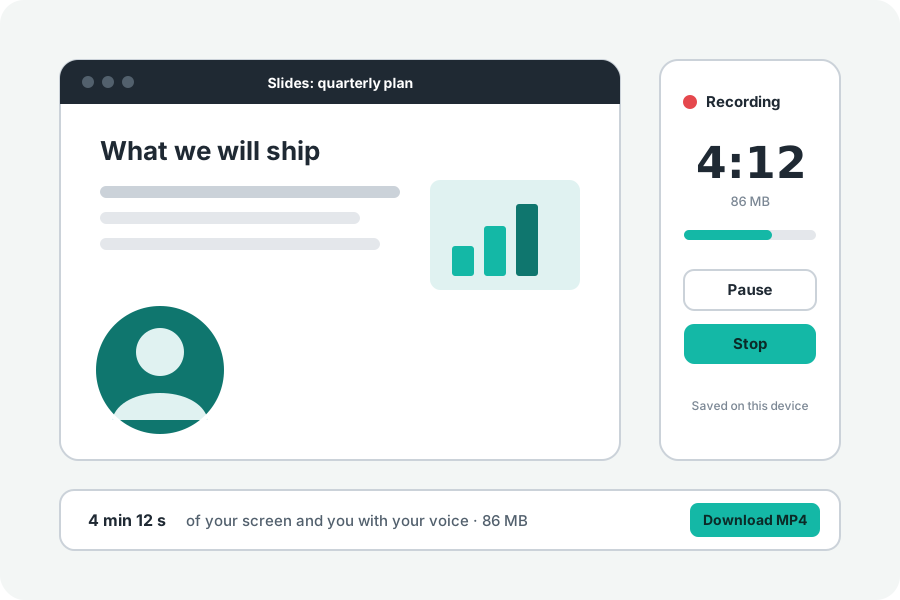
A Chromebook has two good ways to record its screen: the screen recorder built into ChromeOS, and a recorder that runs in Chrome. Chrome on ChromeOS is one of the places where a browser can record the whole computer's sound, so KeepSimp's Screen recorder works fully there.
ChromeOS's own recorder.
Google's Chromebook Help describes it: press Shift + Ctrl + Show windows, or choose Screen record from the menu, then the full screen, a part of it or a window. Its settings can record the device's audio, the microphone, or both. For a quick recording to keep on the Chromebook, it is all you need.
When you want your camera in it too.
KeepSimp's Screen recorder adds your camera in a round or rounded bubble in a corner, pause without a gap, a level meter, a choice of MP4 or WebM, and an Edit it button that opens the recording in the Video editor. Open it in Chrome, choose Screen and me, Screen or Just me, and press Record.
Chrome then asks what to share: a tab, a window or the entire screen. A three-second countdown runs before anything is recorded.
While it records, the page shows the time, the size so far and your microphone's level. Alt + R starts and stops recording and Alt + P pauses, while the page has the keyboard. In Chrome, Controls in a small window puts them in a little window of their own that stays in reach while you work in another tab. Turn on Keep a draft while recording and a closed tab or a crash does not lose the recording.
Getting the sound in.
Turn on Sound from the tab or computer before you press Record. On ChromeOS, Chrome gives a tab's sound when you share a tab, and the whole computer's sound when you share the entire screen; leave the audio switch in Chrome's window on. A single window never comes with sound in any browser, so share the tab or the screen instead.
Your microphone and the shared sound are mixed into one track. Speakers can carry the computer's sound back into the microphone, so echo cancelling is on whenever both are recorded. If no sound came, the recorder says so straight away.
Mind the storage.
Many Chromebooks have little storage. A recording needs about twice its size while it is made, and about 2.8 GB an hour at the usual 1080p quality. The page checks the room first and says how long fits; Small (720p) under More options needs much less. It stops cleanly rather than losing a recording when space runs out.
Trim it and send it.
Edit it opens the recording in the Video editor to cut the start and end and make it small enough to send. Everything stays on the Chromebook: nothing is uploaded to KeepSimp.
Further reading
Topics: record screen on chromebook · chromebook screen recorder with audio · how to screen record on chromebook · chromebook record screen and webcam · chromebook screen recording no sound · record chromebook screen mp4
A little less theory. A little more doing.
Try it on your own terms, with a free browser tool.
Try the tool