

See what is in a ZIP before you open it.
See every file and folder in a ZIP in your browser, with nothing uploaded, and preview pictures, text, sound and video without taking anything out.
By Suraj Kumar3 min read
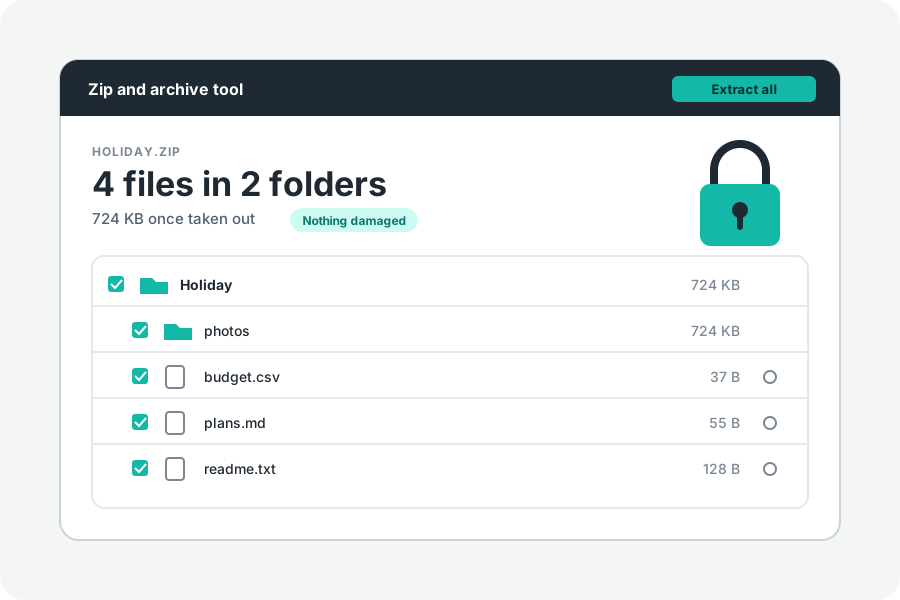
Sometimes you only need to know what is in an archive: whether it holds the file you were promised, how large it will be, or whether it is worth unpacking at all. The ZIP file viewer lists everything in your browser and lets you look at a file without taking it out.
The list comes first.
A ZIP keeps a list of its files at its end, so the viewer reads that list and not the files, and even a large archive opens quickly. The page says how many files and folders there are, how large they will be once taken out, and how much smaller they are packed.
Folders open with a press, each file with its size and date. Find a file looks through every name, however deep it is.
A .tar is listed from the headers between its files. A tar.gz has to be unpacked from start to end to list it, which also checks it. A .gz file holds one file, whose size is read from its last four bytes; when that cannot be right, for a file over 4 GB, the page says so.
Preview without taking anything out.
Press the eye beside a file. Pictures (JPEG, PNG, GIF, WebP, AVIF, BMP, ICO and SVG) are shown, text and code are shown as text, and sound and video play in the browser's own player. A file over 32 MB is not previewed; download it to open it. Long text shows its first 200,000 characters.
Nothing is run. A web page or a script is shown as its text, never opened as a page.
What the list tells you.
Locked files show a padlock. A ZIP's password locks what is in its files, not their names, sizes or dates, so the list is shown before you type it. Previewing a locked file needs the password.
Under More options you find the archive's comment, if it has one, notes about it, and any entry left out for safety, such as a name that leads out of its folder, with the reason. Files packed in a way the tool cannot open are named, with how they are packed.
Then take out only what you need.
Every row has its own download button, and a preview has one too. To take out more, tick the files or folders you want and press Download, or Extract into a folder in Chrome and Edge on a computer.
Further reading
Topics: zip file viewer · view zip contents · open zip without extracting · preview zip files · list files in zip · zip contents online · see inside zip · tar.gz viewer
A little less theory. A little more doing.
Try it on your own terms, with a free browser tool.
Try the tool