

Open a ZIP, look inside, and take out what you need.
Open ZIP, TAR, tar.gz and .gz files in your browser, with nothing uploaded: preview what is inside, then take out every file, a folder or just one.
By Suraj Kumar5 min read
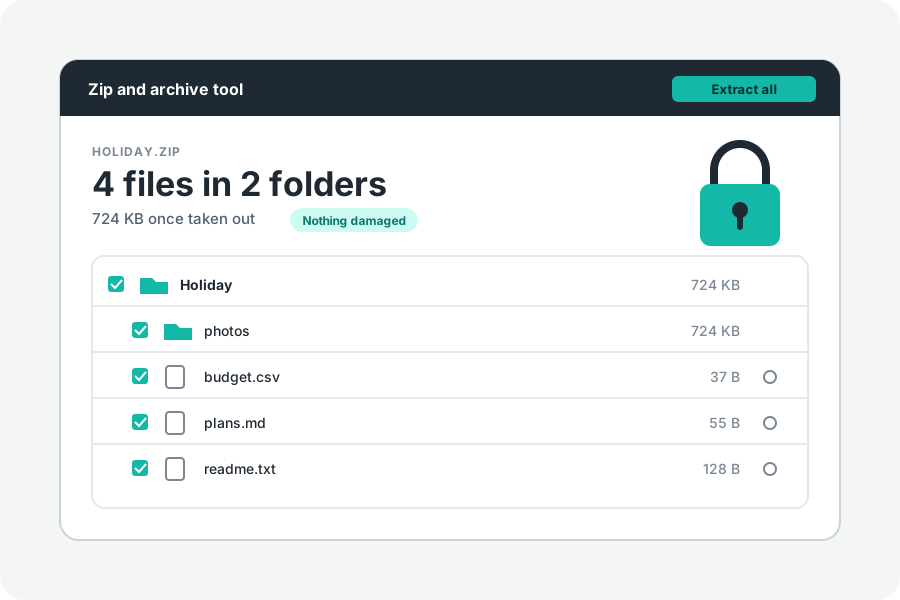
A ZIP is a box of files packed into one. Most of the time you want what is in it, and only some of it. KeepSimp's Zip and archive tool opens the box in your browser: you see every file first, preview the ones you are not sure of, and take out what you need. Nothing in the archive is sent anywhere.
Drop the archive on the page.
Open the Zip and archive tool and drop a file on it, or press Choose a file. It opens ZIP files, ZIP64 files over 4 GB, ZIPs behind a self-extracting program, and large ZIPs a Mac made that other programs may refuse. It also opens TAR, tar.gz (.tgz) and single .gz files, and RAR, 7z, tar.xz, tar.bz2 and tar.zst files, which it opens but does not make.
A ZIP cut into parts (.z01, .z02 … .zip, or .001, .002 …) is opened by choosing every part at once. The page says which part is missing if one is.
There is no upload, so there is no size limit but your device's. The page says how many files there are, how large they will be once taken out, and how much smaller they are packed.
See what is inside first.
Every file and folder is listed as a tree. Folders open with a press, and Find a file looks through every name. When the archive holds one folder at the top, it is opened for you.
Press the eye beside a file to preview it: pictures, text and code, sound and video, up to 32 MB. Nothing is run. A web page or a script is shown as its text.
Take out all of it, a folder or one file.
Every file starts chosen. Untick what you do not want, or tick a folder to choose everything in it.
In Chrome and Edge on a computer, Extract all into a folder asks you for a folder and writes the files into it with their folders. In every browser, Download saves one file as it is, or several as one ZIP with no password, which your device opens by itself. Each row also has a download button of its own.
The files Macs and Windows add to archives (__MACOSX folders, ._ files, .DS_Store, Thumbs.db and desktop.ini) are left out. Turn off Hide files Macs and Windows add under More options to see them. When a ZIP holds them, Save a copy without Mac and Windows files makes a new ZIP of everything else.
The same tool also makes ZIPs: where it asks what you want to do, choose Make a ZIP and drop files or whole folders.
Locked files and damaged ones.
Locked files show a padlock. Type the password you were given and press Unlock. Both kinds of ZIP lock are opened: WinZip AES and the older ZipCrypto. The password stays on the page and is never kept. A forgotten one cannot be found here.
Check for damage reads every file in full and compares it with the checksum it was saved with. Every file is also checked as it comes out, and one whose check fails is named and not saved.
When names come out garbled.
Some ZIPs do not say how their names are written. The page reads them as Unicode when they make sense that way, and as old DOS letters otherwise. If they look wrong, choose Japanese, Chinese, Korean, Cyrillic or another way under More options, in Read the names as.
What a browser cannot do.
Files written by a browser get today's date, not their own, and no permissions. Links inside an archive are listed and never made; in a TAR, a second name for a file (a hard link) is taken out under its first name. Sparse files, which macOS tar writes for files with holes such as disk images, are listed and not taken out.
Files packed with BZip2, LZMA, XZ, Zstandard or PPMd inside a ZIP are listed with the reason. RAR and 7z files open, but those locked with a password cannot be opened yet; the page names them as locked. Nothing here makes a RAR or a 7z. A tar.gz is unpacked from its start each time, so taking one file from near its end takes as long as unpacking everything before it.
Further reading
Topics: open zip file · extract zip · unzip files · zip extractor · open tar.gz · extract tar file · open gz file · zip file opener · split zip · no upload
A little less theory. A little more doing.
Try it on your own terms, with a free browser tool.
Try the tool