

When Windows says a compressed folder is invalid.
Check and open a ZIP that Windows calls invalid in your browser, with nothing uploaded, Deflate64, ZIP64 and AES ones too, and see why it happened.
By Suraj Kumar5 min read
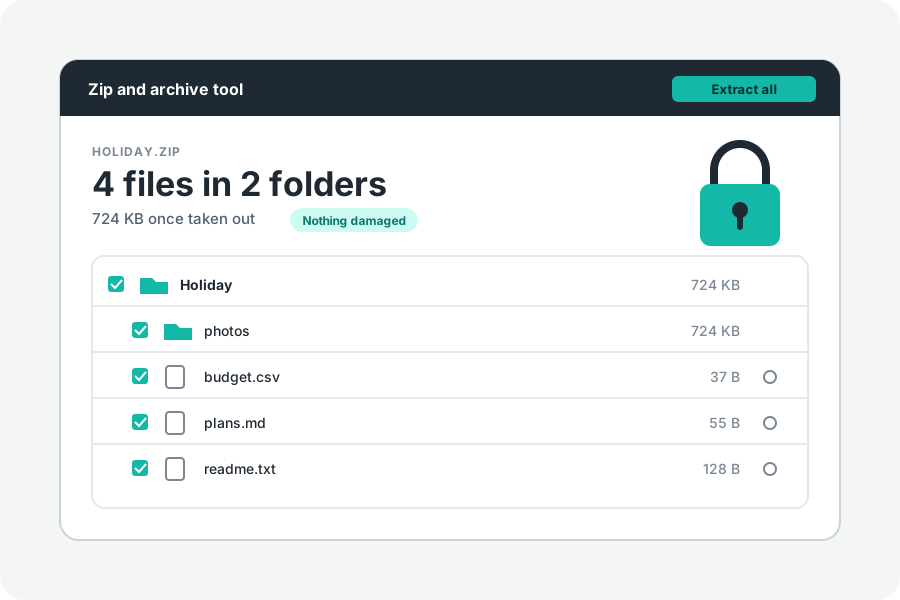
“Windows cannot open the folder. The Compressed (zipped) Folder is invalid.” The message is the same whatever went wrong, so it helps to go through the usual causes in turn. Most have a plain answer.
First, a download that did not finish.
A ZIP keeps its list of files at its end. When a download stops early, that list is missing and the whole archive looks invalid. Compare the file's size with the size the sender gives, and download it again.
Test a ZIP file says this in words: “This is not a ZIP file, or its end is missing.” The first part of a split archive on its own looks the same, and the page says to add every part together.
A password Windows does not open.
Microsoft's help says Windows does not support operations on encrypted archives, and suggests other programs such as 7-Zip or WinRAR. Archives locked with AES in particular often fail in File Explorer. The Zip and archive tool opens AES and ZipCrypto files with the password you were given.
Ways of packing another program may not expect.
Deflate64: a Microsoft answer says that Windows itself packs large ZIPs with Deflate64 rather than the usual Deflate. Many programs and libraries read only Deflate, so a large ZIP made by Windows can be called invalid somewhere else. The Zip and archive tool reads Deflate64.
ZIP64: archives over 4 GB, files over 4 GB and archives of more than 65,535 files need ZIP64 records, which older programs do not read. The Zip and archive tool reads them.
Some programs can also pack with BZip2, LZMA, XZ, Zstandard or PPMd (often in .zipx files). This tool does not open those either: it lists such files and names the method, and 7-Zip opens them.
Names Windows cannot use.
Windows does not allow some characters in names, such as : * ? " < > |, or names such as CON, PRN, AUX, NUL, COM1 and LPT1. Long paths can be refused too: many programs stop at 260 characters. An archive made on a Mac or Linux can hold such names, and Windows then stops part way with “Windows cannot complete the extraction”.
The Zip and archive tool leaves out names Windows reserves, and names that lead out of the folder, and lists them under More options with the reason. Any other file the folder will not take is reported, with the reason, once the rest are written.
Check it, then take out what is whole.
Drop the archive on Test a ZIP file. Every file is read in full against its checksum, and damaged ones are named. Then, in Chrome or Edge on Windows, Extract all into a folder writes the whole files into a folder you choose. Nothing is uploaded.
Further reading
- Zip and unzip files, Microsoft Support (opens in a new tab)
- Windows uses Deflate64 for large ZIP files, Microsoft Q&A (answer by Microsoft staff) (opens in a new tab)
- APPNOTE.TXT: the .ZIP file format specification, PKWARE (opens in a new tab)
- Naming files, paths and namespaces, Microsoft Learn (opens in a new tab)
- Maximum path length limitation, Microsoft Learn (opens in a new tab)
Topics: compressed zipped folder is invalid · zip file is invalid windows 11 · windows cannot open zip · windows cannot complete the extraction · zip file corrupted windows · deflate64 zip · zip64 · aes zip windows
A little less theory. A little more doing.
Try it on your own terms, with a free browser tool.
Try the tool