

After you press Stop.
Trim a screen recording, add captions from what you said, make it small enough to send, make a GIF or save a thumbnail, in your browser, nothing uploaded.
By Suraj KumarUpdated 3 min read
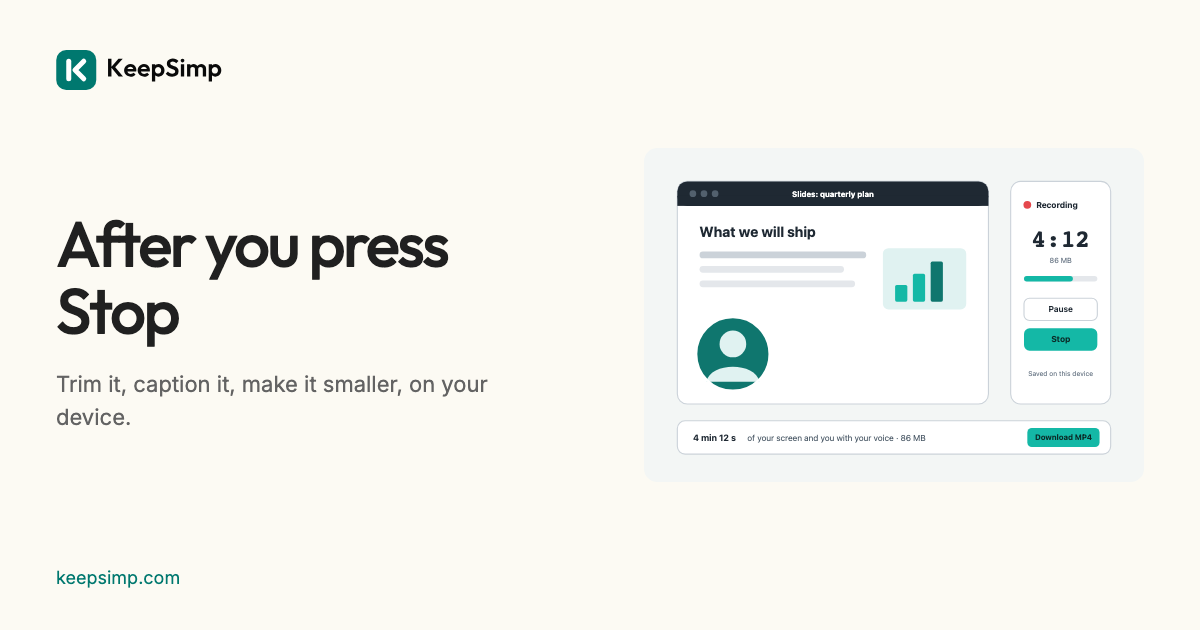
A recording is rarely ready the moment you stop. The start has you reaching for the mouse, the file is too big for an email, and half of the people watching have the sound off. Each of these has a page of its own on KeepSimp, and the Screen recorder hands your recording to it with one press, on your device.
Trim it.
Trim it opens the recording in the Video trimmer: drag the ends in, or cut out a part in the middle where you lost your place. What is kept is copied without being encoded again wherever it can be, so it loses nothing.
Captions from what you said.
Add captions opens the Subtitle generator, which hears your voice with Whisper on your device and writes subtitles. Read them, correct what it misheard, then press Write them into the video: the Video editor opens with your recording and the subtitles shown on it, and Save video writes them onto the picture. Whisper can mishear and make phrases up, so read them before you send it.
Small enough to send.
Make it smaller opens the Video compressor, where you say what it is for or the largest size you can send, and it is made to fit and checked. A recording of slides and text shrinks a long way, since most of the screen does not change.
Make a GIF turns a short part into a moving picture for a chat or a page, and Save a frame takes one moment as a picture for a thumbnail, straight from the file.
Nothing leaves your device.
Your browser records and saves the video on this device. Nothing is sent to KeepSimp or anyone else, and the camera and microphone are asked for only when you press Record. The recording is written to the browser's own storage for this site while it is made, and a draft is kept there only while its switch is on.
Further reading
Topics: trim screen recording · add captions to screen recording · compress screen recording · screen recording to gif · screen recording thumbnail · edit screen recording online
A little less theory. A little more doing.
Try it on your own terms, with a free browser tool.
Try the tool