

Take out the pages you do not want.
Delete pages from a PDF, or save one page on its own, in your browser with nothing uploaded. Pick them on a board of small pages and download a smaller file.
By Suraj Kumar4 min read
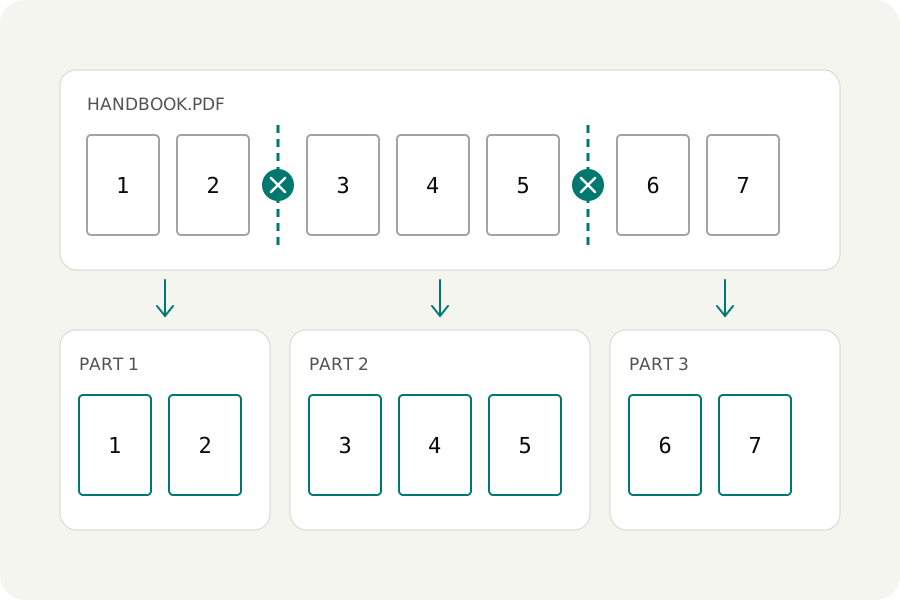
A form wants one page of a statement. A report has a blank page in the middle and two pages that should not go to the client. Taking pages out of a PDF is a small job, and the PDF splitter does it in your browser, so the pages you leave behind are not handed to anyone either.
Take some pages out.
Open the PDF splitter and add the file. Under Other ways to split, choose Remove pages. Every page is a small picture on the board: press the pages that should go, or Shift-click to take a run of them. A pages field shows the same choice as numbers, and you can type there instead, such as 2, 5-7. Press Split PDF and download one file with everything else in it, named after the original with -edited added.
Keep only some pages, or just one.
When there are fewer pages to keep than to lose, answer Pick pages instead. The pages you press become one new PDF, in the order of the file. Press a single page and you have that page on its own.
Every page on its own makes a PDF of each page, in one ZIP, for when a pack of forms has to be sent separately.
Blank pages from a scanner.
A stack of scans often has blank backs in it. At blank pages, also under Other ways to split, looks at every page and finds those with almost no marks; you choose how strict to be, from nothing at all to a punch hole or a short line. One of its choices only removes the blank pages and keeps the rest as one file. Press any page to change the verdict before you split.
The result is smaller, as it should be.
Many tools give back a file nearly as large as the original after taking pages out, because every page points at one shared list of the whole file's fonts and pictures. The splitter reads what each page really draws and keeps only that, so pages that are gone do not leave their pictures behind.
Links to pages that were taken out are removed, bookmarks follow the pages that stay, and a password on the original is not carried over. You can set one under More options. A digital signature cannot stay valid in a changed file.
Or in the PDF editor, along with other changes.
If you are editing the file anyway, open Pages in the PDF editor, choose the pages and delete them. The page is taken out of the file entirely, with the links, bookmarks and form fields that led to it, and the download says how many went. Taking a page out is not the same as hiding something on a page that stays; for that, use redaction.
Your file stays with you.
The PDF is opened and written in your browser and never uploaded. A computer takes files of up to 300 MB; a phone takes up to 100 MB, since phones close a page that uses much memory.
Further reading
Topics: delete pages from PDF · remove pages from PDF · extract pages from PDF · save one page of a PDF · separate one page from PDF · delete blank pages from PDF · remove page from PDF free · delete PDF pages without uploading
A little less theory. A little more doing.
Try it on your own terms, with a free browser tool.
Try the tool