

Keep the pages you need, as a file of their own.
Extract one page or several from a PDF in your browser, with nothing uploaded, and save them as a new PDF that keeps only what those pages use.
By Suraj Kumar3 min read
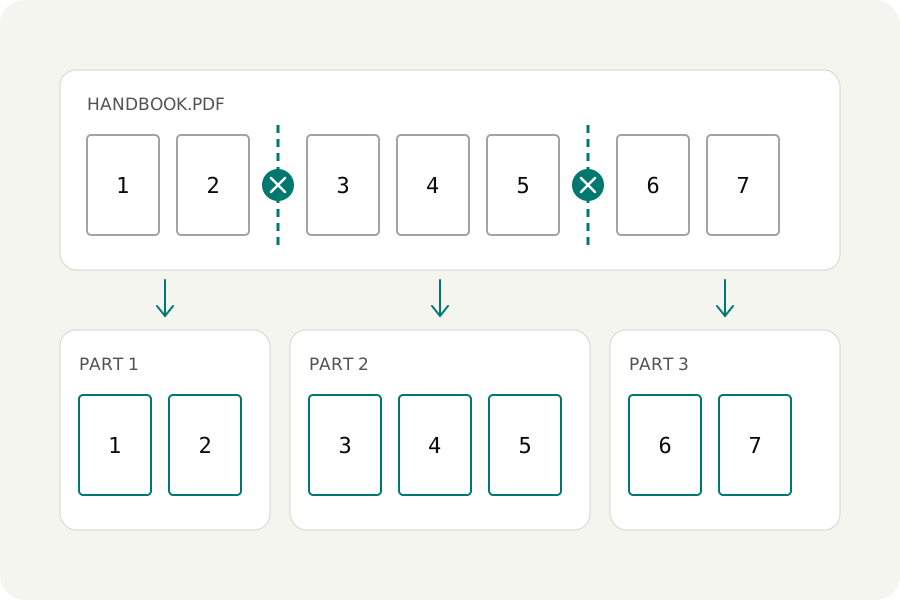
A form asks for one page of a bank statement. A client needs the three pages of a report that concern them, and nothing else. Taking those pages out as a file of their own is a small job, and KeepSimp does it in your browser, so neither the pages you send nor the ones you leave behind are handed to anyone.
Press the pages you want.
Open Extract PDF pages and add the file; a locked one asks for its password first. Every page is shown as a small picture. Press the pages you want, or press one and Shift-click another to take every page between. A pages field shows the same choice as numbers, and you can type there instead, such as 1, 4-6.
Press Make the PDF and download it. The new file is named after the original with its pages added, so book.pdf with pages 2 and 5 to 7 becomes book-pages-2_5-7.pdf.
Just one page.
Press a single page and you have that page on its own, as a PDF of one page. The pages you pick are saved in the order they have in the file, whatever order you pressed them in; to change their order afterwards, rearrange the new file.
A small file, with only what those pages use.
The pages of a PDF often share one list of every font and picture in the file, and many tools copy that whole list with each page they take out, so a single page can come out nearly as large as the original. Here each page's own drawing is read, and only the fonts and pictures it really uses go into the new file.
Links between the pages you keep still work, links to pages left behind are taken away, and bookmarks follow the pages that stay. A password on the original is not carried over; you can set one under More options. A digital signature cannot stay valid in a new file.
When you want something else.
If there are fewer pages to lose than to keep, Delete PDF pages works the other way round: press the pages that should go and the rest stay together. To make a separate PDF of every page, or to cut a file at several places, choose another way under Other ways to split; the plain question about what you want comes back as soon as you do.
Several files at once work too. The pages you type apply to every file, so the first page of twenty statements comes out as twenty one-page files, each named after its original.
Your file stays with you.
The PDF is opened and written in your browser and is never uploaded. A computer takes files of up to 300 MB; a phone takes up to 100 MB, since phones close a page that uses much memory.
Further reading
Topics: extract pages from PDF · save one page of a PDF · extract PDF pages free · separate pages from PDF · select pages from PDF · copy pages to a new PDF · PDF page extractor · extract pages without uploading
A little less theory. A little more doing.
Try it on your own terms, with a free browser tool.
Try the tool