

Record the call, with everyone's say-so.
Record a Meet, Zoom or Teams call that runs in a browser tab, with its sound and your voice, in your browser, with nothing uploaded. Ask everyone first.
By Suraj Kumar3 min read
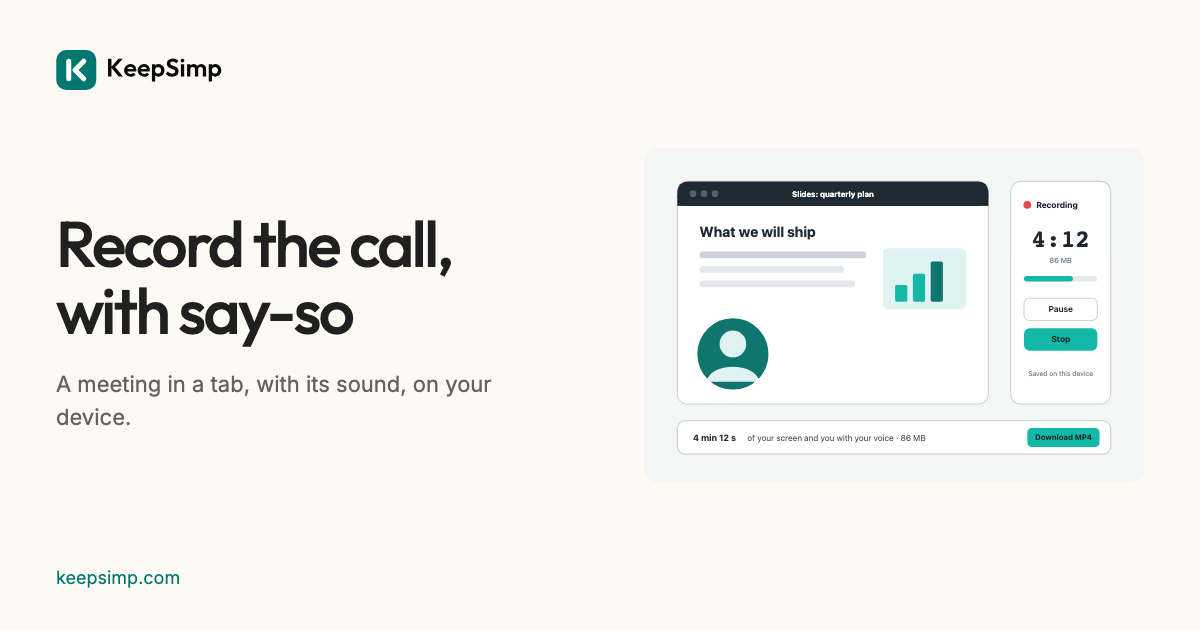
A recording of a meeting saves notes and helps anyone who missed it. The Meeting recorder records a call that runs in a browser tab, with its sound and your voice, on your device. Ask first.
Ask everyone first.
Tell everyone on the call that you want to record it, and record only with their agreement. In many places recording a conversation without the consent of everyone in it is against the law, and the meeting's own rules may forbid it. KeepSimp cannot tell the others that you are recording: you must.
Share the tab with the call.
Open the meeting in a browser tab (Google Meet, or Zoom and Teams in the browser), then the Meeting recorder in another, and press Record. Choose the meeting's tab and tick Share tab audio: the others' voices come with it, and your microphone is mixed in. Chrome and Edge give a tab's sound; Firefox and Safari give none.
A meeting in a desktop app can be recorded by sharing its window or your whole screen, but a window comes with no sound; your whole screen does on Windows and ChromeOS, and on a Mac from Chrome 141 on macOS 14.2.
Afterwards.
The recording is saved on your device. Add captions writes what was said onto it with Whisper on your device, and Trim it cuts the small talk at the start. Keep it as carefully as you would the meeting's notes.
Nothing leaves your device.
Your browser records and saves the video on this device. Nothing is sent to KeepSimp or anyone else, and the camera and microphone are asked for only when you press Record. The recording is written to the browser's own storage for this site while it is made, and a draft is kept there only while its switch is on.
Further reading
Topics: record google meet · record zoom meeting in browser · record teams meeting free · record online meeting with audio · meeting recorder no download
A little less theory. A little more doing.
Try it on your own terms, with a free browser tool.
Try the tool