

Turn it the right way up.
Rotate a video 90° or 180°, or mirror it, in your browser with nothing uploaded. In MP4 and MOV the turn is a setting, so the picture is not encoded again.
By Suraj Kumar3 min read
A phone held the wrong way, a camera on its side, a selfie that reads backwards: a video often needs turning or mirroring. The Video editor does both in your browser, and in MP4 and MOV it can turn a video without encoding the picture again.
Where to find it.
Open the Video editor and drop the video. Under More options, Turn and shape has Turn (None, 90° right, 180° or 90° left) and a Mirror switch that flips the picture left to right, as a front camera shows it. Crop video opens with this group already showing.
There is no upside-down flip of its own, but you can make one: turn 180° and mirror, and the picture is flipped top to bottom.
A setting, not a new picture.
MP4 and MOV files can carry a turn as a setting that players follow; it is how phones save upright videos. So when nothing else about the picture changes, the editor copies it as it is and writes the turn as a setting. Nothing is encoded again, so nothing is lost, and it takes seconds.
WebM and MKV cannot carry it, so there the picture is drawn turned and encoded again. The sentences under the player say which will happen and why before anything is written.
If a player still shows it sideways.
A few programs and sites ignore the setting. Then choose a quality other than Original under More options: whenever the picture is encoded, it is drawn upright, so every player shows it the right way. The editor shows each file's size as it is shown, after its own turn, so you can see which way it is before you change it.
Phones record with the camera's sensor one way round and write which way is up into the file as that same setting. The editor reads it as the file's own turn, and a turn you choose is added to it. That is why a video can look right on the phone and sideways in an older program: the program ignored the setting, and the picture itself was never upright.
Turn, then crop.
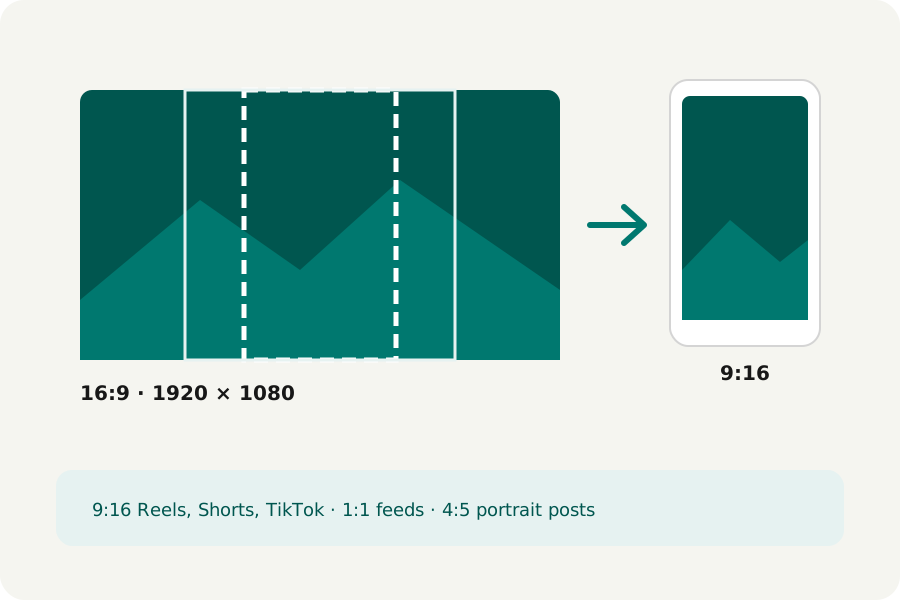
A crop is applied after the turn and the mirror, so turn first and then choose a shape such as 9:16 or square, or drag a box by hand. Cropping always encodes the picture again.
Everything runs in your browser. The video is never uploaded, and there is no account or watermark.
Further reading
Topics: rotate video · flip video · mirror video · rotate video 90 degrees · rotate mp4 · fix sideways video · flip video horizontally · rotate video without losing quality
A little less theory. A little more doing.
Try it on your own terms, with a free browser tool.
Try the tool